Create with AI
v1.9.0+“Create with AI” lets AI (Claude by Anthropic) draft issues, comments, projects and wiki pages from text such as meeting notes, memos and requests, or from screenshots of chats. The AI only makes suggestions; users save as usual. To use it, an administrator must register an Anthropic API key and allow each user.
Administrator Settings
- 1Open Settings in the sidebar and click Edit on the AI Integration card.
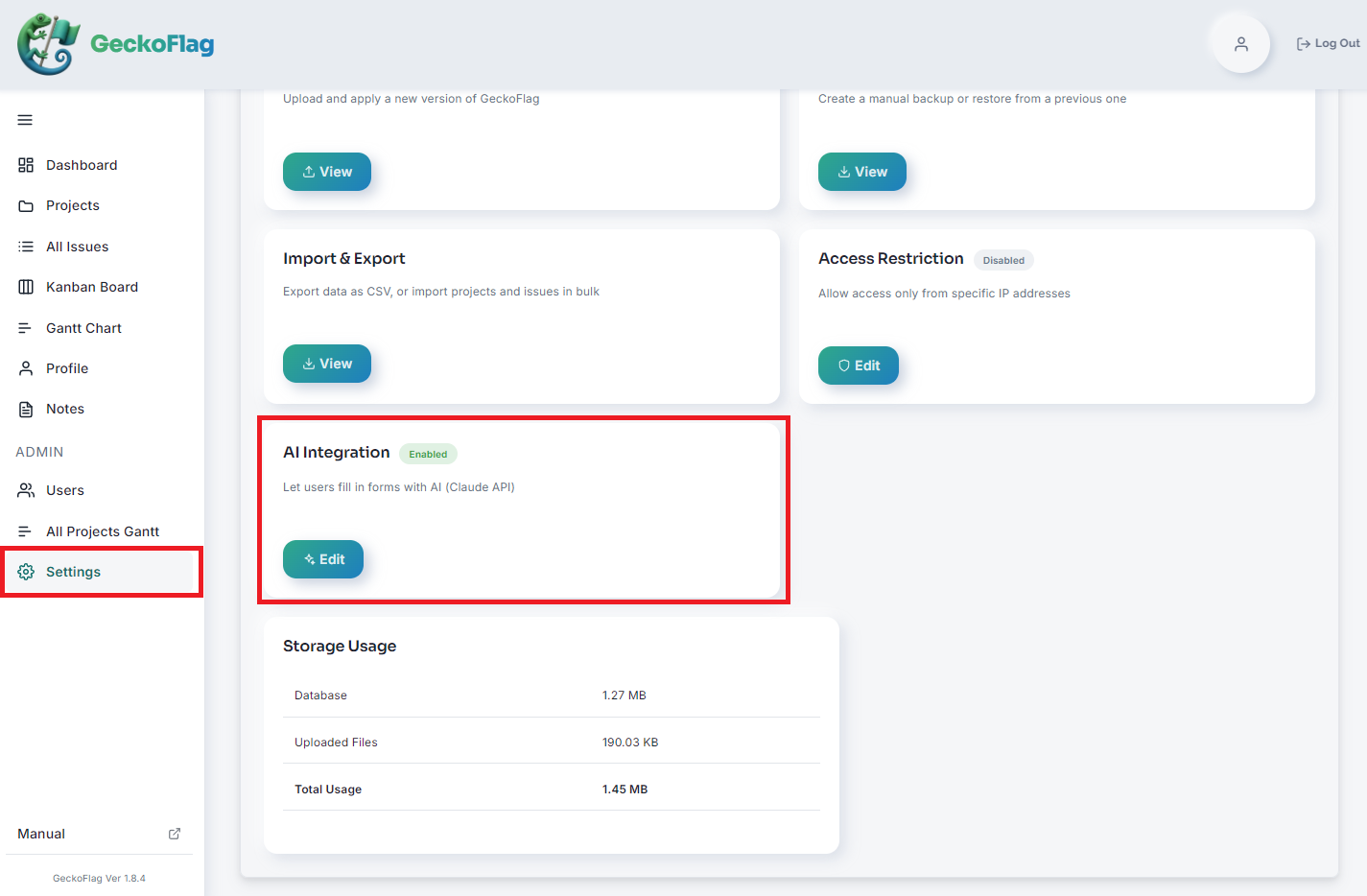
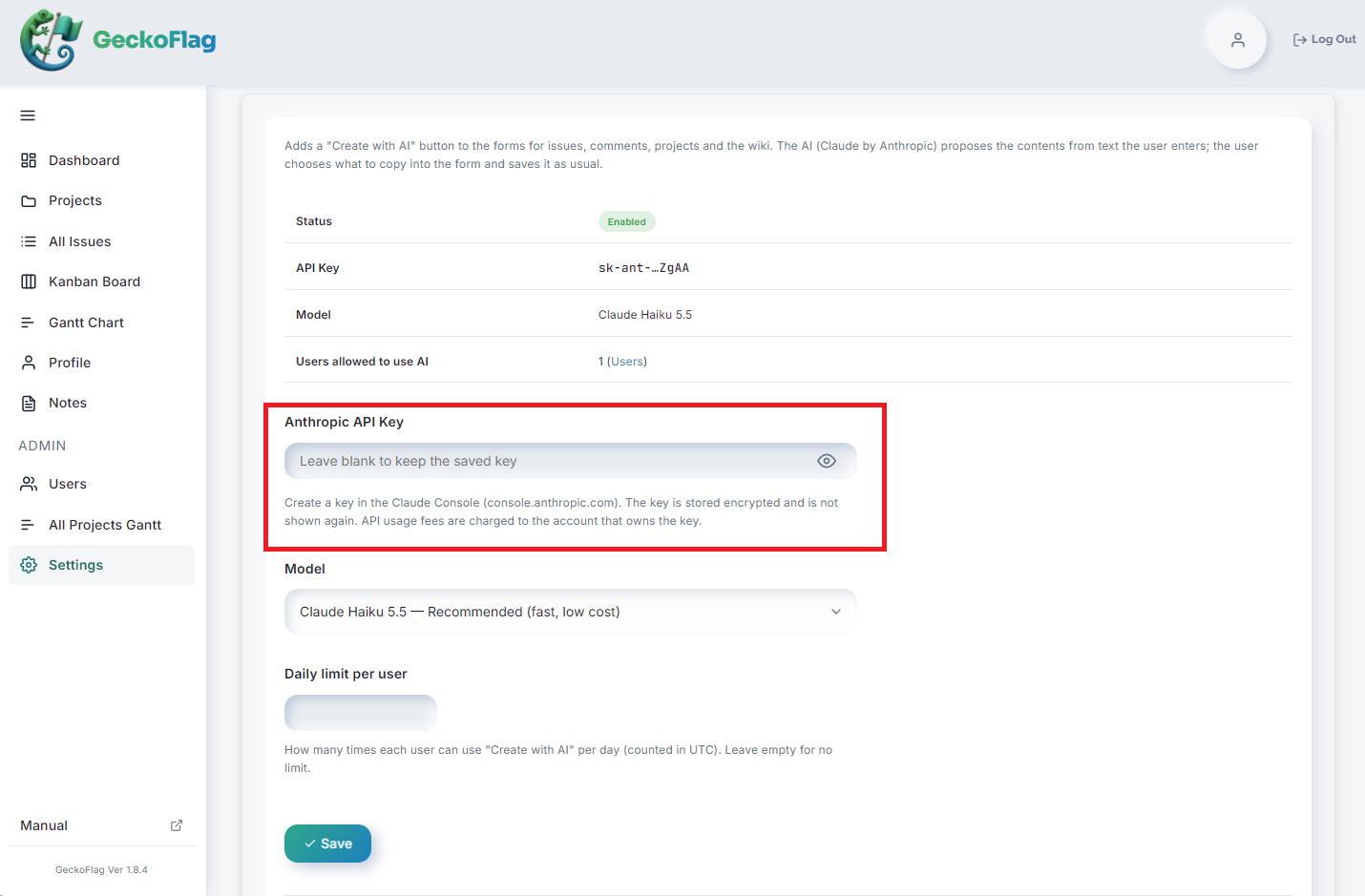
- 2Fill in the following fields and click Save.
- Anthropic API Key: An API key created in the Claude Console. It is stored encrypted and shown masked on screen. To keep the current key, leave the field empty when you save.
- Model: The default is Claude Haiku 5.5 (fast, low cost). You can also choose Claude Sonnet 5.5 or Claude Opus 5.5, or enter a model ID directly.
- Daily limit per user: Leave it empty for no limit. Days reset at 00:00 UTC.
- Allow reading images: When on, images can be attached in “Create with AI”. It is off by default.
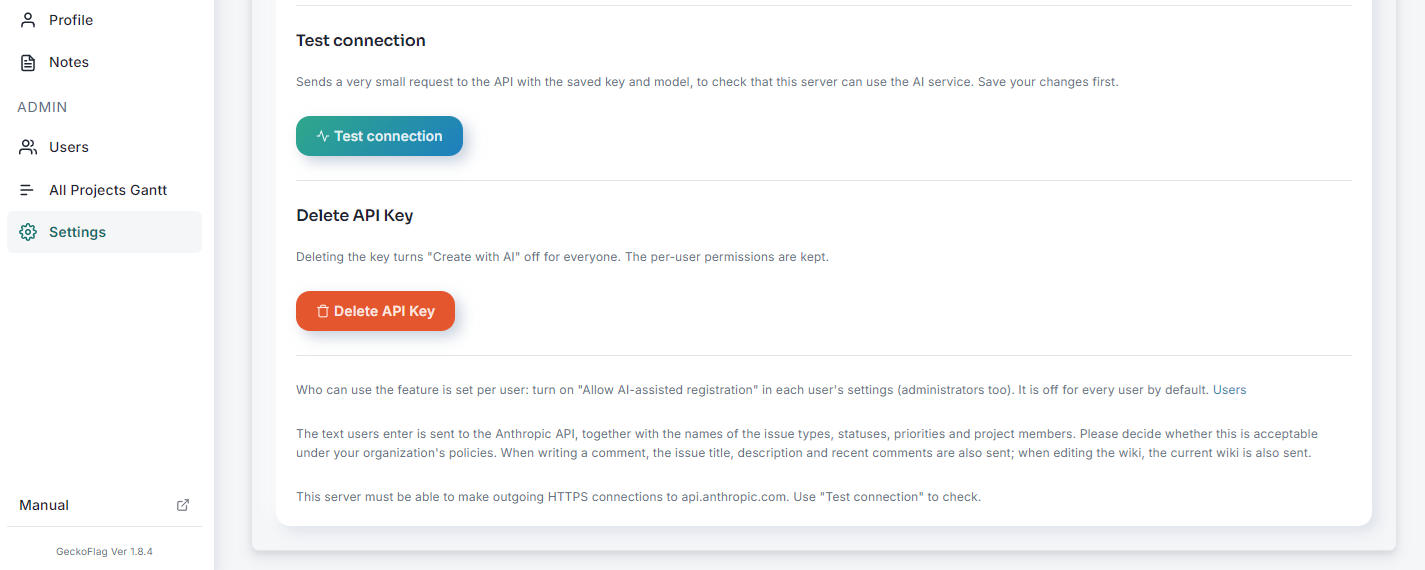
- 3Click Test connection and check that a success message appears. The test uses the saved key and model and costs a tiny amount.
- 4In Users, open Edit for the user, turn on Allow AI-assisted registration and click Update. By default, nobody can use it, including administrators.
For how to create an API key (including buying credits in the Claude Console), see the Create with AI setup guide.
Creating Suggestions
- 1On the issue, comment, project or wiki input screen, click Create with AI.
- 2Type or paste text such as meeting notes, memos or requests (up to 4,000 characters). If reading images is allowed, you can also attach images such as screenshots (images alone are enough).
- 3Click Generate and the AI’s suggestions are listed as Item / Current value / Proposed value.
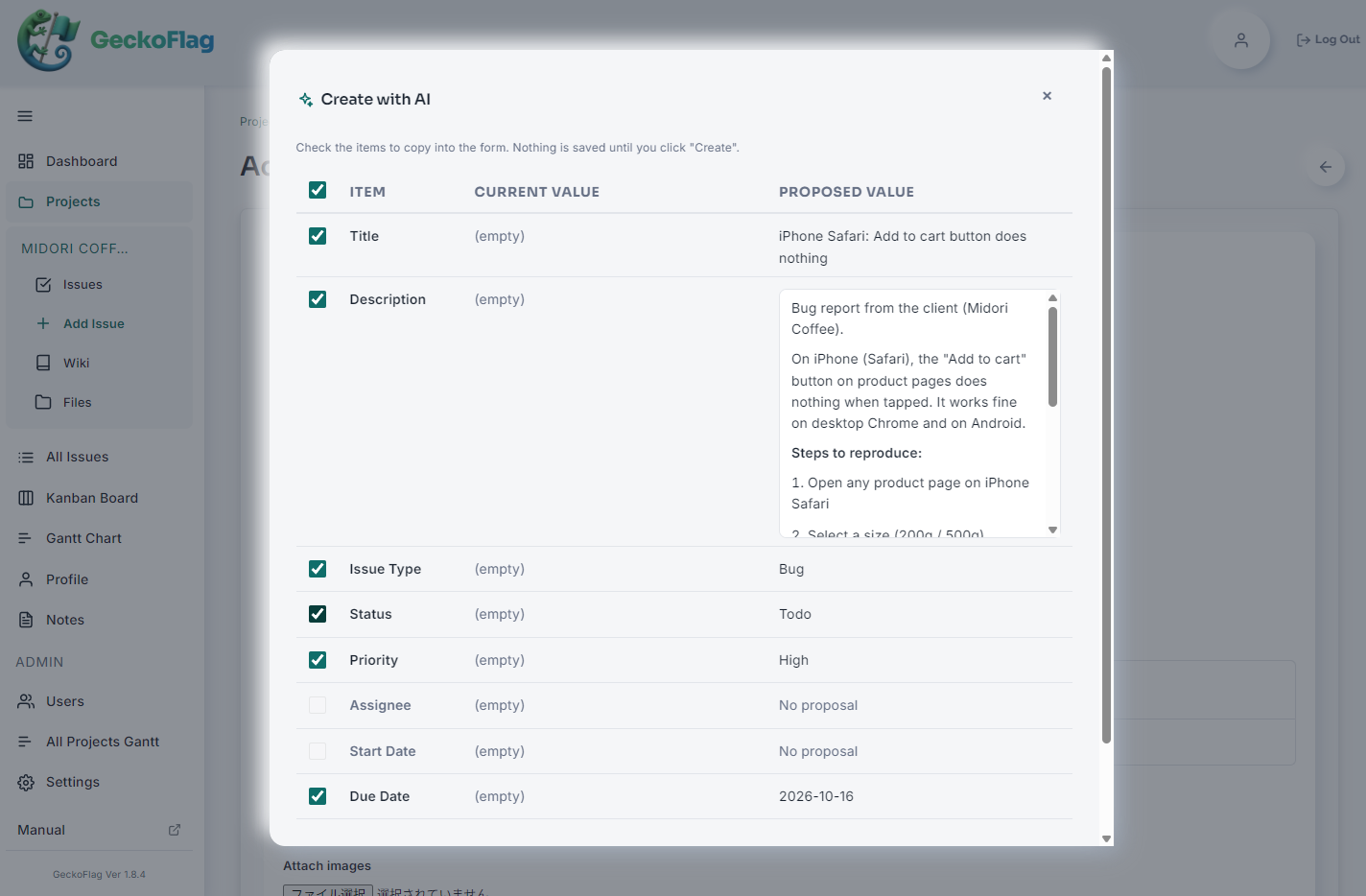
- 4Tick the items you want, click Apply to form, review the contents and save as usual.
What Can Be Created on Each Screen
- Adding and editing issues: Proposes the title, description, issue type, status, priority, assignee, start date and due date.
- Comments: Writes the comment based on the issue and its recent comments. If the text asks for something like “push the due date to next Friday”, it also proposes changes to the assignee, status, due date and so on.
- Adding and editing projects: Proposes the project name, description, start date and target end date. When adding a project, it also proposes a project key that is not in use yet.
- Wiki: Creates a new wiki page from source text, or adds to and reorganizes an existing page following your instructions.
Output Templates
Administrators can register an output template for each of “Issue description”, “Comment text”, “Project description” and “Wiki body”. The AI follows the template’s heading structure and leaves out headings with no information. Use Insert example on the edit screen to insert a starting template.
About Create with AI
- Only ticked items are put into the form. Validation, permissions, notification emails and so on work just as they normally do.
- By default, only empty fields are ticked on add screens, and nothing is ticked on edit screens (to avoid overwriting what you have entered).
- Issue types, statuses and priorities are chosen only from registered options, and assignees only from project members. If no name appears in the text, no assignee is set.
- Expressions such as “next Friday” are converted to dates based on today in the user’s time zone. The AI writes in the user’s display language.
- PNG, JPEG, GIF and WebP images are supported, up to 5 at a time. Tall images are split automatically, up to 10 images in total including the split parts.
- The text you enter, the images you attach and the AI’s responses are not stored in GeckoFlag (except what you apply and save). Usage records are used only for the daily limit, and records older than 30 days are deleted automatically.
Usage Fees & Data Sent
AI usage fees are billed to the Anthropic account that issued the API key and are not included in the price of GeckoFlag. You are charged each time you click Generate (even if you do not apply the result to the form). The text you enter and the information needed for suggestions (names of issue types and statuses, names of project members, and for comments the issue’s contents and recent comments, among others) are sent to Anthropic’s API. Email addresses, passwords and existing attachments are not sent. AI suggestions can be wrong, so always check them before saving. For details, see the Create with AI feature page.