This guide explains how to start using “Create with AI”. You buy credits and create an API key in Anthropic’s Claude Console (the management screen for the Claude API), then register that API key in GeckoFlag.
Before you start
- A GeckoFlag administrator account — Only administrators can configure the AI integration and allow users.
- A payment method — You need a payment method such as a credit card to buy Claude API credits. API usage fees are paid by you and are not included in the price of GeckoFlag.
- Supported version — GeckoFlag 1.9.0 or later
The Claude Console screens shown here are as of October 2026. Their layout and wording may change at Anthropic’s discretion.
Overview
- Sign in to the Claude Console
- Buy credits
- Create and copy an API key
- Register the API key on the GeckoFlag settings screen
- Use the connection test to check that your server can use the API
- Give permission to the users who will use “Create with AI”
STEP 1: Sign in to the Claude Console
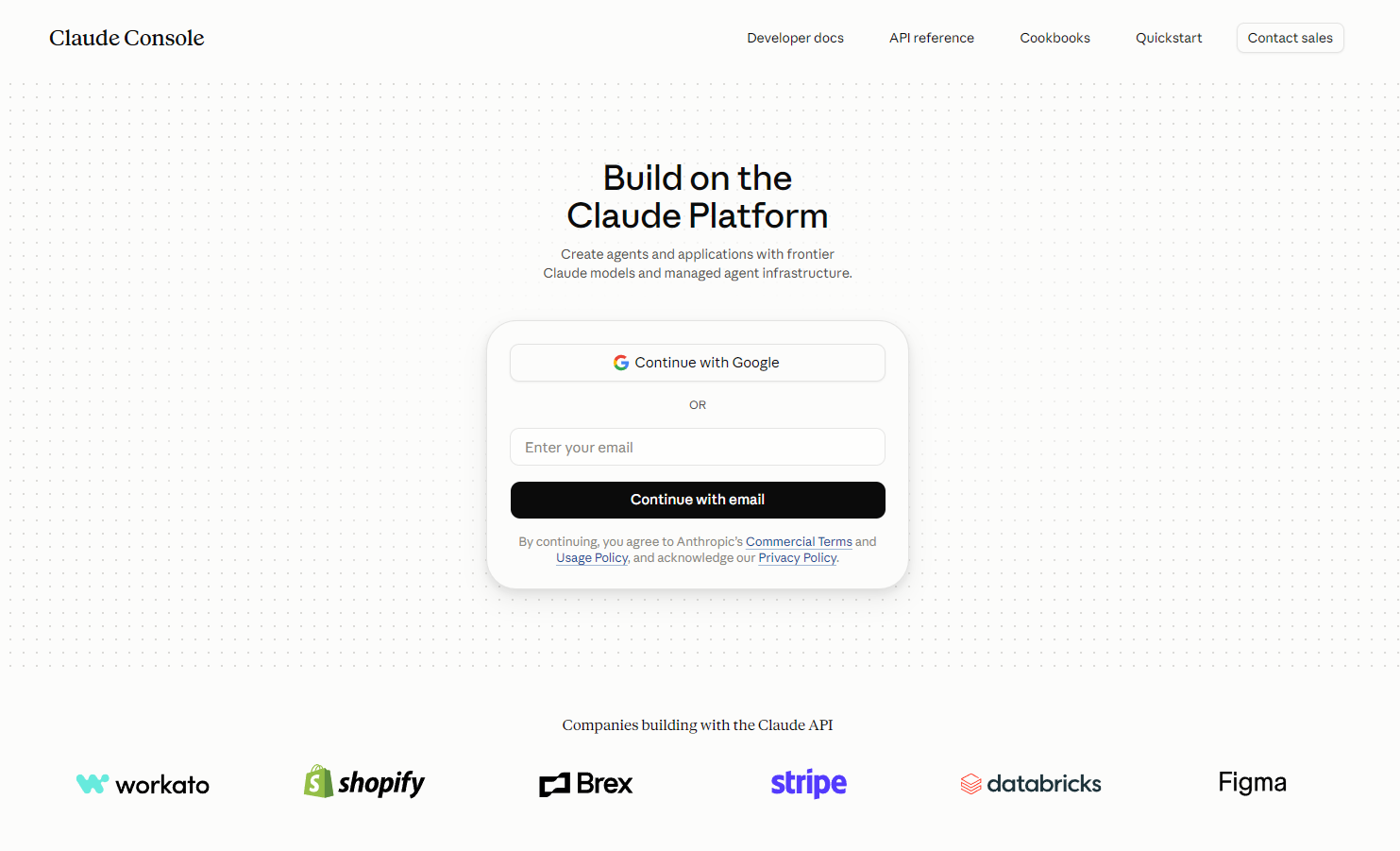
- Go to the Claude Console (console.anthropic.com).
- Use “Continue with Google” with a Google account, or enter your email address and click “Continue with email”. By continuing, you agree to Anthropic’s Commercial Terms and Usage Policy.
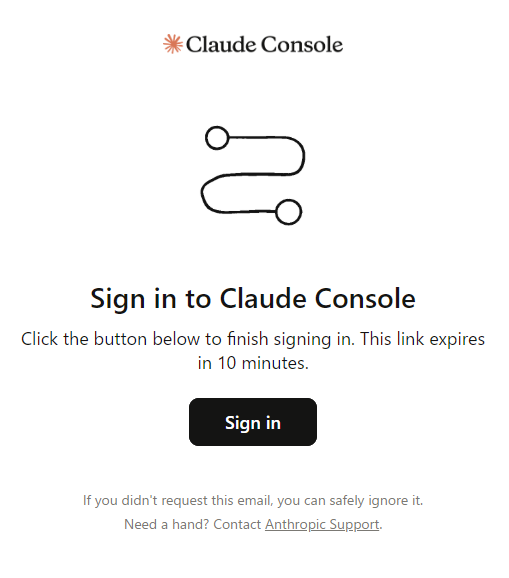
- If you continued with email, click the “Sign in” button in the email you receive (the link expires in 10 minutes).
The first time you sign in, you may be asked to choose between Individual and Organization. Choose Individual for personal use, or Organization to manage keys and billing together as a team.
STEP 2: Buy credits
- The first time you sign in, the “Buy usage credits to get started” screen appears. Choose an amount ($5, $20, $100 or Other).
- Enter a payment method (Card, Apple Pay or Google Pay) and your billing address. Businesses can enter a Business tax ID if needed.
- Check the total including tax under “Purchase summary” on the right and click “Buy credits”.
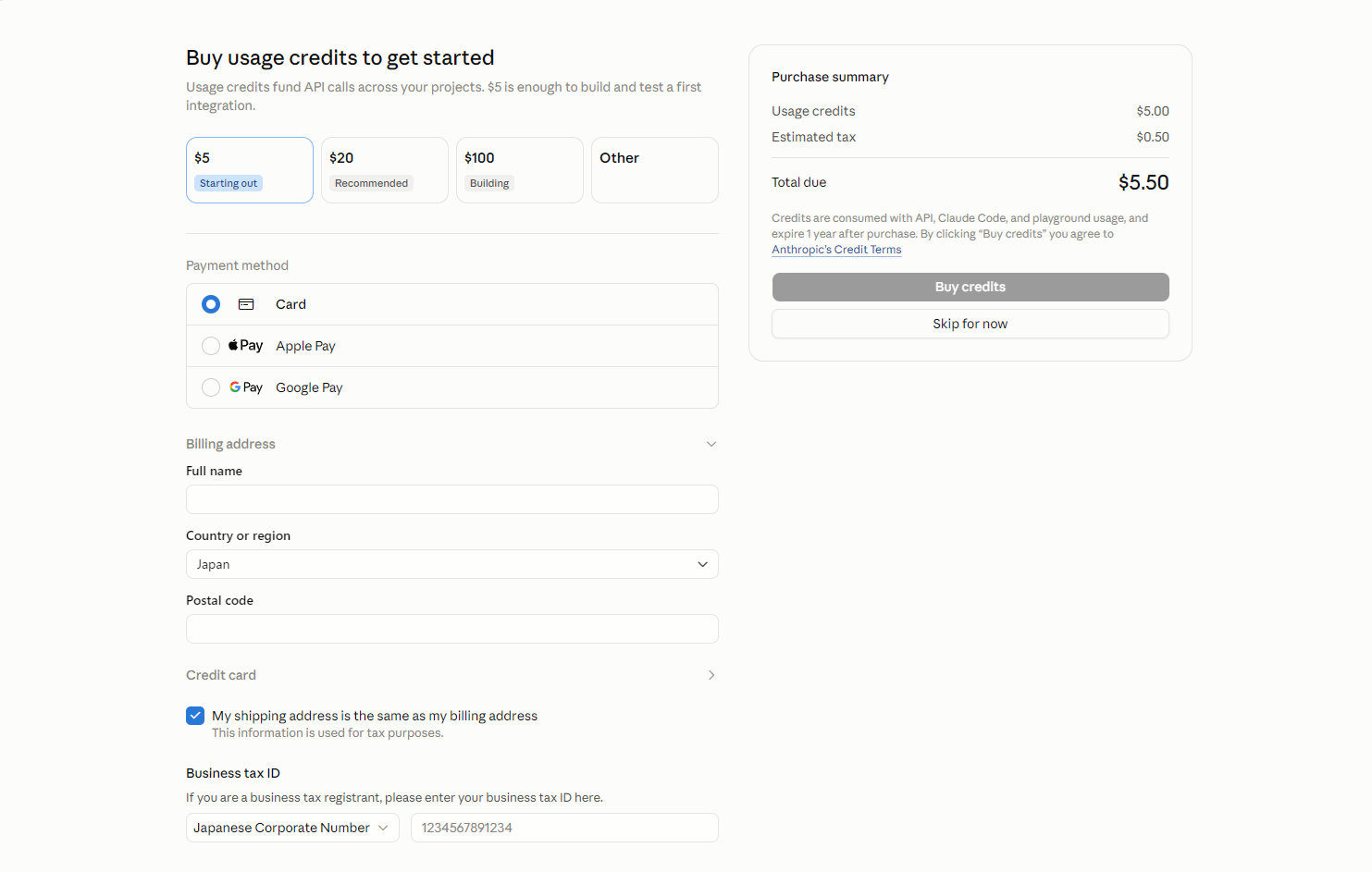
- Credit expiry — According to the purchase screen, credits expire one year after purchase.
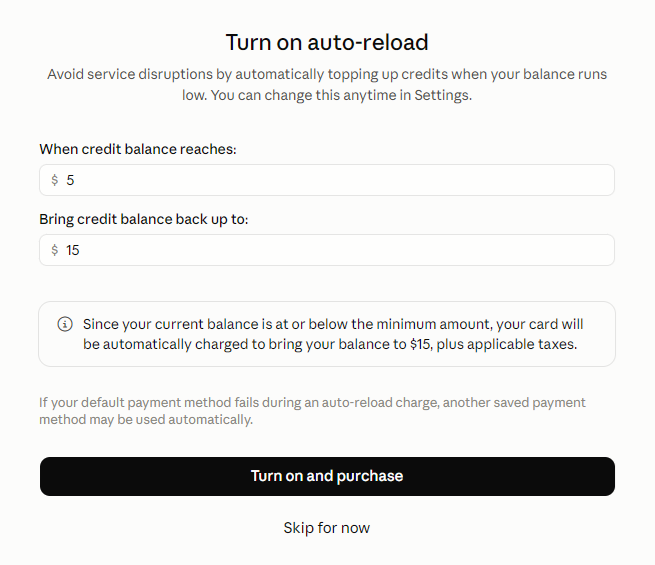
- Auto-reload — After the purchase, a screen for automatically buying more credits when your balance drops below a set amount appears. If you turn it on, your card is charged automatically whenever the balance runs low. To avoid overspending, click “Skip for now” (you can change this later in the settings).
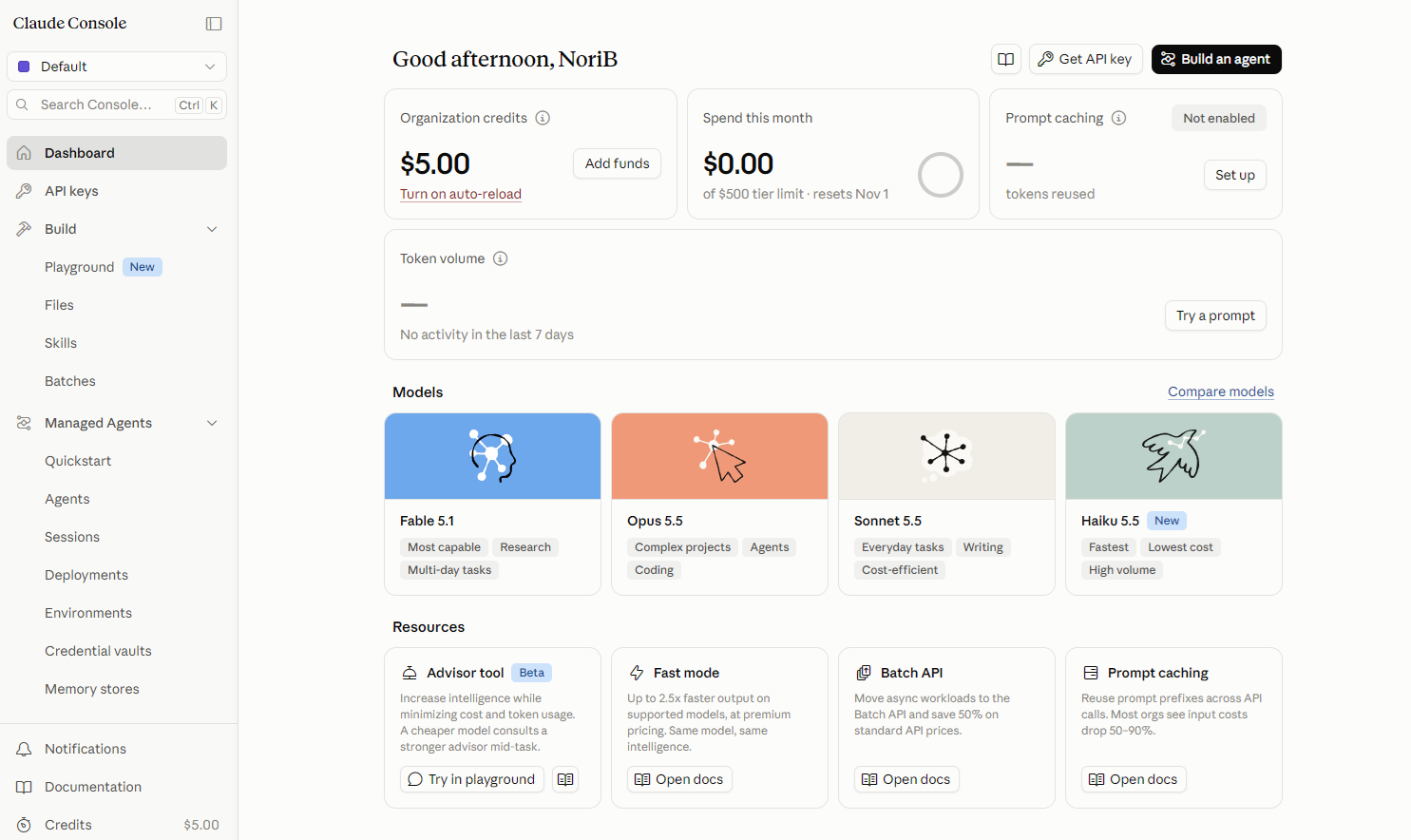
When the purchase is complete, the dashboard appears. Check that the credits you bought are shown under “Organization credits”. You can add more credits later with “Add funds”.
STEP 3: Create an API key
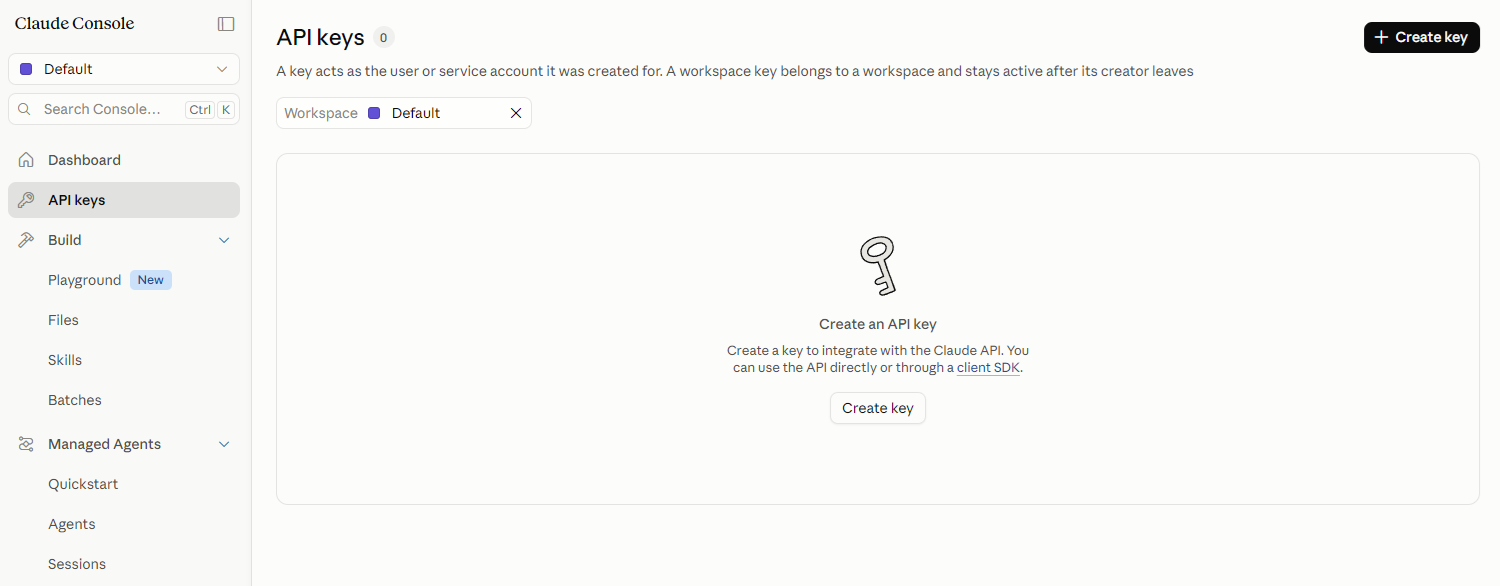
- Open “API keys” in the left menu and click “Create key” (you can also open it from “Get API key” at the top right of the dashboard).
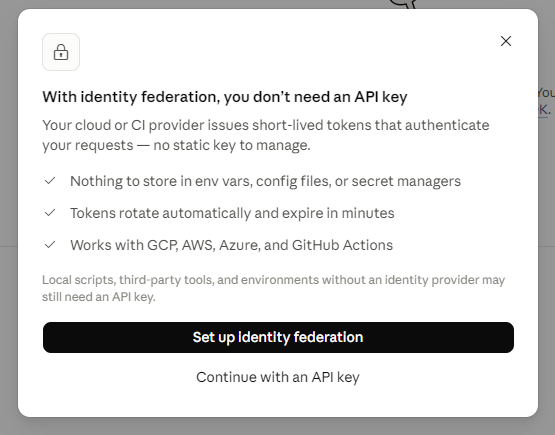
- If a screen titled “With identity federation, you don’t need an API key” appears, click “Continue with an API key”. GeckoFlag uses an API key.
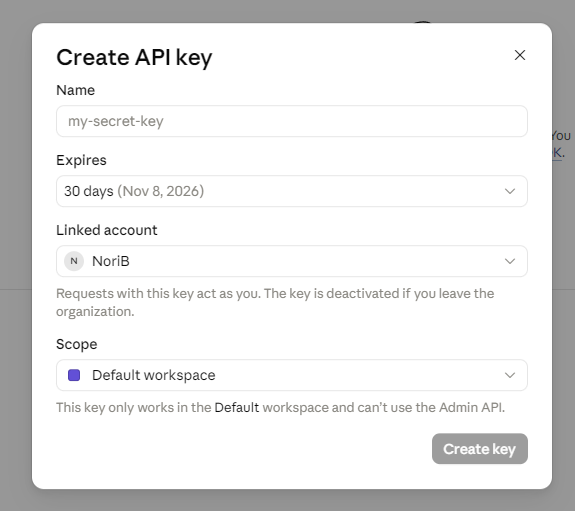
- On the “Create API key” screen, set the following items and click “Create key”.
- Name — Give it a name that shows what it is for (for example, GeckoFlag).
- Expires — The key’s expiry. When the key expires, “Create with AI” stops working. If you set an expiry, note the date and replace the key with a new one before it expires.
- Linked account — The key acts as the account you choose here. If that account leaves the organization, the key is deactivated.
- Scope — The workspace in which the key can be used. Leaving it as “Default workspace” is usually fine.
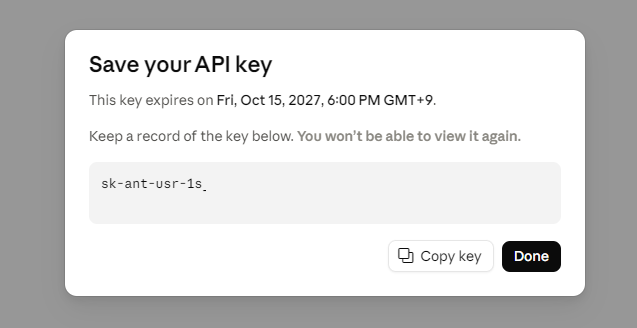
- Copy the key shown on the “Save your API key” screen (a string starting with sk-ant-) with “Copy key”.
The key is shown only once, on this screen. If you lose it, create a new key. Treat the key like a password: do not share it, and do not paste it into emails or chats.
STEP 4: Register the API key in GeckoFlag
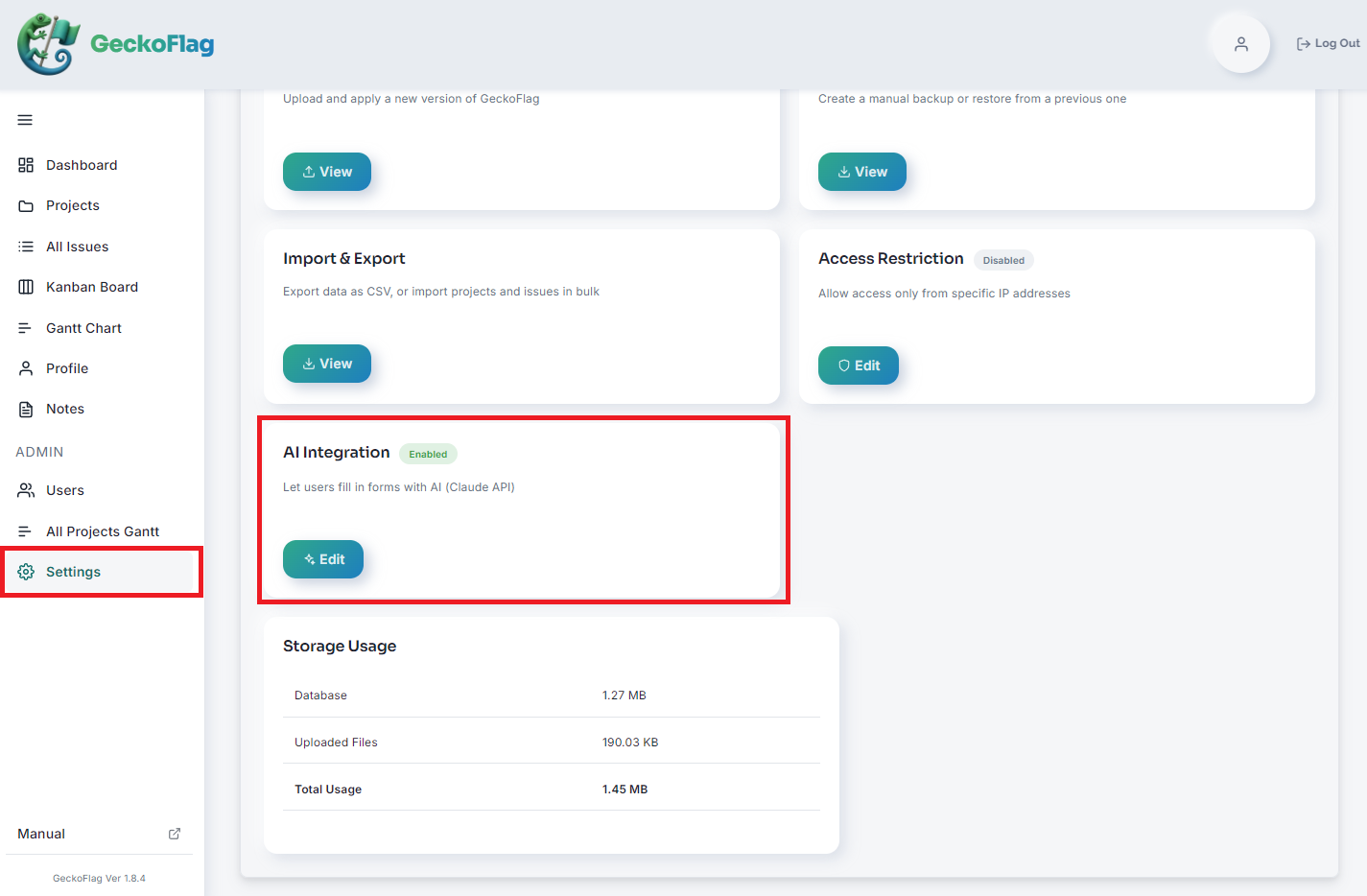
- Sign in to GeckoFlag as an administrator and open “Settings” in the left menu.
- Click “Edit” on the “AI Integration” card.
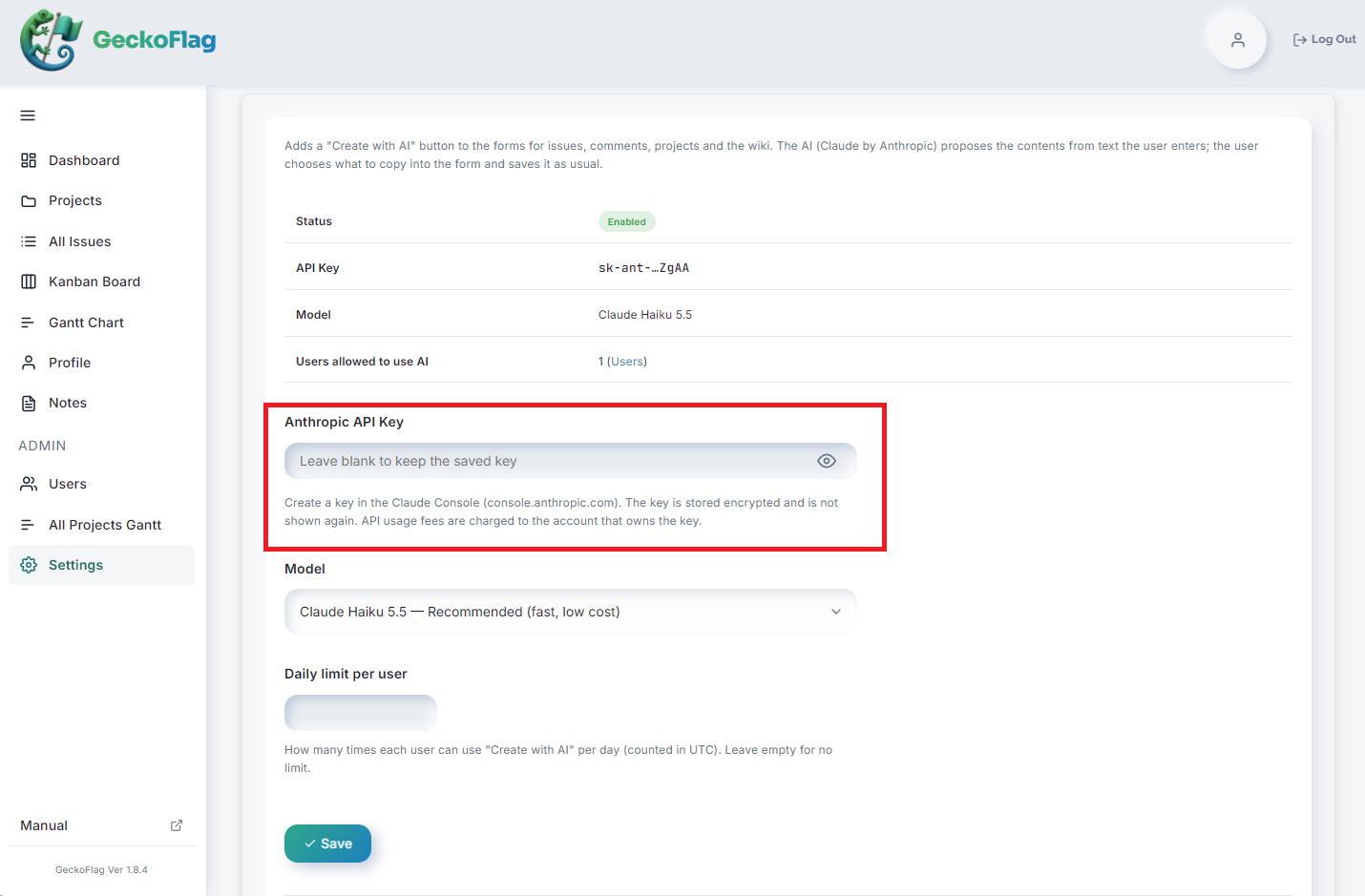
- Paste the key you copied into the “Anthropic API Key” field.
- Set the “Model” and the “Daily limit per user” if needed, and click “Save”.
- Model — The default “Claude Haiku 5.5” (fast, low cost) is recommended in most cases. Higher-end models are more accurate but cost more and respond more slowly.
- Daily limit — How many times each user can use “Create with AI” per day. Leave it empty for no limit. Days are counted in UTC.
- Allow reading images — When checked, screenshots and other images can be attached in “Create with AI”. Requests that include images cost more than text alone. It is off by default.
- After saving — The key is stored encrypted and shown masked as “sk-ant-…” followed by its last four characters. To keep the current key, leave the field empty when you save.
STEP 5: Test the connection
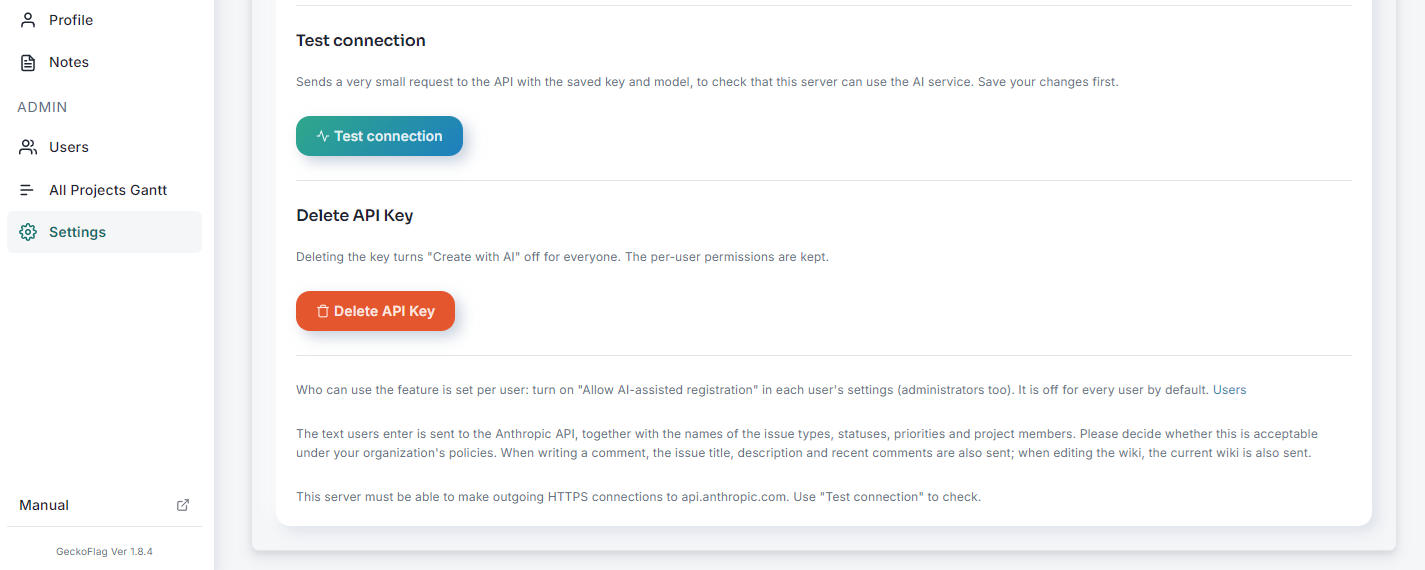
- Click “Test connection” at the bottom of the AI Integration settings screen.
- If a success message with the model name appears, the setup is complete.
- The test uses the saved key and model. If you changed anything, save first.
- The test sends one very small request, so it costs a tiny amount.
- Clicking “Delete API Key” turns “Create with AI” off for everyone. The per-user permissions are kept.
STEP 6: Allow users
By default, nobody — including administrators — can use “Create with AI”. Give permission to each person who will use it.
- Open “Users” in the left menu and click “Edit” for the user.
- Tick “Allow AI-assisted registration” and save.
- The setup is complete when the user list shows the permission in the “AI” column.
Users with permission see the “Create with AI” button on the issue, comment, project and wiki screens. Removing the permission takes effect immediately.
Troubleshooting
- “The API key is invalid” — The key may not have been copied fully, or it may have been deleted or have expired. Check the key in the Claude Console, create a new one if needed and register it again.
- “The API credit balance is insufficient or a spending limit has been reached” — Check your credit balance and usage limits in the Claude Console and add credits if needed.
- “Could not connect to the AI service” — Your server may not be allowed to make HTTPS connections to api.anthropic.com. Ask your hosting provider whether outbound HTTPS connections are possible.
- “The PHP cURL extension is not available on this server” — Enable the PHP cURL extension in your server’s control panel or similar.
- “The saved API key could not be read” — The encryption key may have changed after moving servers or restoring to another environment. Enter the API key again.
- The “Create with AI” button does not appear — Check the following:
- The AI integration is “Enabled”
- The user has “Allow AI-assisted registration” (administrators need it too)
- The user has permission to use that screen (adding a project is available to everyone except guests; editing a project only to its owner and administrators)
- For wiki pages, the page is in edit mode (when creating a page or after clicking “Edit”)
- If the permission was just granted, the page has been reloaded
- No image field appears in “Create with AI” — Check that “Allow reading images” is checked on the AI integration settings screen. If you have just changed the setting, reload the page.
- “This image could not be read” — Use PNG, JPEG, GIF or WebP images. Photos taken on an iPhone (HEIC format) may not load in browsers other than Safari. Screenshots are PNG, so they are fine.
- “Too many images to send” — Long screenshots are split and counted as several images (up to 10 in total). Reduce the number of images or retake only the part you need.
- “The images are too large to send” — Attach fewer images. If the message keeps appearing, your server’s upload limits (PHP upload_max_filesize and post_max_size) may be too small.