“Create with AI” in GeckoFlag proposes the contents of issues and projects from text such as meeting notes, bug reports and memos, or from screenshots of chats and the like, using AI (Claude by Anthropic). It saves you from filling in forms from scratch, while people still make the final decision and save as usual.
What you need
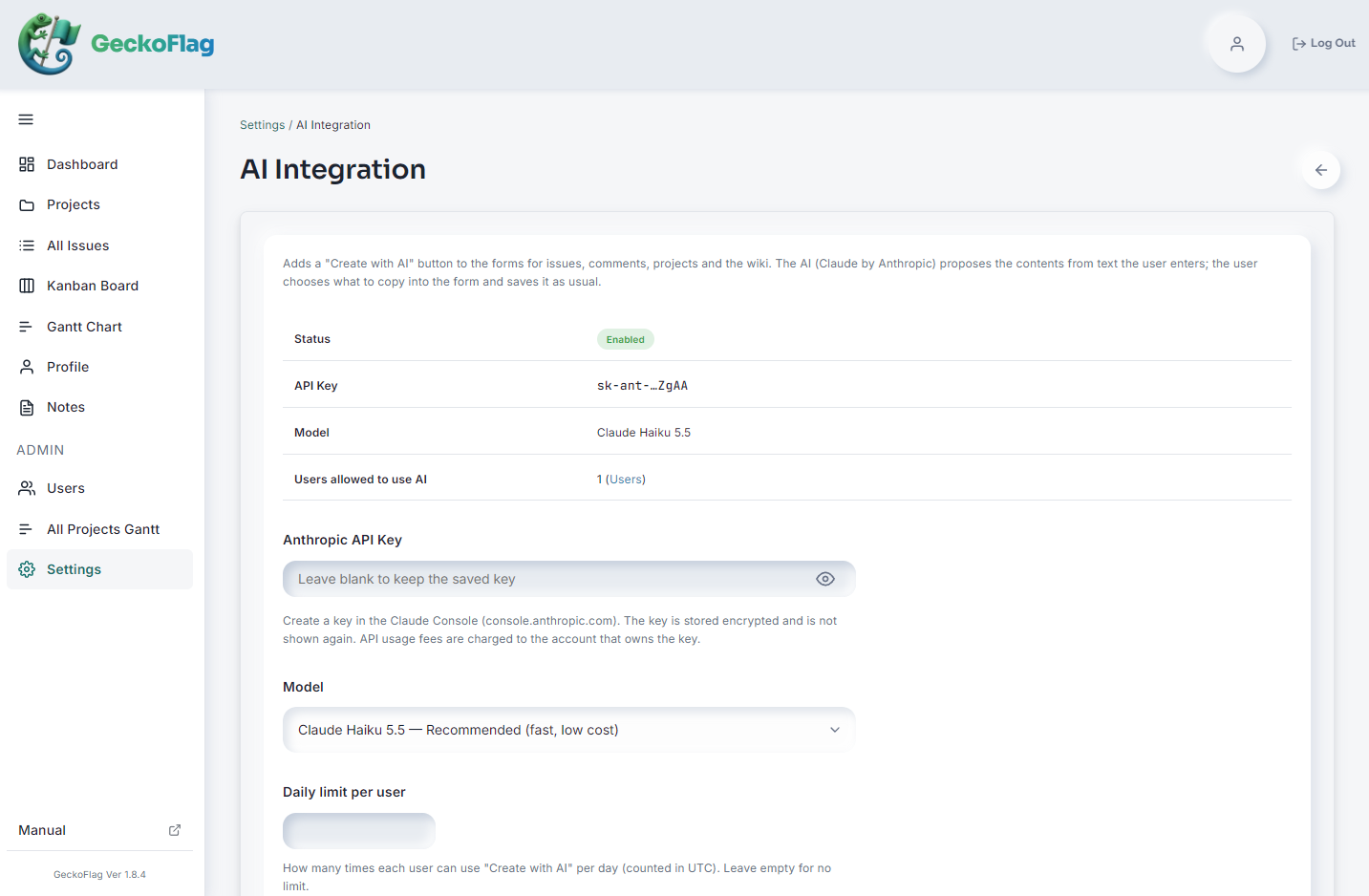
- An Anthropic API key — Register an API key that you issue yourself in the Claude Console (console.anthropic.com).
- API usage fees (paid by you) — AI usage is billed to the Anthropic account that issued the API key and is not included in the price of GeckoFlag. You are charged each time you click “Generate” and the AI responds (even if you do not apply the result to the form). Fees vary by model, text length and the number of attached images, so check Anthropic’s pricing page for the latest rates.
- Outbound connections from your server — The server running GeckoFlag must be able to connect to api.anthropic.com over HTTPS, and the PHP cURL extension must be enabled. Some shared hosting plans restrict outbound connections, so check with the connection test.
- Supported version — Available in GeckoFlag 1.9.0 or later.
Administrator controls
- Per-user permission — Nobody can use it by default. Administrators turn on “Allow AI-assisted registration” for each user (administrators need it too). Removing the permission takes effect immediately.
- Daily limit — Set a maximum number of uses per user per day to prevent overuse.
- Permission to read images — Administrators can turn on or off, on the settings screen, whether images can be attached to “Create with AI”. It is off by default; when it is on, images can be attached on every screen: issues, comments, projects and wiki.
- Model selection — Choose the fast, low-cost Claude Haiku 5.5 (default), Claude Sonnet 5.5 or Claude Opus 5.5. When a new model is released, you can also enter its model ID directly.
- Connection test — Check from the settings screen that the API key and your server’s connection work correctly.
- Encrypted API key storage — The API key is stored encrypted in the database and is only ever shown masked on screen.
What AI can create
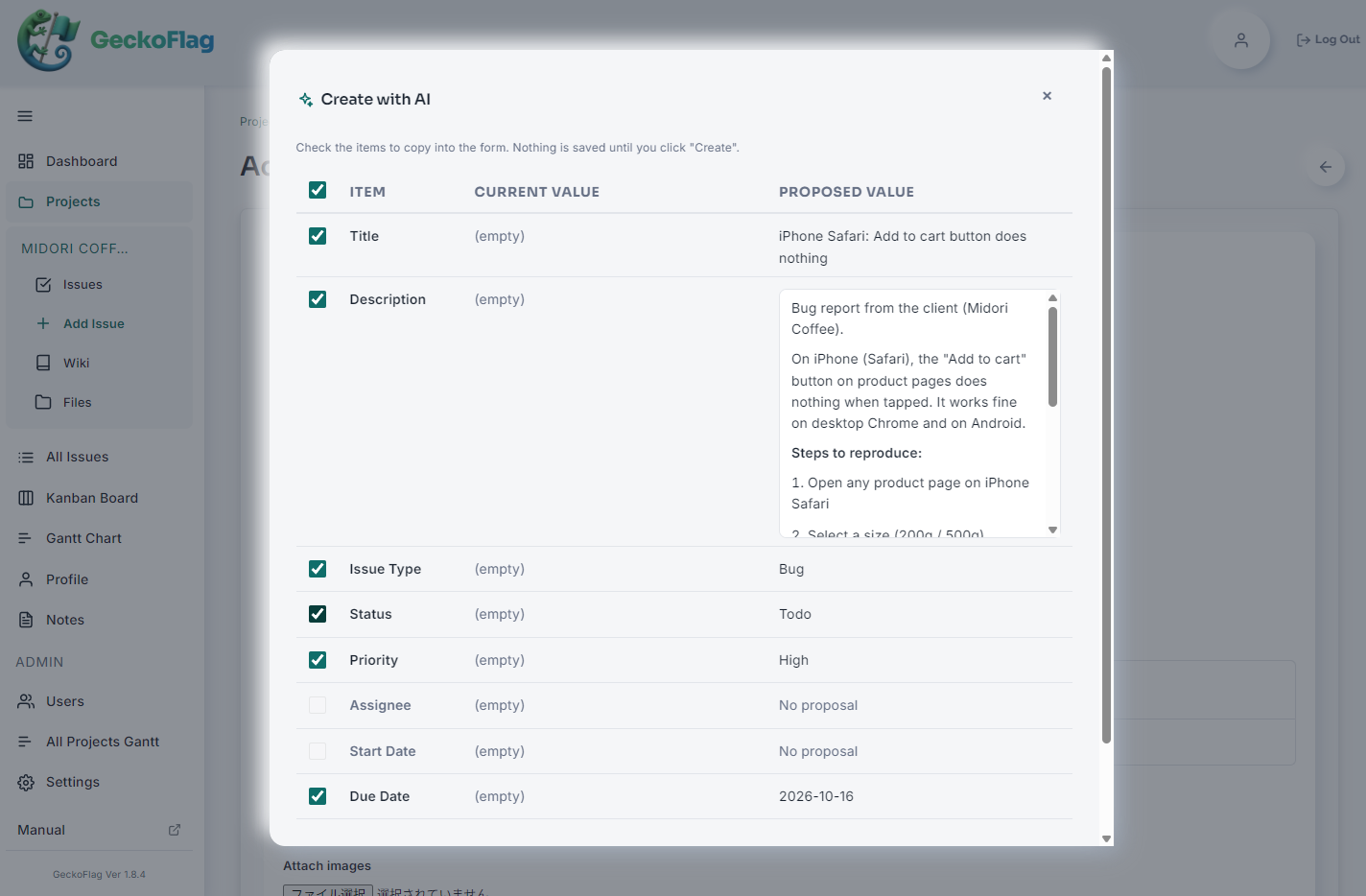
- Adding and editing issues — Proposes the title, description, issue type, status, priority, assignee, start date and due date.
- Posting comments — Writes the comment based on the issue and its recent comments. If your text asks for changes such as “push the due date to next Friday” or “hand this over to Alex”, it also proposes the matching changes to the assignee, status, due date and so on.
- Adding and editing projects — Proposes the project name, description, start date and target end date. When adding a project, it also proposes a project key that is not in use yet.
- Wiki — Creates a new wiki page from source text, or adds to and reorganizes an existing page with instructions such as “add a section on the release schedule” or “tidy up the headings”.
How to use it
- Click the “Create with AI” button on the screen and type or paste meeting notes, memos or a request (up to 4,000 characters). If reading images is turned on, you can also attach screenshots and other images (when you attach an image, the text is optional).
- Click “Generate” and the AI’s suggestions are listed as Item / Current value / Proposed value. Descriptions and body text can be checked in a formatted preview.
- Tick the items you want, click “Apply to form”, review the contents and save as usual.
Create from screenshots
You can attach chat or email conversations to “Create with AI” as screenshots. The AI reads the text in the images and drafts issues or comments.
- No text required — You can create from images alone. You can also add a note such as “just pick up the due date” or “assign it to Alex”.
- Easy to add — Besides the “Choose images” button, you can drag and drop or paste (Ctrl+V / Cmd+V) images. PNG, JPEG, GIF and WebP are supported, and you can attach up to 5 images at a time.
- Reads long screenshots too — Tall images are automatically split before sending, so the text is read without being squashed. Up to 10 images in total can be sent at a time, including the split parts.
- Dates are read relative to the chat — If the date of a message appears in the image, expressions such as “by tomorrow” or “by Friday” are converted to dates based on that day.
- Contact details are not copied — The AI is instructed not to copy email addresses, phone numbers, postal addresses and the like that appear in images into issue descriptions or other fields.
- Status changes in comments too — If the chat clearly asks for something like “please push the due date to next week”, the AI also proposes the matching changes, such as the due date.
Review suggestions before applying them
- AI only proposes; it never saves — Only the items you tick go into the form, and you save or post with the usual buttons such as “Create” and “Save”. Validation, permissions, notification emails and so on work just as they normally do.
- Defaults that avoid overwriting your input — For issues and projects, only empty fields are ticked on add screens, and nothing is ticked on edit screens. For comments, only the comment body is ticked (when the comment field is empty), and changes such as the assignee or status are applied only if you tick them yourself. For wiki pages, only empty fields are ticked.
- Suggestions from registered options — Issue types, statuses and priorities are chosen from the options that administrators have registered on the settings screen. Assignees are chosen only from that project’s members, and if no name appears in the text, no assignee is guessed.
- Understands expressions like “next Friday” — Expressions such as “next Friday” or “by the end of the month” are converted to dates based on “today” in each user’s time zone.
- Writes in your display language — The AI writes in the user’s display language, or in another language if the entered text asks for one.
Keep formatting consistent with output templates
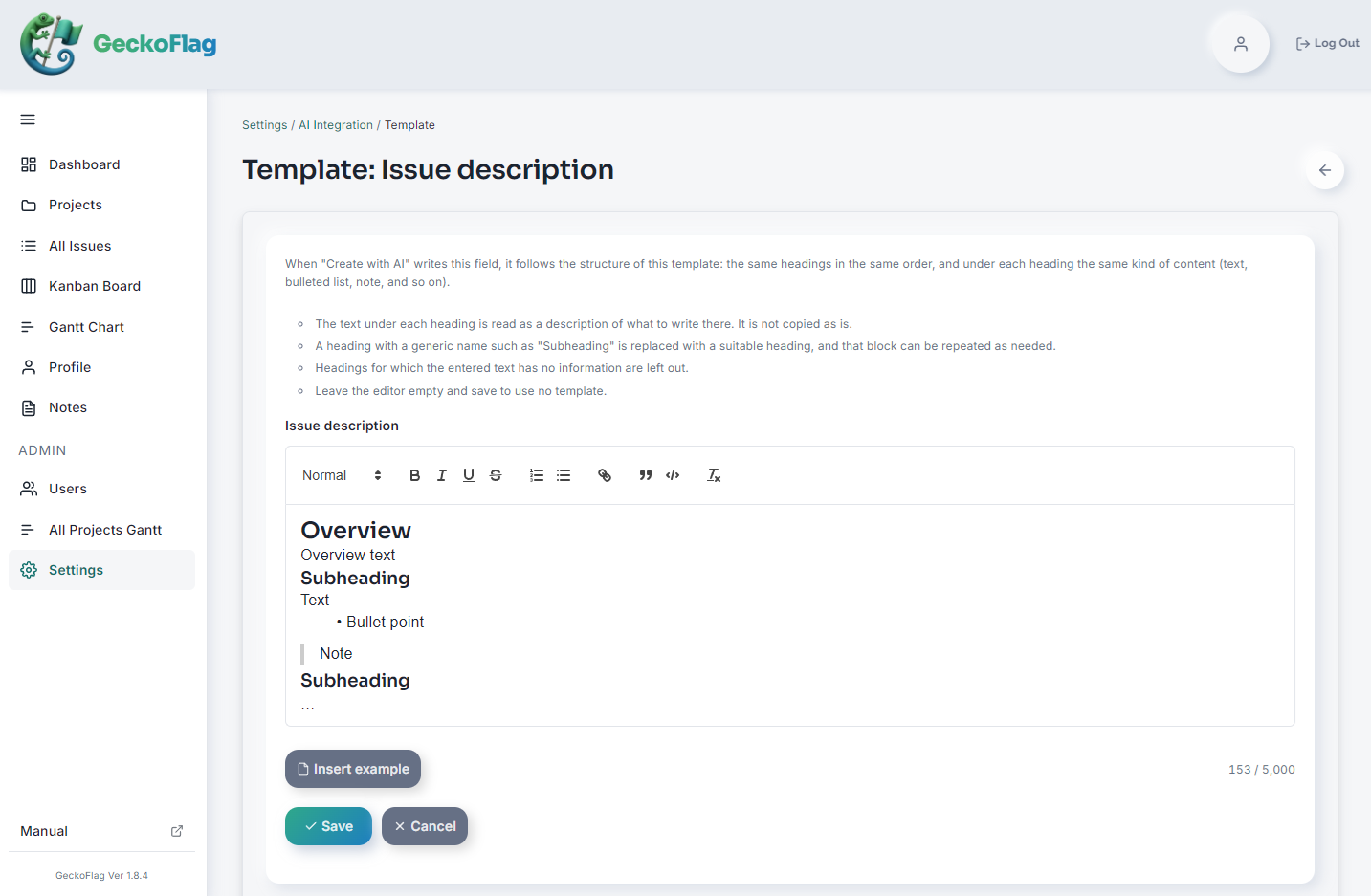
Administrators can register an AI output template for each of four fields: “Issue description”, “Comment text”, “Project description” and “Wiki body”. This is useful when your team wants descriptions and wiki pages to follow the same format.
- Uses your heading structure — The template’s headings are used at the same level and in the same order. Placeholder headings such as “Subheading” are replaced with headings that fit the content and repeated as many times as needed.
- Leaves out headings without information — Headings for which the entered text has no information are left out entirely rather than filled with blanks or “none”.
- Start quickly from an example — “Insert example” on the edit screen inserts a starting template that uses headings, bullet points and a quote.
Data sent and how it is handled
- What is sent — Along with the text you enter, the following information needed for the suggestions is sent to Anthropic’s API.
- All screens: today’s date and time zone, the output language, the output template set by administrators (if any), and images attached to “Create with AI” (if any)
- Adding and editing issues: the names of issue types, statuses and priorities, and the names of project members (assignee candidates)
- Comments: the issue’s title, current assignee, status and so on, its description (up to 3,000 characters), the 5 most recent comments (author, date and text), the names of statuses and priorities, and the names of project members
- Wiki: the project name, and the wiki title and body in the form
- What is not sent — Email addresses, passwords, images and files already attached to issues or comments, and the contents of other issues and projects are not sent. On issue and project edit screens, the contents already saved are not sent either. (Only the images you attach on the “Create with AI” screen are sent.)
- Nothing is stored in GeckoFlag — The text you enter, the images you attach and the AI’s responses are not stored in GeckoFlag (except what you apply to the form and save). Attached images are resized and converted in your browser before sending, which also removes information such as the location data of photos. Usage records are used only for the daily limit, and records older than 30 days are deleted automatically.
- How Anthropic handles data — What you send is handled under Anthropic’s Commercial Terms of Service and Privacy Policy. Before introducing the feature, check that your internal rules and client contracts do not restrict sending information to external services.
Estimated cost (with Claude Haiku 5.5)
If you enter 1,000 characters of meeting notes and the AI writes an issue description of about 1,500 characters, one use costs roughly $0.001–0.002. Even 1,000 uses come to only about $1–2.
- An estimate based on Anthropic’s pricing as of October 2026 ($0.10 per million input tokens and $0.50 per million output tokens). Taxes are not included.
- Fees are calculated not by characters but in units called “tokens”, and the number of tokens per character varies by language. The instructions and option data that GeckoFlag sends to the AI are also included in the fee, so the actual amount varies with your text.
- Posting comments (which also sends the issue description and recent comments) and adding to or reorganizing a long wiki page involve more text, so they cost more.
- Choosing a higher-tier model costs more (about 20 times as much for Claude Sonnet 5.5 and about 40 times as much for Claude Opus 5.5).
- Attaching images adds to the cost. One smartphone screenshot (1170 × 2532 pixels) is about 3,800 tokens, or about $0.0004 with Claude Haiku 5.5. A long screenshot costs as much as the number of parts it is split into.
For the latest rates, see Anthropic’s pricing page.
Notes on use
- AI suggestions can be wrong. Always check the contents, dates, assignees and so on before saving.
- Do not enter personal information, confidential information or passwords.
- Applying the body on a wiki page replaces the entire body. Check the preview before applying it.
- AI models, fees and the Claude Console screens may change at Anthropic’s discretion.
- Screenshots may show other people’s names, profile pictures, contact details and so on. Before attaching one, check against your client contracts and internal rules that its contents can be sent.
- Images with very small text, blurry photos and photos taken at an angle may be read incorrectly. The AI is instructed to leave out unreadable parts rather than guess, but always check the suggestions.
Benefits of Create with AI
Just paste the minutes of a meeting or a request email from a client, or attach a screenshot of a chat, and you get a draft that already includes the issue title, description, due date and assignee (if a name appears in the text). You spend less time on data entry while people still make the final check, so you get both speed and accuracy. Registered issues are also available right away on the Kanban board and the Gantt chart.
See the setup guide (Claude API settings)
Back to Features