Access Restriction (IP Address)
v1.6.0+ Admin OnlyOverview
This feature lets only registered IP addresses access your site. The restriction applies to the entire site, including images and uploaded files. Anyone visiting from an IP address that is not allowed sees a "403 Forbidden" error.
Only administrators can configure it.
Supported environments
- An Apache-compatible web server is required (
.htaccessmust be enabled). - It is not available on nginx.
- It is not supported behind a CDN or reverse proxy (such as Cloudflare), because the server cannot see the visitor's real IP address.
- A static IP address is recommended. On a connection whose IP address changes, you will lose access as soon as it changes.
Setup steps
- 1Open Settings and click Edit on the Access Restriction card.
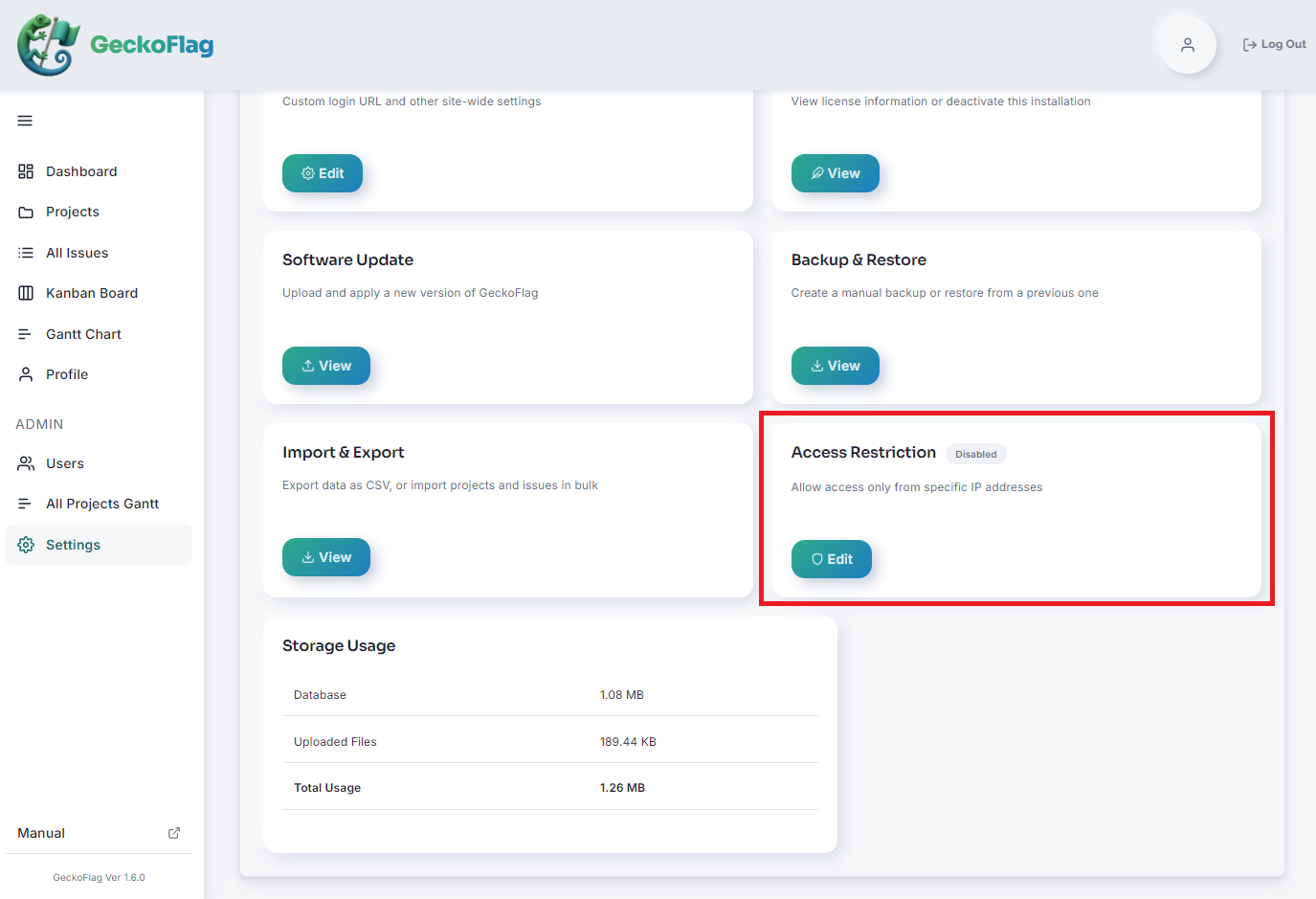
- 2In Allowed IP Addresses, enter the IP addresses you want to allow, one per line.
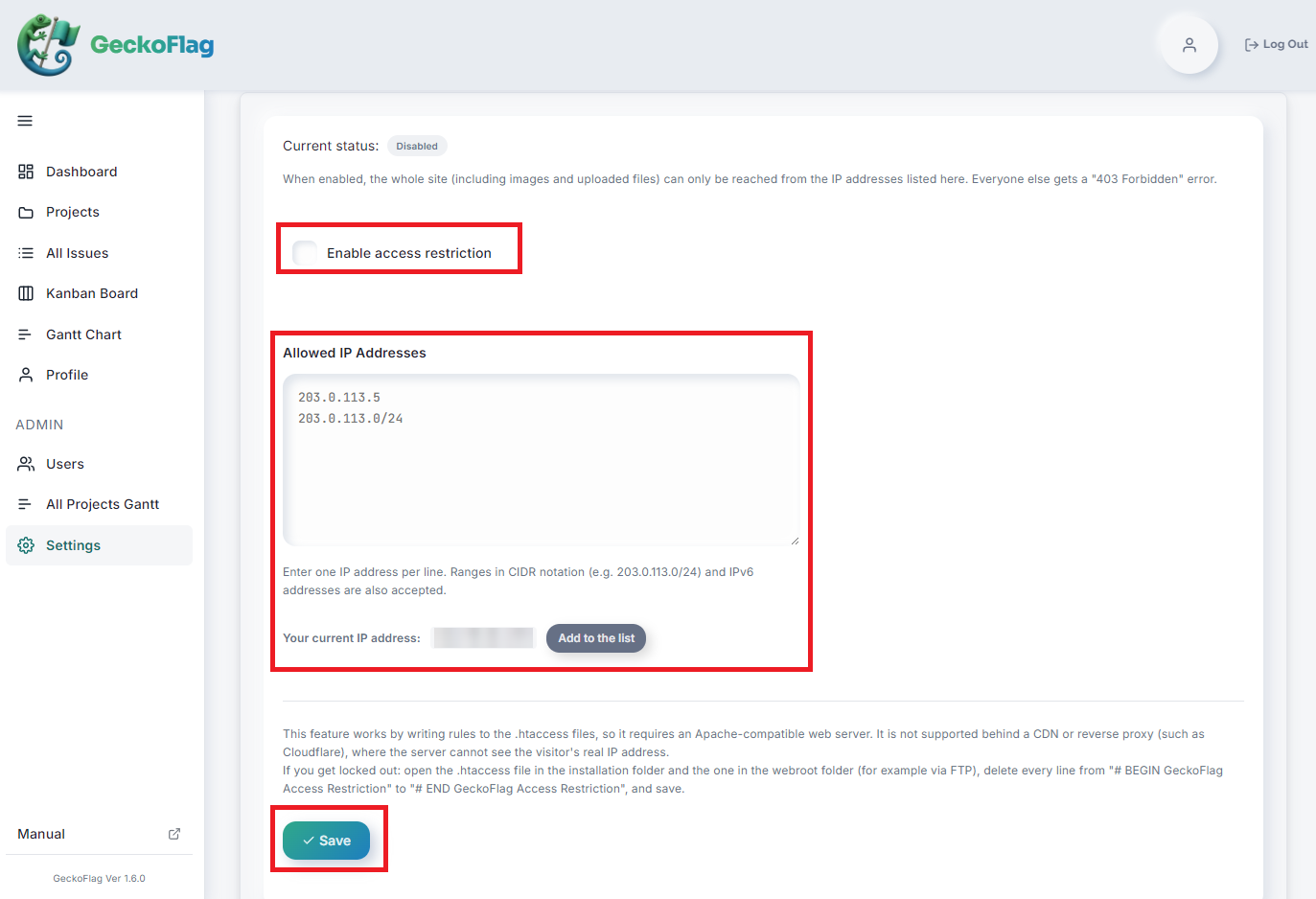
- 3Click Add to the list next to Your current IP address to add your own IP address to the list.
- 4Check Enable access restriction and click Save.
- 5When Current status shows Enabled, you are done.
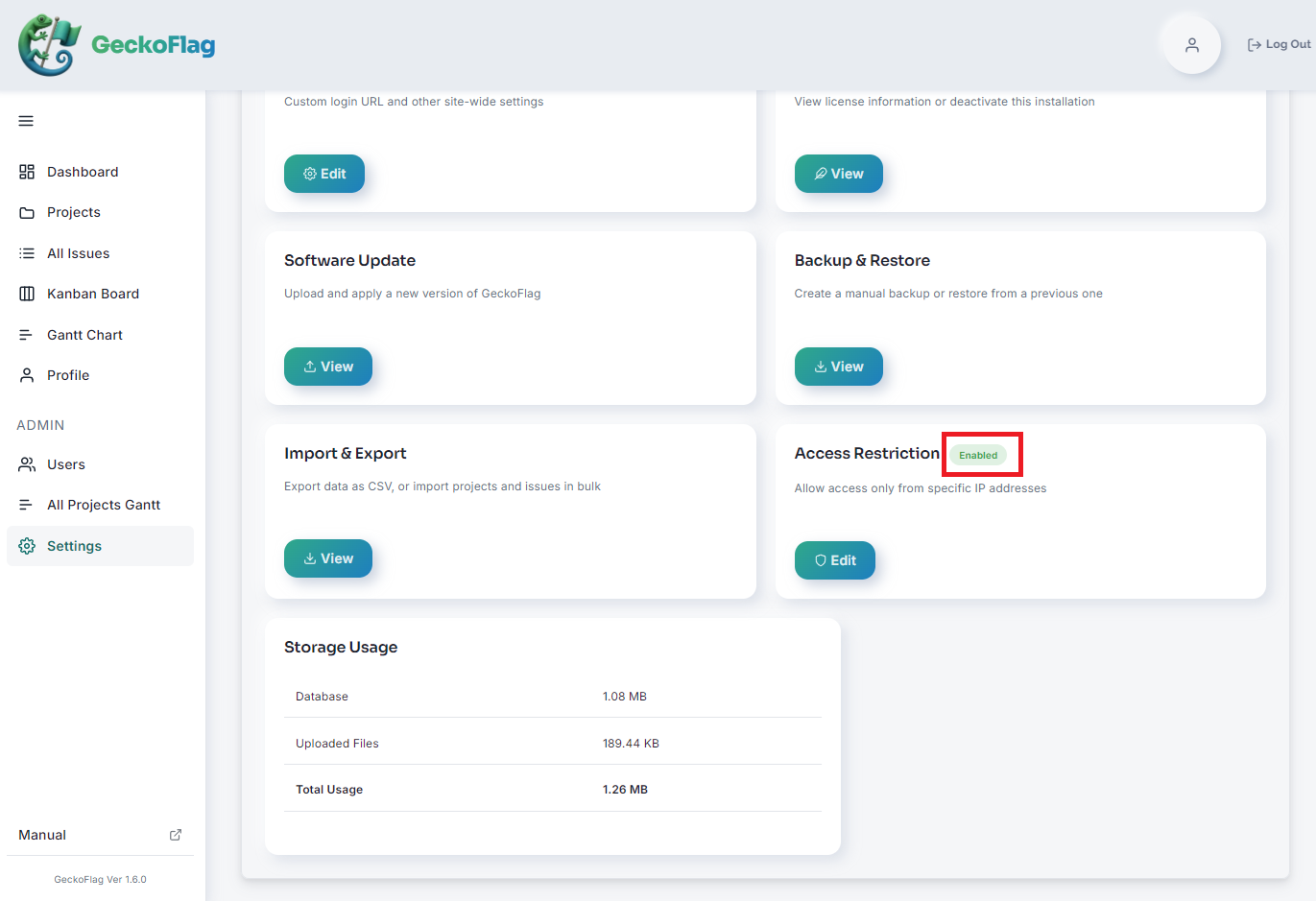
To turn the restriction off, uncheck Enable access restriction and save. The list of IP addresses you entered is kept, so you can reuse it as is when you enable the restriction again.
How to write IP addresses
| Type | Example |
|---|---|
| Single IP address | 203.0.113.5 |
| Range (CIDR notation) | 203.0.113.0/24 |
| IPv6 address | 2001:db8::1 |
You can register up to 100 entries.
If the settings cannot be saved
For safety, in the following cases the settings are not saved and are rolled back to their previous state.
| Message shown | Cause and what to do |
|---|---|
| Your current IP address is not in the list. Add it so that you do not lock yourself out. | This check prevents you from locking yourself out. Use Add to the list to add your own IP address. |
| The following entries are not valid IP addresses | The format is incorrect. See "How to write IP addresses" above. |
| The .htaccess file could not be updated. Please check that it exists and is writable. | Make sure the .htaccess files in the installation folder and in the webroot folder exist and are writable. |
| The access restriction was not saved because the server returned an error with the new rules. This server does not allow this type of rule in .htaccess. | Your server does not allow access restriction through .htaccess. Please contact your hosting provider. |
| The access restriction was not saved because the rules had no effect on this server. An Apache-compatible web server that supports .htaccess is required. | The server is not Apache-compatible, or .htaccess is disabled. This feature cannot be used. |
| The access restriction was not saved because the server could not send a verification request to itself, so the new rules could not be confirmed to be safe. | The server blocks requests to itself, or is protected by something such as Basic authentication. This feature cannot be used. |
How to regain access if you are locked out
If you can no longer access the site, for example because your IP address has changed, you can remove the restriction with the following steps.
- 1Connect to the server, for example via FTP.
- 2Open the
.htaccessfile in the installation folder. - 3Delete every line from
# BEGIN GeckoFlag Access Restrictionto# END GeckoFlag Access Restriction, then save. - 4In the
.htaccessfile in thewebrootfolder, delete the same lines and save.
Once the lines are deleted, the restriction is removed. To enable it again, save the settings again from the settings screen.
Notes
- The part of
.htaccessbetween# BEGINand# ENDis generated automatically. Do not edit it by hand. - Access restriction settings are kept when you update the software.
- When you restore from a backup, the access restriction stays as it was before the restore. It does not go back to the settings at the time of the backup.
- The files
gf-access-open.txtandgf-access-probe.txtin thewebrootfolder are used for verification when the settings are saved. Do not delete them.