Import & Export
v1.0.0+ Admin OnlyGeckoFlag lets you bring in existing projects and issues as data, and export your projects and issues independently as CSV files.
Exporting Data
- 1Log in with an administrator account.
- 2Go to Settings and open the Import & Export section.
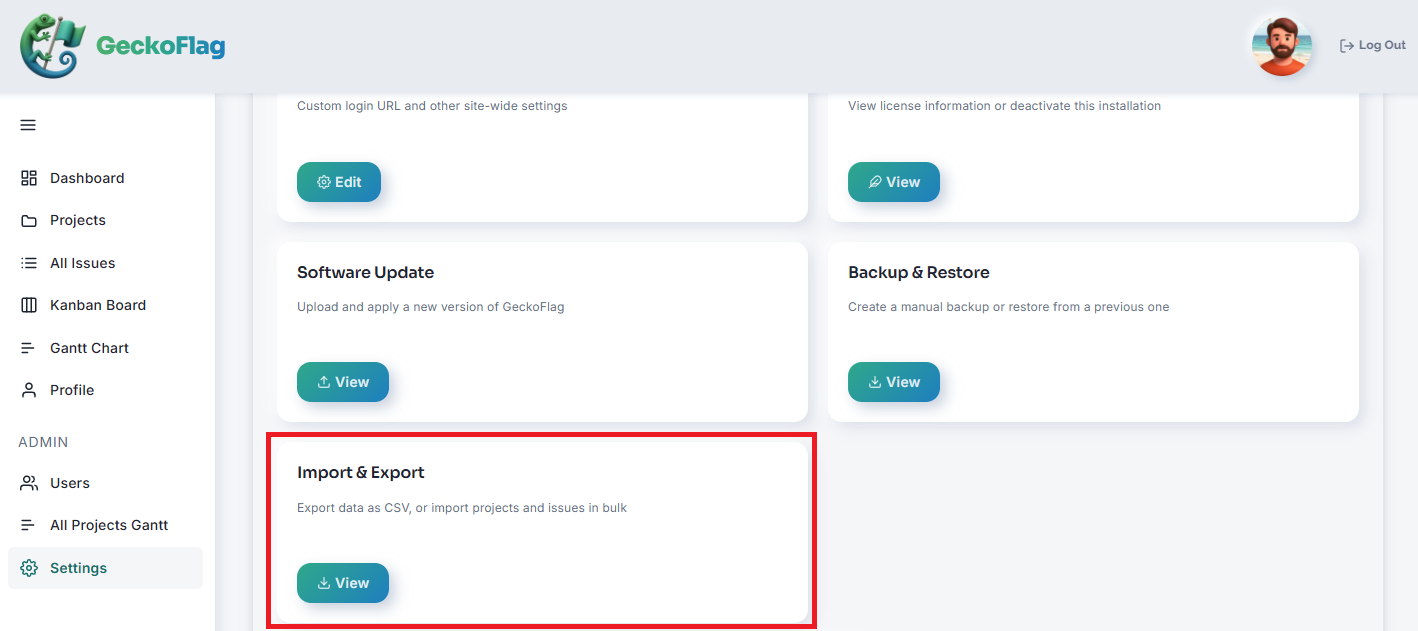
- 3Choose Projects or Issues, then download the file as CSV.
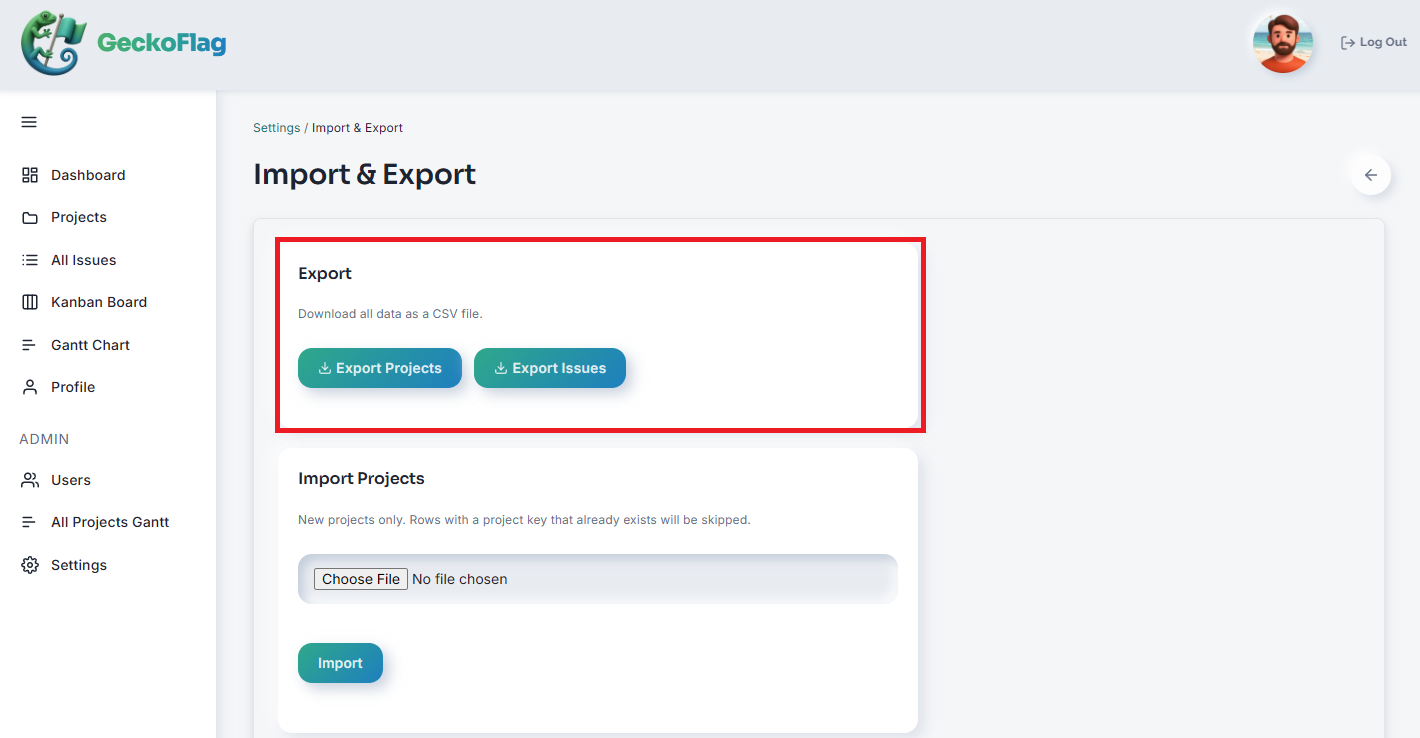
A Note on Editing in Excel (Date Columns)
If you open an exported CSV file in Excel to edit it, take care with any column that contains dates (such as start date or due date). Excel automatically recognizes date-like text as a date value and converts it to its own internal date format for display. If you save the file in that state, it may be written back out in a format different from what GeckoFlag expects on import (YYYY-MM-DD, e.g. 2026-01-05) — rows in the wrong format won't import correctly and will be skipped.
Importing Data
- 1Log in with an administrator account and open the admin dashboard.
- 2Go to Settings and open the Import & Export section.
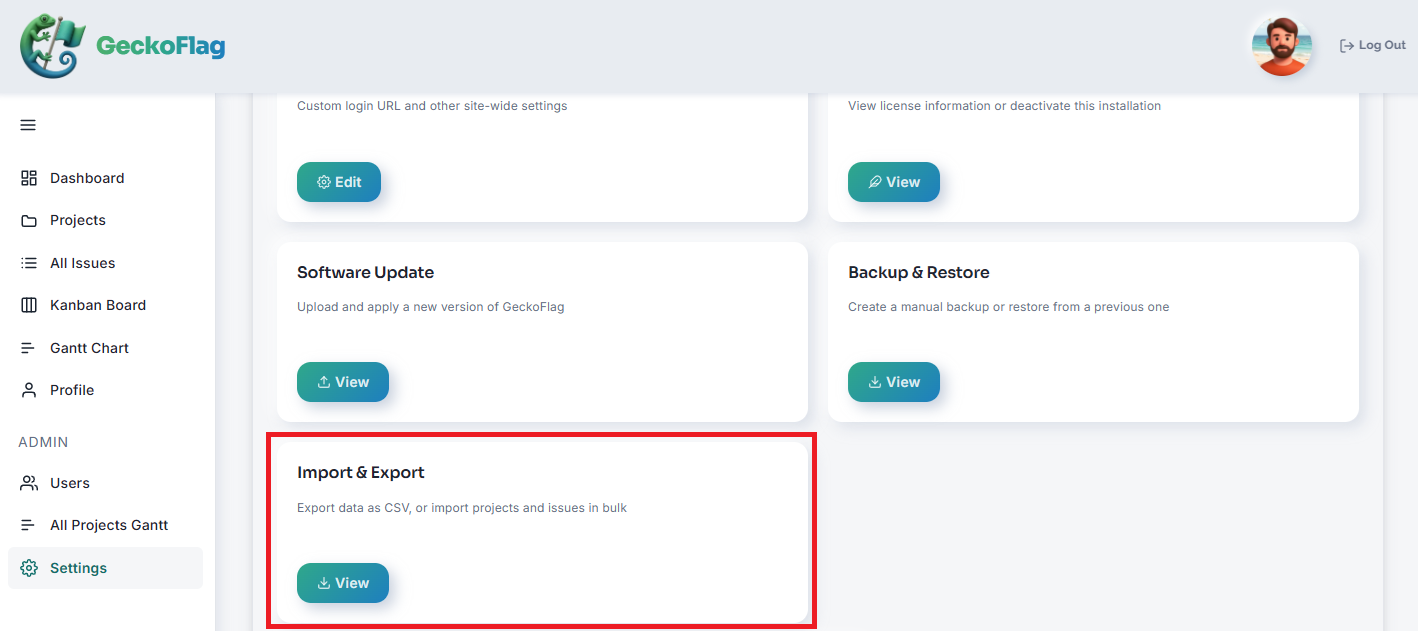
- 3Choose the file to import and start the import.
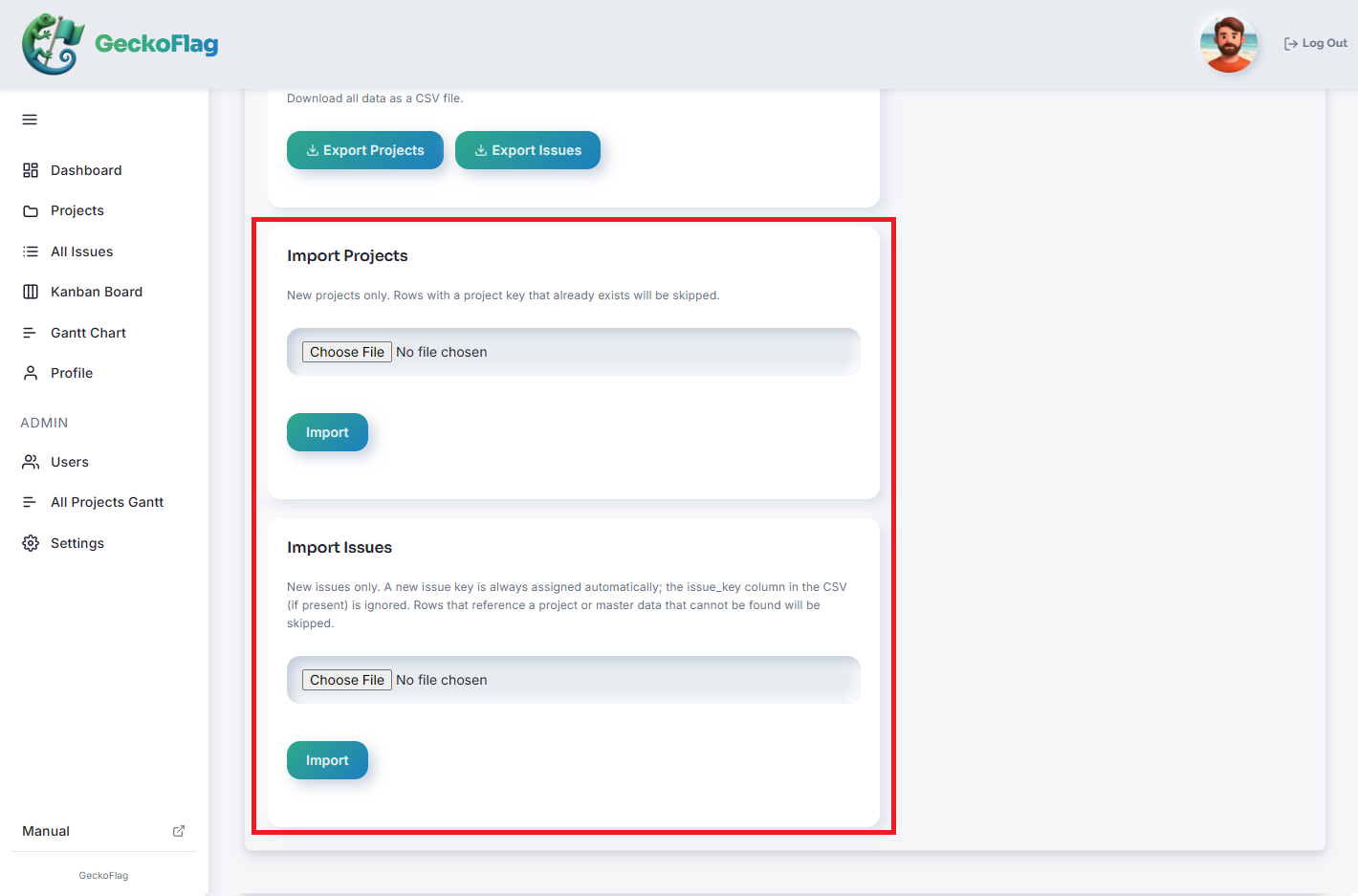
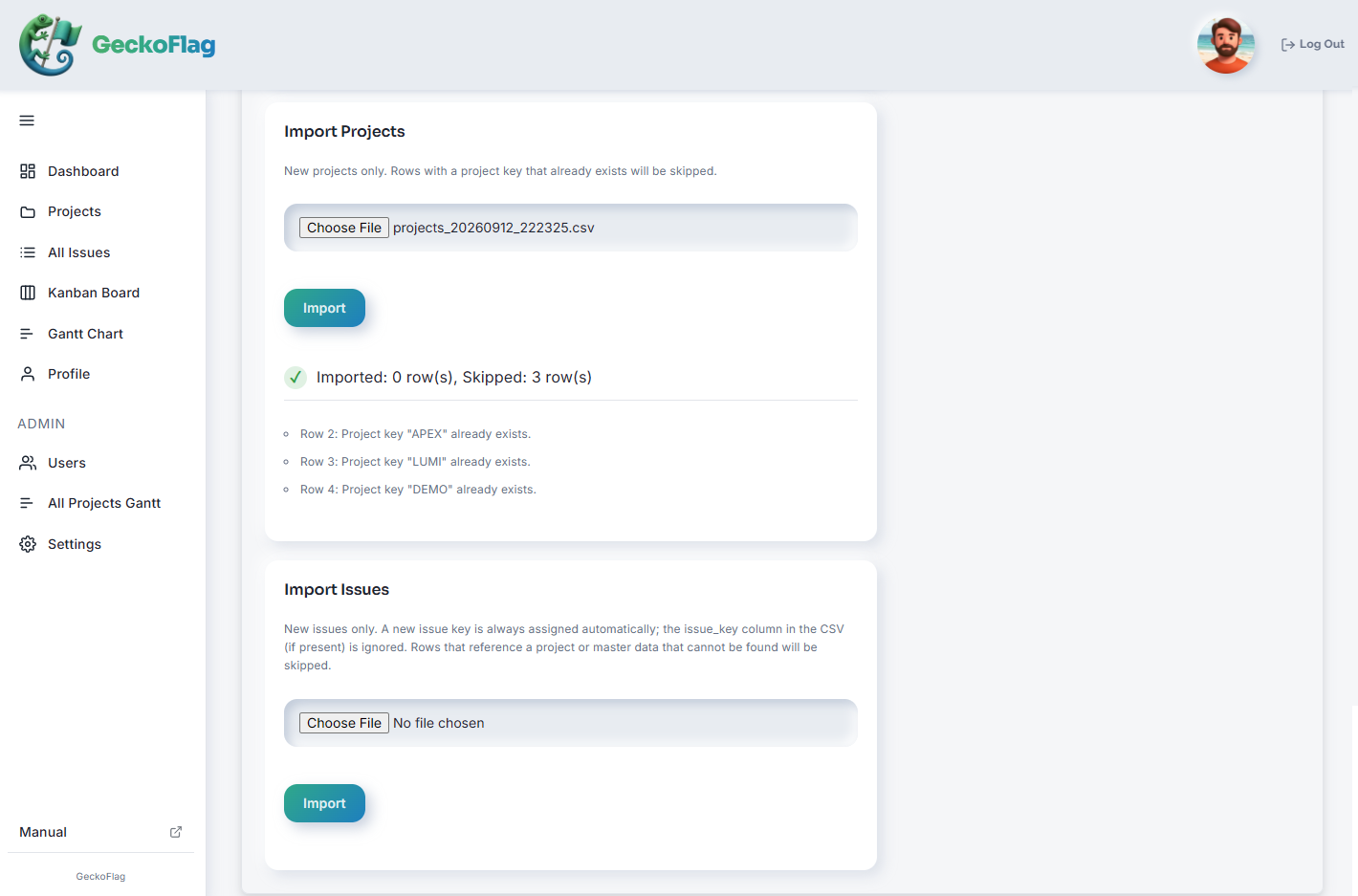
- 4Review the results: the screen shows how many rows succeeded and how many were skipped, along with the reasons.
About Importing
- Import only creates new records; it never overwrites or updates existing data.
- Rows with a duplicate project key are skipped.
- Rows referencing a project key that doesn't exist, or an unregistered status, priority, or assignee, are also skipped.