Installation
v1.0.0+GeckoFlag is self-hosted software that you install on your own server — a dedicated installer walks you through the process so anyone can get set up easily.
Before You Begin
- Confirm your server meets the system requirements. Composer is not required — the distributed package already includes its dependencies (the vendor folder), so it also works in environments where you can't run Composer.
- Have your database connection details ready: a new database, or an existing empty one. We don't recommend sharing a database with another application.
- HTTPS isn't strictly required, but since GeckoFlag handles login credentials and personal data, we strongly recommend running it over HTTPS.
- Complete the installation as soon as you have uploaded the files. Until the installation is finished, anyone who knows the URL can open the installer.
- If you use Nginx, first apply the configuration described in Using Nginx below.
Installation Steps
- 1Upload the GeckoFlag files to your server via FTP/SFTP or your hosting control panel, and extract them.
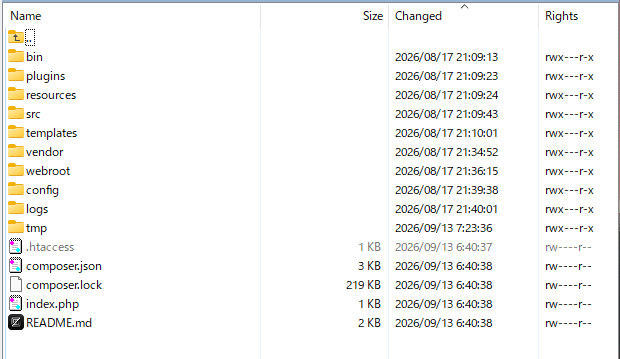
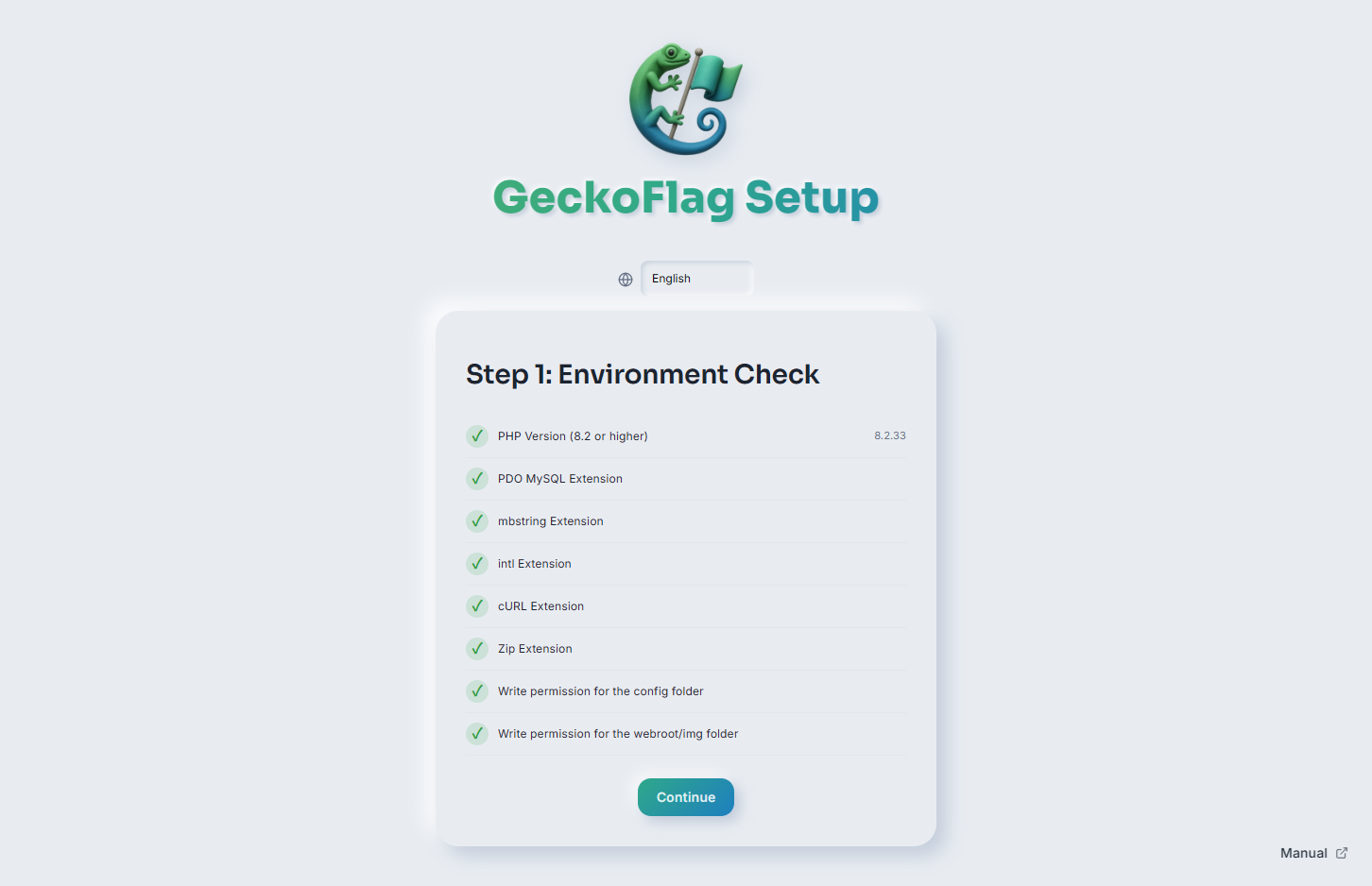
- 2Open the installer in your browser. It checks your server environment — PHP version, required extensions, and folder permissions — and shows a checklist.
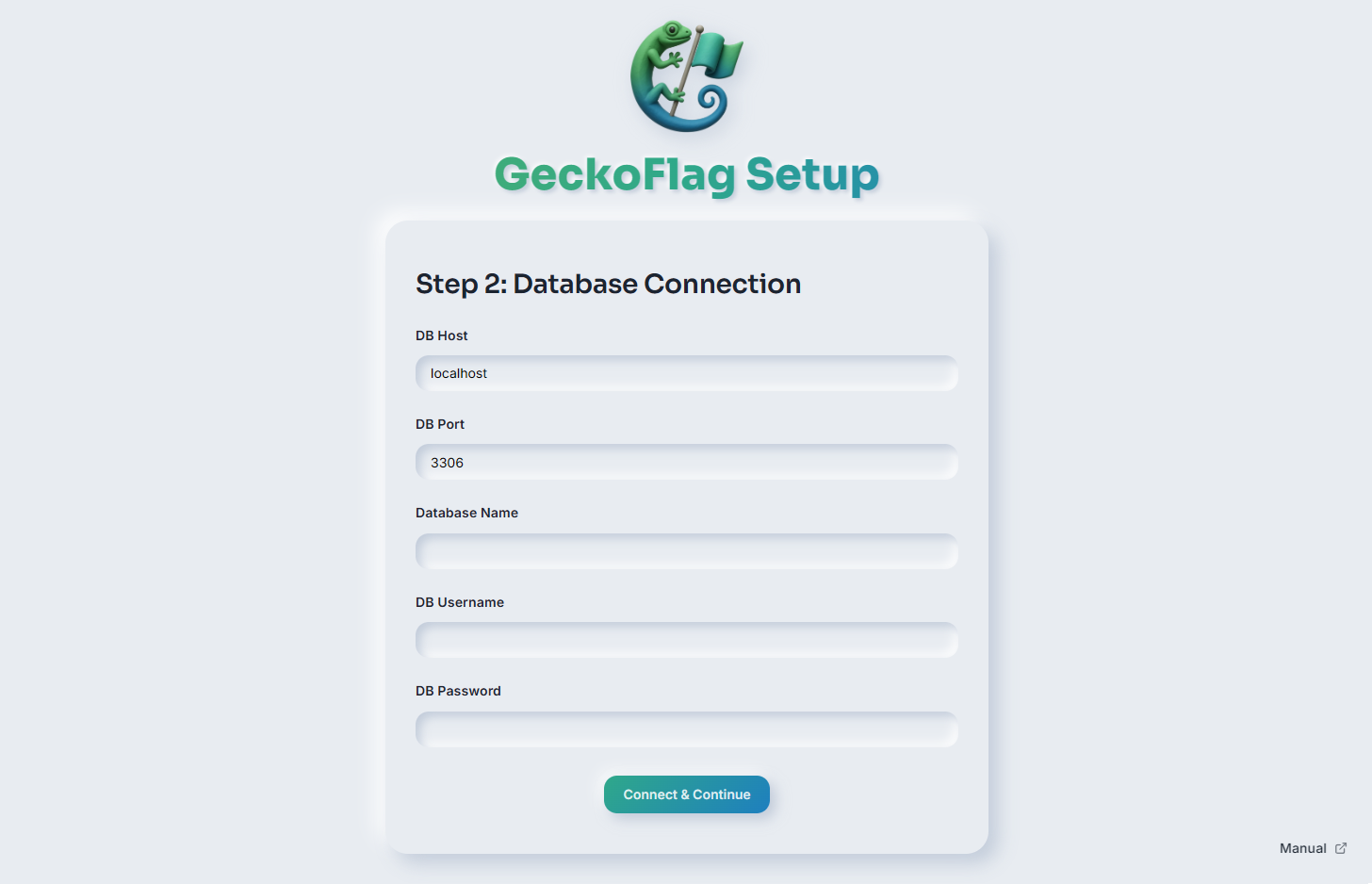
- 3Enter your database connection details (host, port, database name, username, and password) and continue.
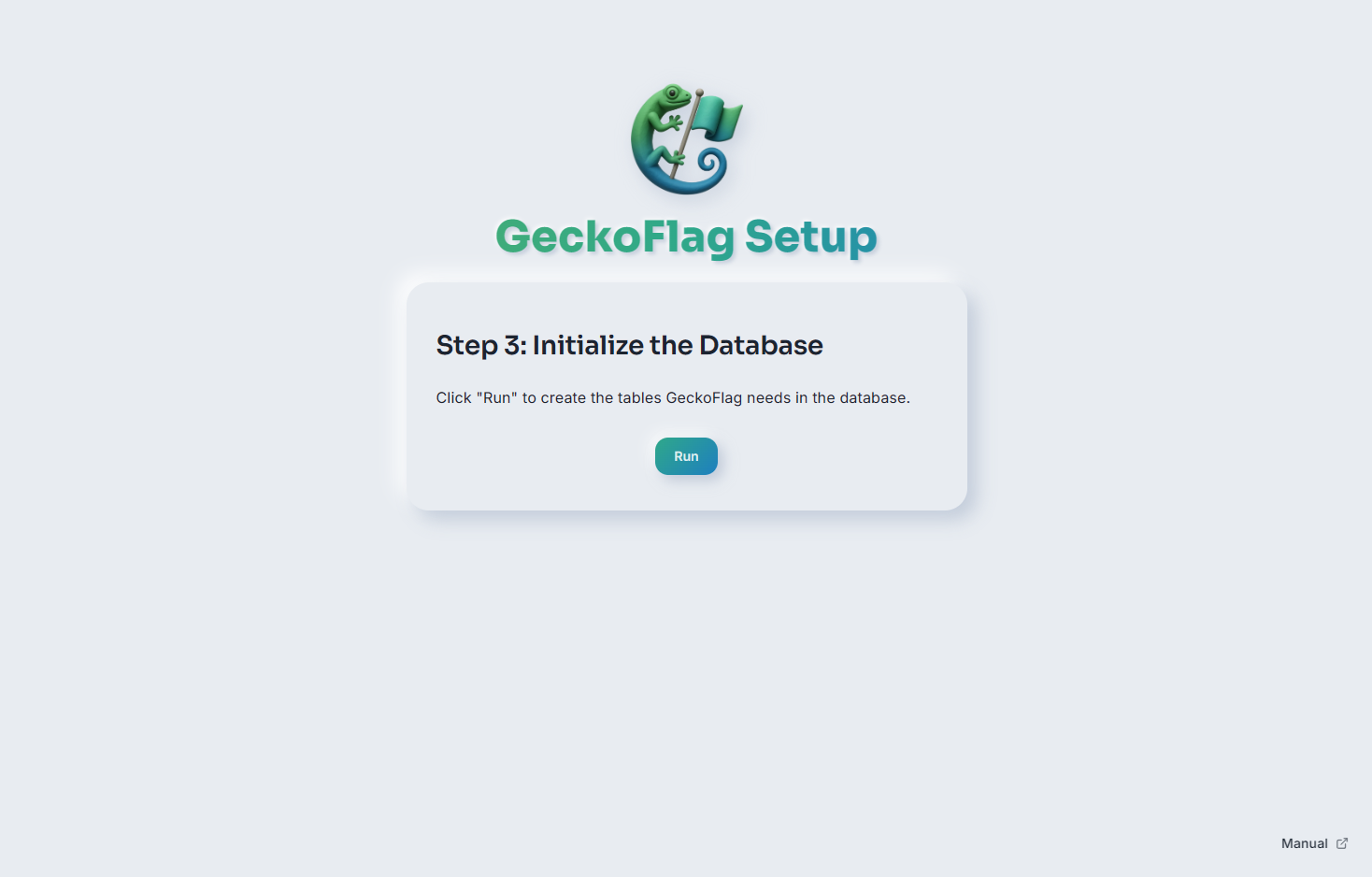
- 4Click Run to initialize the database — this creates the tables GeckoFlag needs.
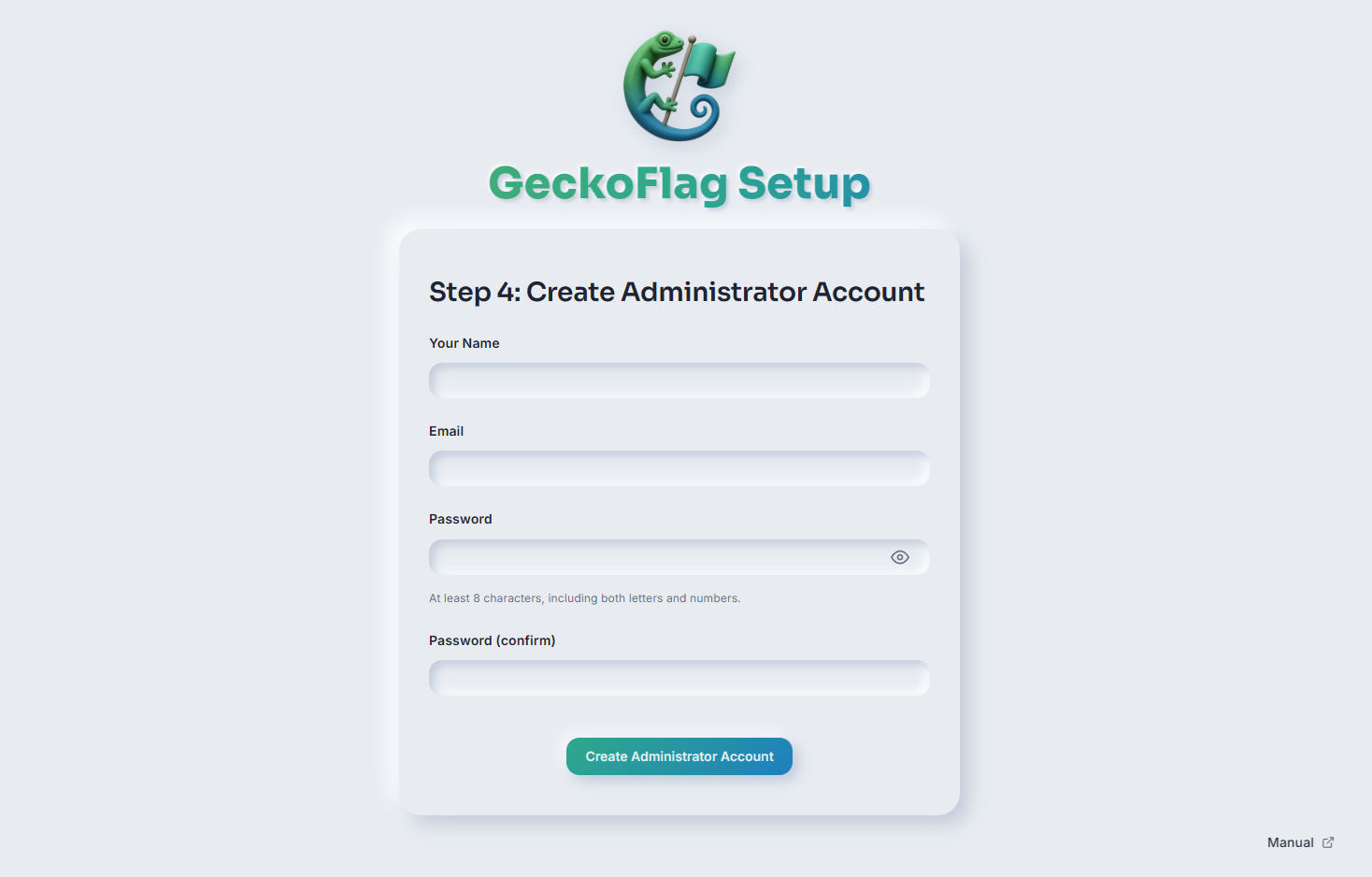
- 5Create your administrator account with a name, email, and password.
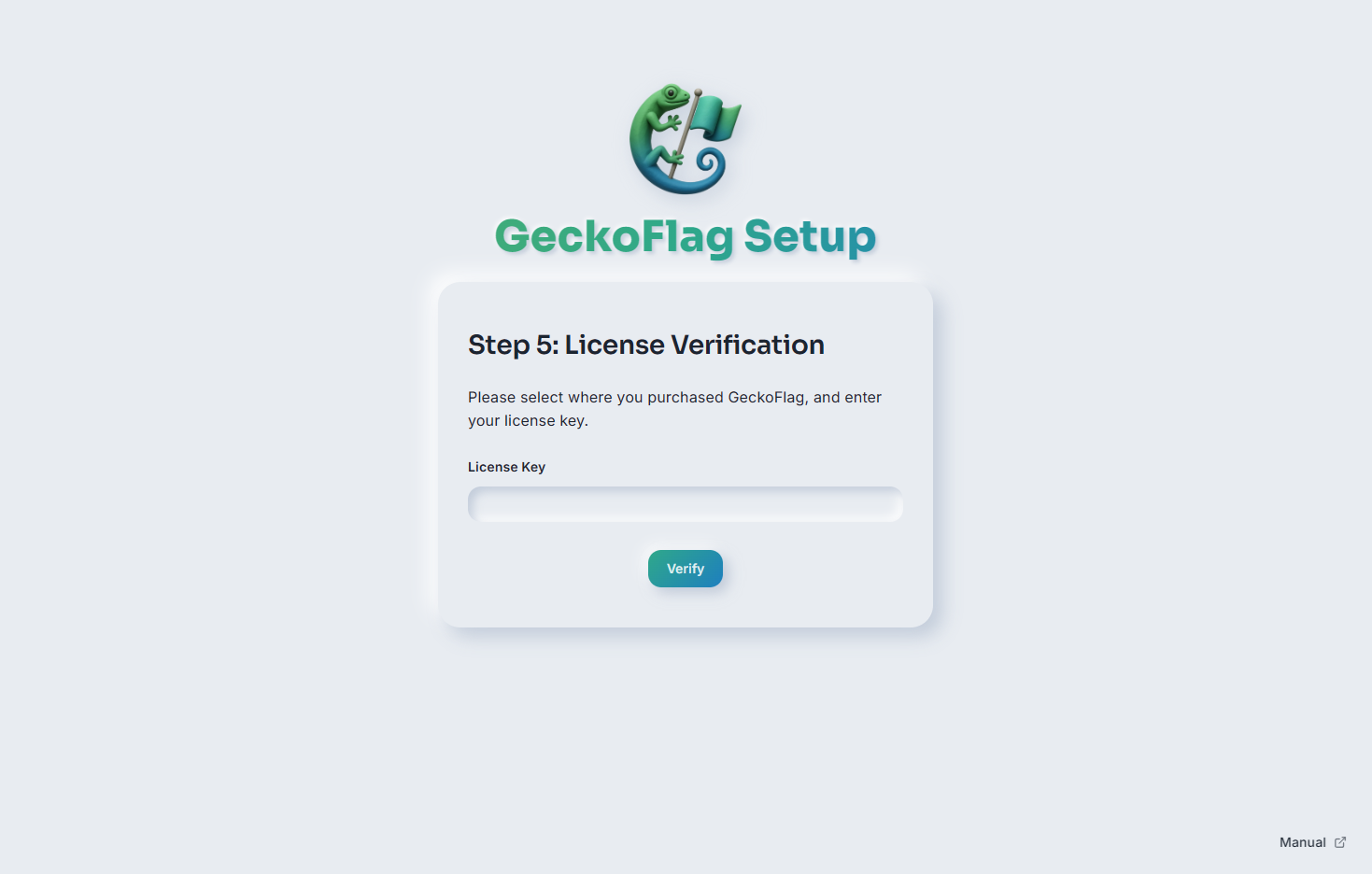
- 6Enter your license key to verify it.
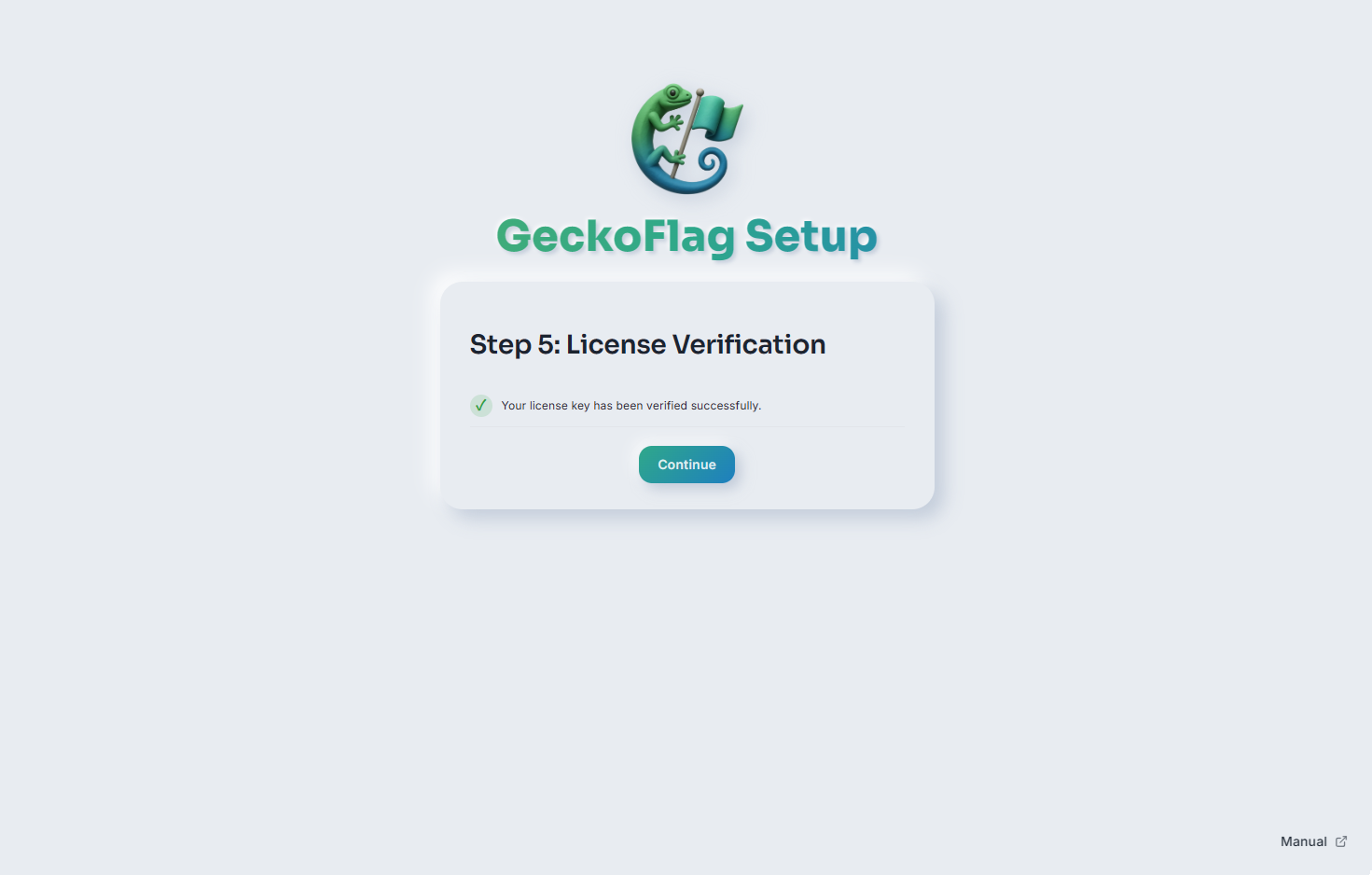
- 7Once your license is verified, you're all set — log in with your new administrator account and start setting up your projects.
Hosting Notes
GeckoFlag has been confirmed to work on many common shared hosting providers. Depending on PHP settings such as upload_max_filesize, file upload features may be limited on some hosts.
Using Nginx
On Apache, the .htaccess files included with GeckoFlag automatically deny direct access to configuration files, logs, and the like. Nginx does not use .htaccess, so add the following to your server configuration. Without it, configuration files and uploaded files may be visible from outside.
On hosting that combines Nginx and Apache (where Apache handles the requests Nginx receives), .htaccess is effective, so this configuration is not needed. Check your hosting provider's documentation to see whether .htaccess is supported.
- Set the public folder (document root) to the
webrootfolder inside the GeckoFlag folder, not to the GeckoFlag folder itself. - Change
server_name(your domain),root(where you placed GeckoFlag), andfastcgi_pass(the PHP-FPM address) to match your environment. - Add the HTTPS settings (
listen 443 ssland the certificate paths) following the setup method for your environment.
server {
    listen 80;
    server_name pm.example.com;

    # The public folder (document root) is GeckoFlag's webroot folder
    root /var/www/geckoflag/webroot;
    index index.php;

    # Do not show a list of folder contents
    autoindex off;

    # Allow uploading update and backup ZIP files
    # (the Nginx default is 1MB). Set PHP's upload_max_filesize and
    # post_max_size to the same value or higher as well
    client_max_body_size 100m;

    # Do not serve hidden files (.htaccess, .git, etc.)
    location ~ /\.(?!well-known/) {
        deny all;
    }

    # Serve only images from the uploaded image folders
    location ~ ^/img/(avatars|project_thumbnails|branding)/ {
        location ~* \.(jpe?g|jfif|png|gif|webp|ico)$ {
            add_header X-Content-Type-Options "nosniff" always;
            try_files $uri =404;
        }
        # SVG images are display-only (scripts are not executed)
        location ~* \.svg$ {
            add_header X-Content-Type-Options "nosniff" always;
            add_header Content-Security-Policy "default-src 'none'; img-src data:; style-src 'unsafe-inline'; sandbox" always;
            try_files $uri =404;
        }
        return 403;
    }

    # Do not serve the files folder directly
    location ^~ /files/ {
        return 404;
    }

    location / {
        try_files $uri $uri/ /index.php?$args;
    }

    # Only index.php is executed as PHP
    location = /index.php {
        include fastcgi_params;
        fastcgi_param SCRIPT_FILENAME $document_root/index.php;
        fastcgi_pass unix:/run/php/php8.3-fpm.sock;
    }
    location ~ \.php$ {
        return 404;
    }
}
After changing the configuration, check the syntax with nginx -t and reload Nginx.
When Using a CDN or Reverse Proxy (Cloudflare, etc.)
GeckoFlag uses the client IP address received by the server to limit failed login attempts and to apply Access Restriction (IP Address). Behind a CDN or reverse proxy, all users appear to connect from the proxy's IP address, which causes the following:
- When someone fails to log in several times, other users may also be unable to log in for a while.
- Access Restriction (IP Address) does not work correctly.
In such setups, configure your web server to receive the original client IP address (for example, Apache's mod_remoteip, Nginx's real_ip module, or, for Cloudflare, registering the IP address list that Cloudflare publishes). For instructions, see the documentation of your hosting provider or CDN.