Notes
v1.7.0+Every GeckoFlag user has a personal Notes area for keeping memos — meeting notes, to-dos, drafts, or anything else you want close at hand while you work. Notes aren't tied to a project, and no administrator permissions are required.
Creating a Note
- 1Click Notes in the sidebar (just below Profile) to open your list of notes.
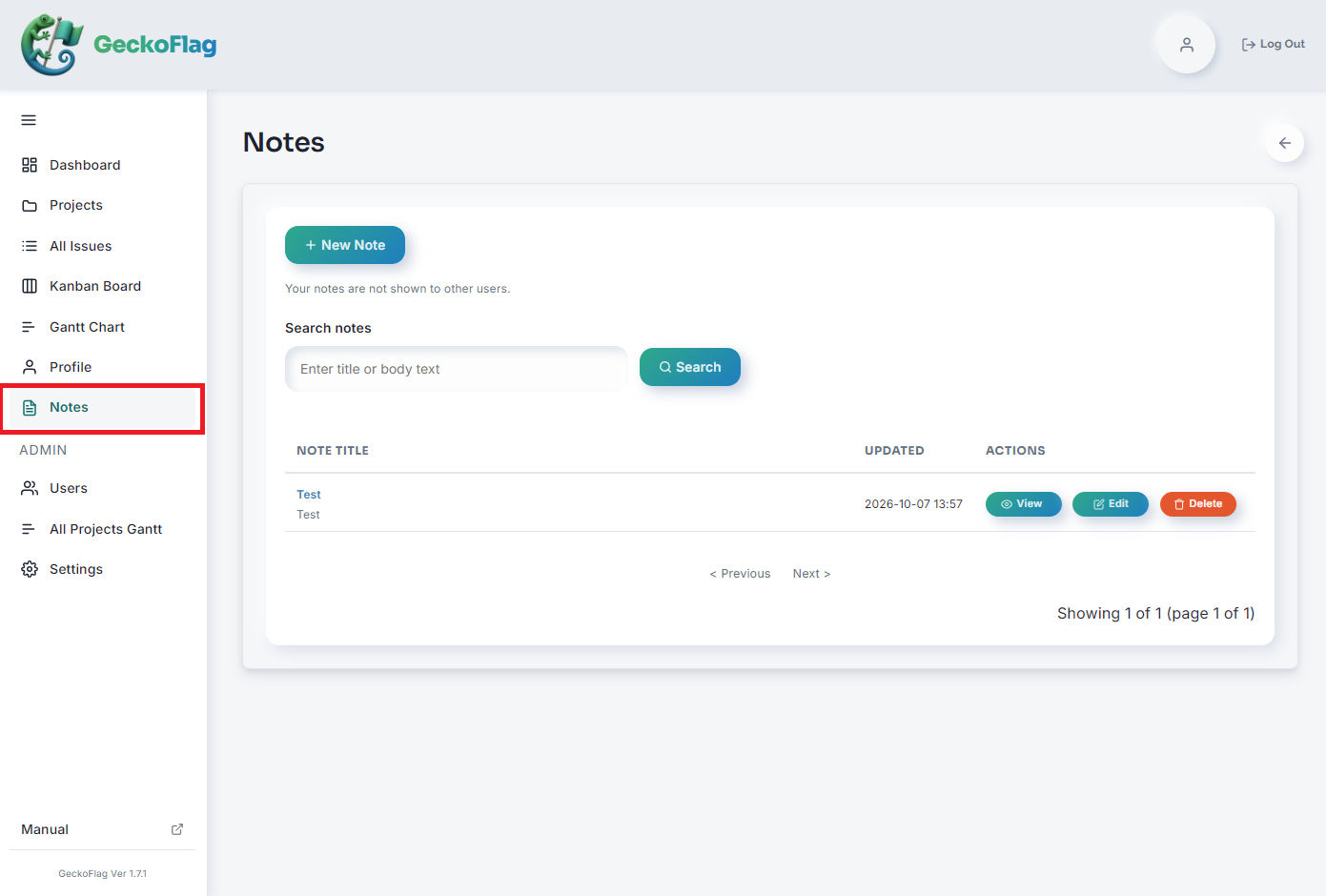
- 2Click New Note.
- 3Enter a title and write the body using the rich text editor. Use Preview to check how the note will look before saving.
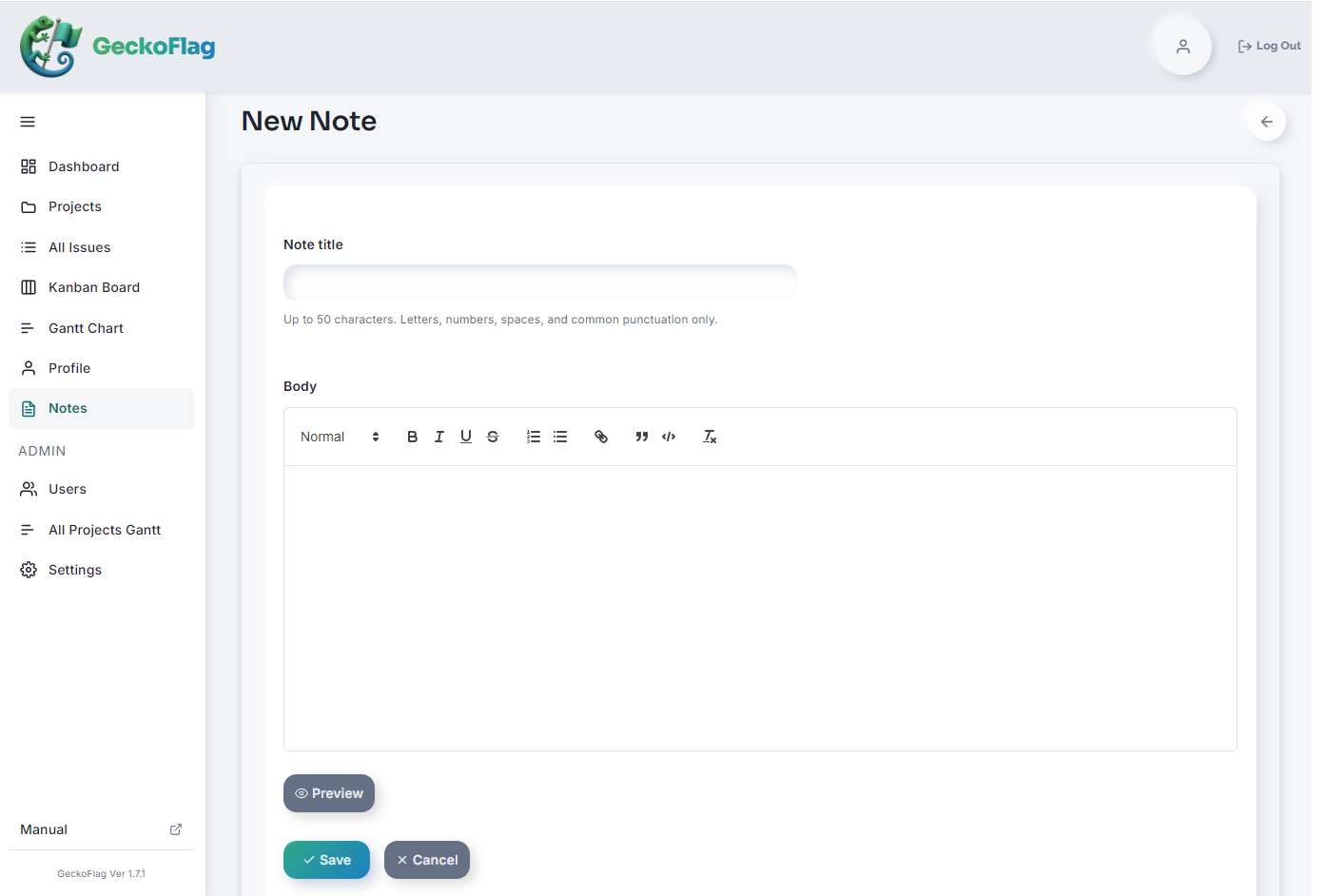
- 4Click Save. The note opens on its own page.
Finding, Editing, and Deleting Notes
- Search: Enter a keyword under Search notes and click Search to filter the list by title or body text. Click Clear to show all notes again.
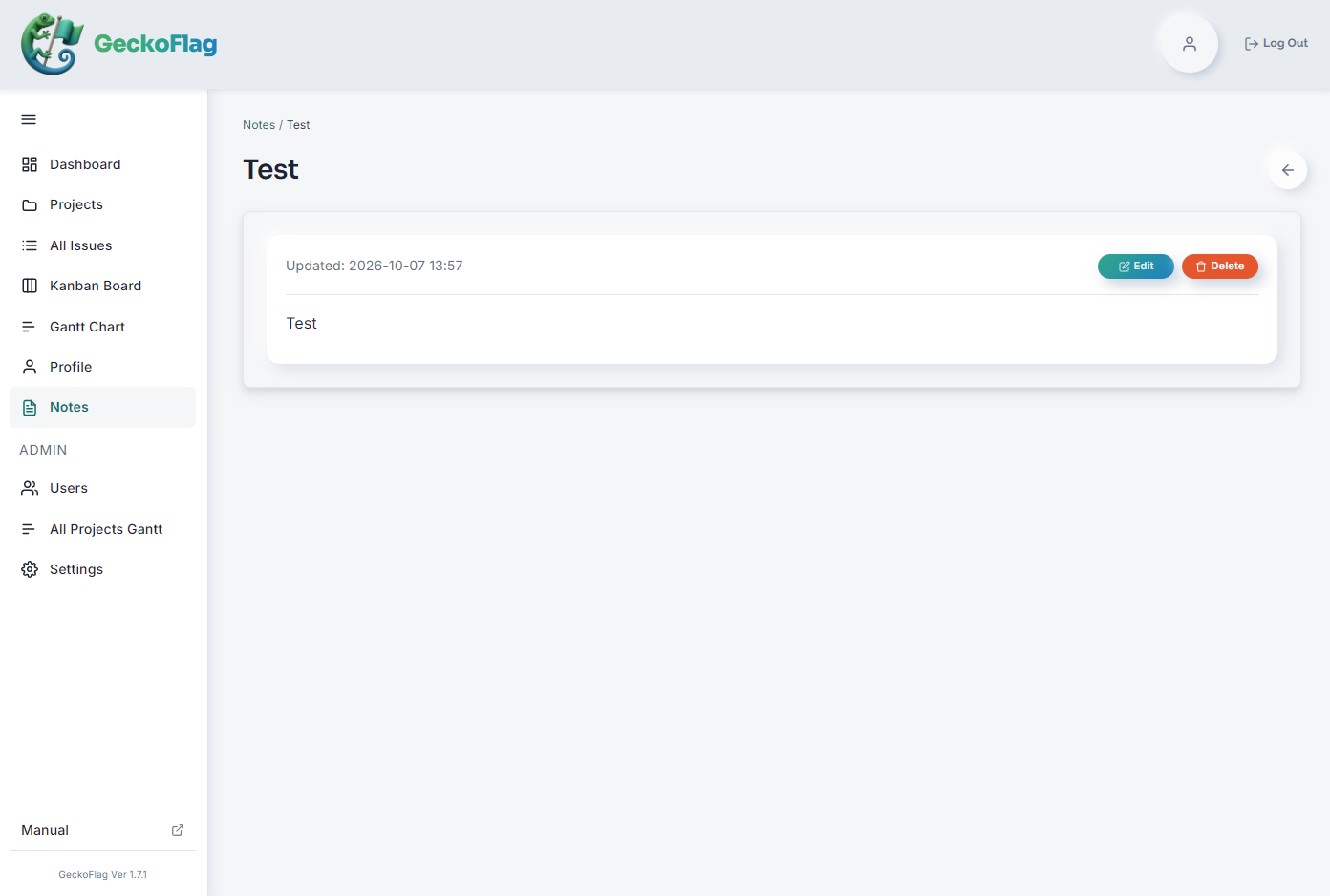
- View: Click a note's title, or its View button, to open it.
- Edit: Click Edit in the list or on the note's page.
- Delete: Click Delete in the list or on the note's page. Deleted notes can't be restored.
About Notes
- Notes are available to every role — administrators, members, and guests.
- The list shows the most recently updated notes first, 10 per page. Under each title you'll see the first line of the note's body.
- Titles can be up to 50 characters, using letters, numbers, spaces, and common punctuation.
- Notes support rich text formatting, but image attachments aren't supported.
- Notes aren't included in Import & Export. They are included in backups.
- When a user account is deleted, that user's notes are deleted with it.
Privacy
Your notes are not shown to other users — not even administrators can open them inside GeckoFlag. However, notes are stored in the database without encryption, like the rest of your GeckoFlag data. Anyone with direct access to the database or to a backup file, such as your server administrator, is technically able to read them. Please take care with sensitive information.