Claude Integration
v1.11.0+Claude Integration adds an extension to the Claude desktop app (Windows, macOS) so you can work in GeckoFlag by chatting with Claude. You can search, view, create and update issues, projects, wiki pages and notes, and export Gantt charts to Excel. The extension runs on the user’s computer and communicates directly with the user’s GeckoFlag only. Every action runs with the user permissions of the API token’s owner.
Administrator Settings
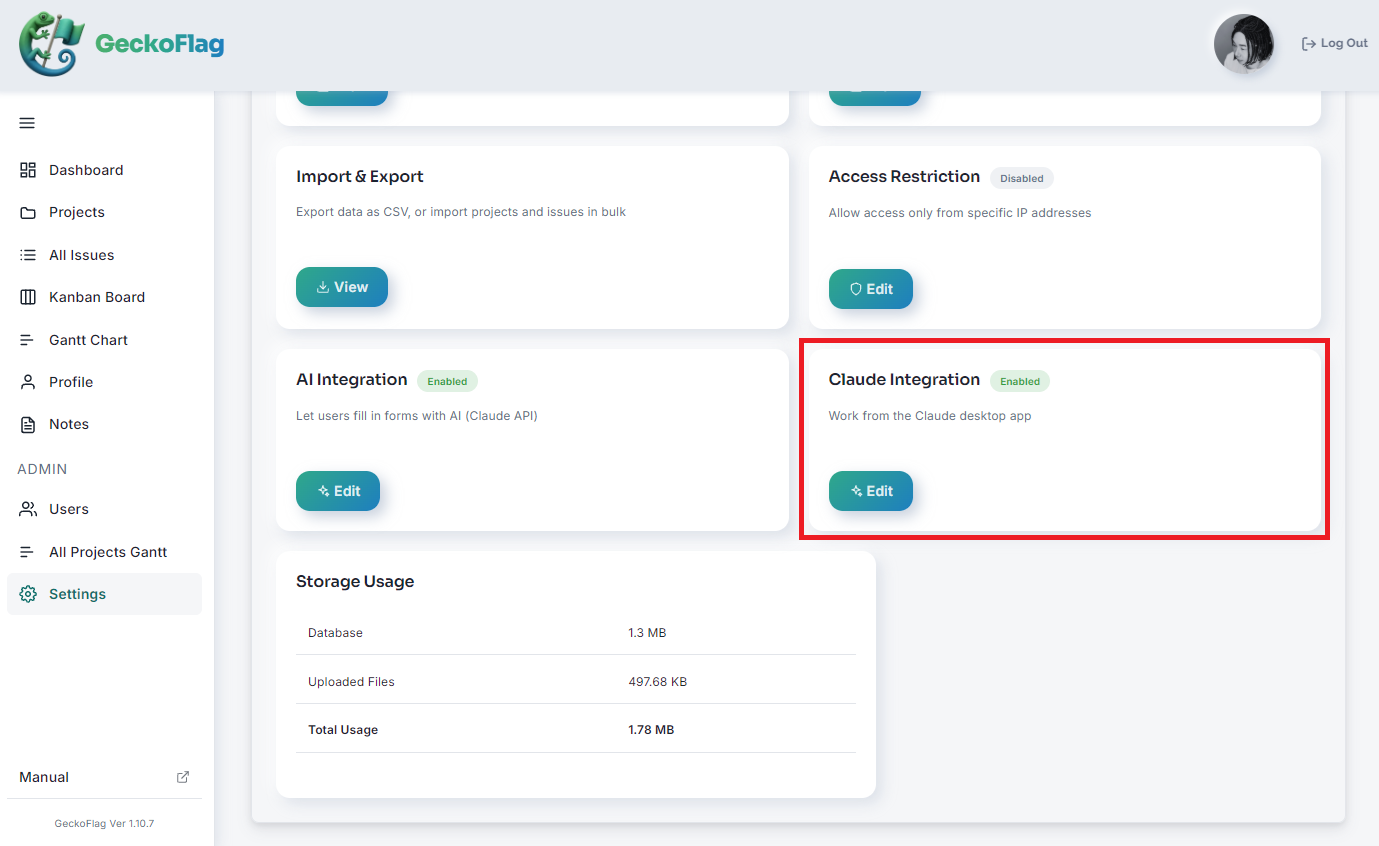
- 1Open Settings in the sidebar and click Edit on the Claude Integration card.
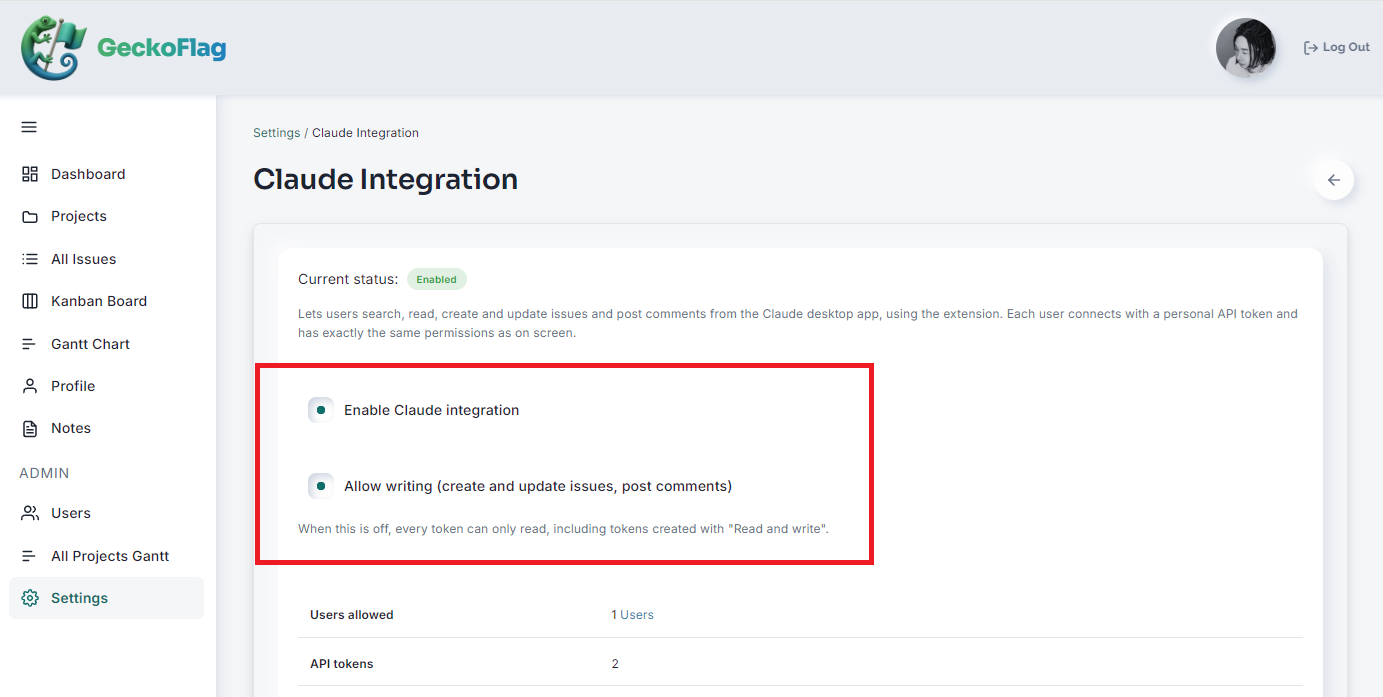
- 2Turn on Enable Claude integration (off by default). If Claude should also create and change data, turn on Allow writing as well, then save. If writing is not allowed, all tokens are read-only.
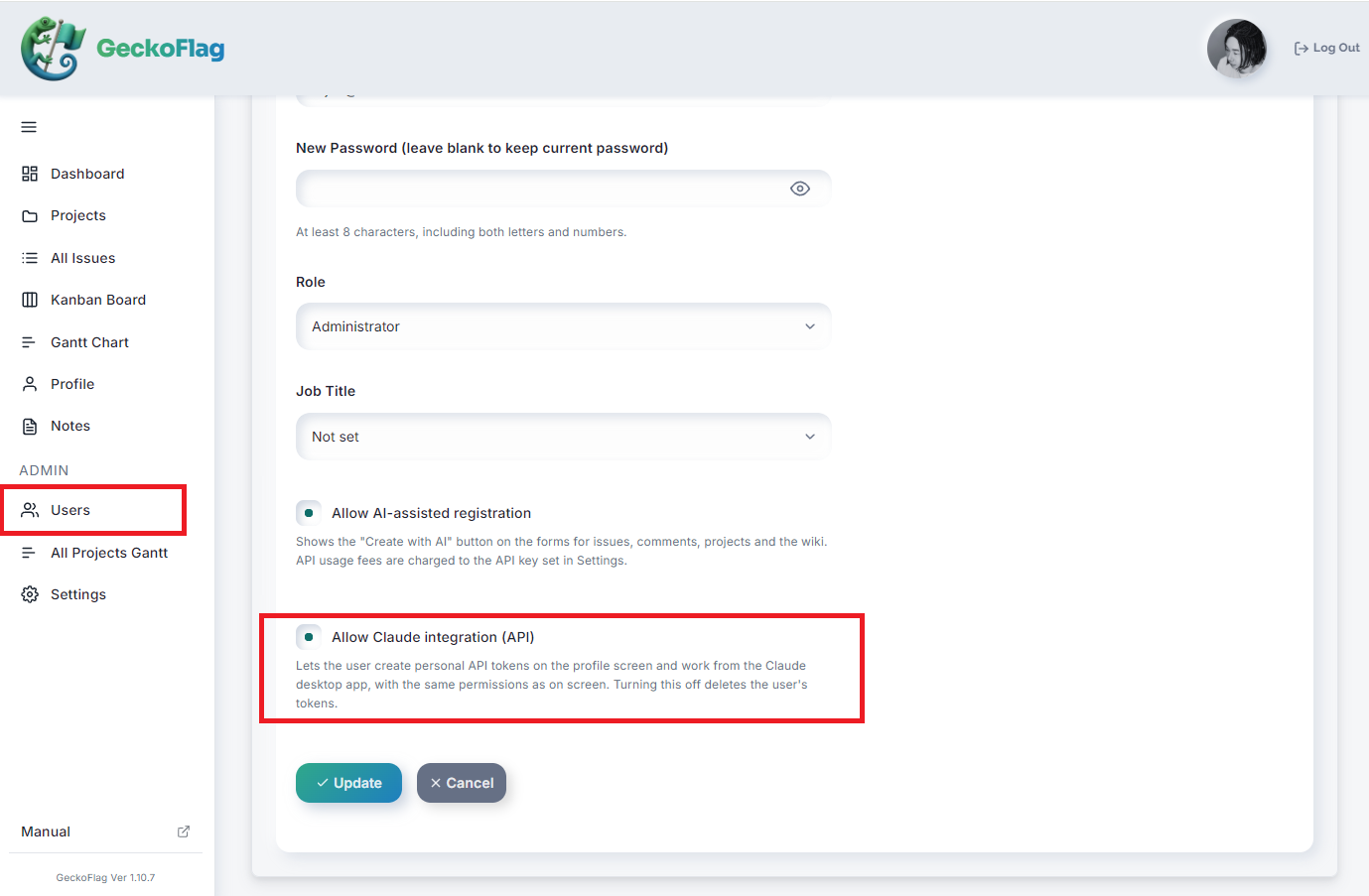
- 3In Users, open Edit for the user, turn on Allow Claude integration (API) and click Update. This is separate from “Allow AI-assisted registration”. Removing the permission deletes all of that user’s API tokens.
Creating an API Token
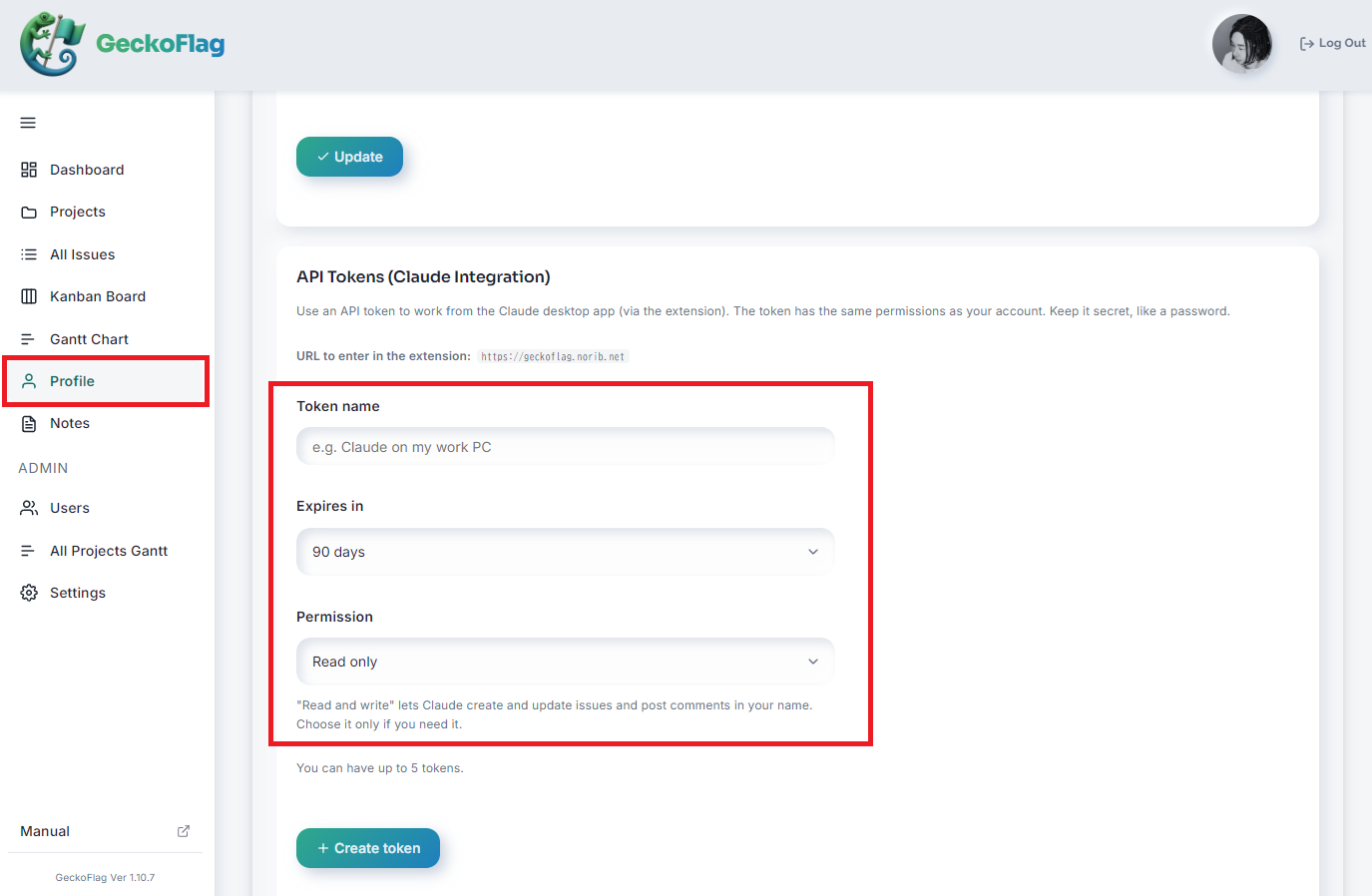
- 1Open Profile in the sidebar and, in the API Tokens section, set the token name, the expiry (30, 90 or 365 days, or never; the default is 90 days) and the permission (Read only or Read and write), then create the token.
- 2Copy the token shown (a string starting with gfk_). The token is shown only once, right after it is created. Also note the “URL to enter in the extension” shown in the same section.
- Each person can create up to 5 tokens, and can delete tokens they no longer use from their profile at any time.
- When a token is created, its owner receives a notification email. Changing your password deletes all of your tokens.
Setting Up the Claude Desktop App
- 1In the Claude desktop app, open Settings → Extensions, drag and drop the GeckoFlag extension file (.mcpb) and click Install. You can also install it by double-clicking the file or from Advanced settings. The extension file is included in the download you get after purchasing GeckoFlag.
- 2On the settings screen, fill in the following fields and click Save.
- GeckoFlag URL (required): The URL you noted. https:// is required (http:// works only for localhost, *.test and *.local).
- API token (required): The token you copied. It is saved masked.
- Export folder (optional): Where Gantt chart Excel files are saved. If left empty, they are saved to your Downloads folder.
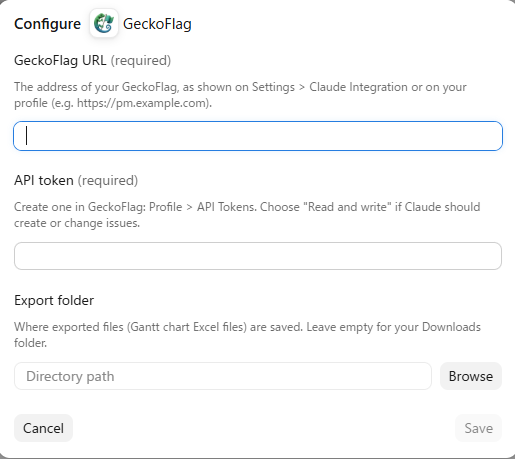
- 3Ask Claude to “Check that you can connect to GeckoFlag”. Setup is complete when it shows the token owner, the GeckoFlag version and whether writing is possible.
For detailed steps with screenshots, see the Claude Integration setup guide. We recommend setting write actions to “Ask every time” in the Claude extension settings.
What You Can Do
- Issues: Search (by project, status, assignee, reporter, priority, keyword, due date or parent issue), view details and comments, create (including a parent issue and who to notify), change fields, post comments and change the status.
- Projects: View the list and details, create (everyone except guests), change the name, description, owner and period, mark as completed or not completed, and add or remove members (owners and administrators).
- Wiki: View, rewrite the title and body, and add to the end (project members and administrators).
- Notes: List, search, view, create, rewrite and add to your own notes.
- Master data: Add issue types, statuses, priorities and job titles (departments), and change their names and colors (administrators).
- Gantt chart: Save a project’s issues (up to 5,000) to your computer as an Excel file. If the period is longer than 120 days, each column becomes one week.
- User search: Find users by name (ID and role only; email addresses are not returned).
Issues can be specified by key, such as “WEB-12”. Writing requires both a “Read and write” token and “Allow writing” for the site.
Limitations & Limits
- Deleting (projects, issues, comments, master data, wiki pages, notes), editing comments, attaching or viewing images and files, changing project keys and reordering master data are not possible.
- Adding or editing users, changing site settings, working with the Kanban board, bookmarks or notification settings, and viewing other users’ notes (not even administrators) are not possible.
- Writes are done one item at a time; Claude handles multiple items one by one. Requests time out after 30 seconds, and writes are not retried automatically to prevent duplicates.
- Issue titles can be up to 50 characters, and master data names up to 20 characters (up to 10 of each, with colors chosen from 8). Wiki bodies can be up to 65,535 bytes in total, and note bodies up to 1,000,000 bytes.
- Text that Claude reads is truncated beyond 8,000 characters for descriptions, wiki pages and notes, and beyond 2,000 characters for comments. Truncated text is not written back; Claude suggests adding to it instead.
- Searches and lists return up to 50 items per page. The rate limit is 60 requests per minute per token.
- It works only while the Claude desktop app is running on your computer.
History & Notification Emails
- Changing issue fields, like editing on screen, leaves no history comment and sends no email. To keep a history, ask Claude to “make the change as a comment”.
- Changing the status or other fields with a comment adds history, just as on screen, and emails the members who receive notifications for all comments.
- When an issue is created, only the members specified as recipients receive an email. When a project is created, its members receive an invitation email (members added later do not).
- Actions are recorded as actions by the token’s owner and are not marked as “via Claude”.
Security & Data Handling
When Claude Integration is disabled, the API is treated as a URL that does not exist (404). Projects and issues you have no access to are also treated as if they do not exist. Only token hashes are stored on the server, and GeckoFlag’s IP address access restrictions also apply to the API. The issues, wiki pages and notes Claude reads are sent to Anthropic as part of the conversation. Before introducing the feature, check that your internal rules and client contracts do not restrict sending information to external services. If you cannot connect, see Troubleshooting.