This guide explains how to start using Claude Integration. A GeckoFlag administrator enables the feature and allows users, then each user creates an API token and adds the extension to the Claude desktop app.
Before you start
- GeckoFlag v1.11.0 or later — It must be served over HTTPS.
- A GeckoFlag administrator account — Only administrators can do STEP 1 and STEP 2.
- The Claude desktop app (Windows, macOS) — Sign in with your Claude plan. Node.js, which the extension needs, is included in the app, so you do not need to install it separately.
- The GeckoFlag extension file (.mcpb) — The file you add to the Claude desktop app. It is included in the download you get after purchasing GeckoFlag, together with GeckoFlag itself and the manual.
The screens shown are in English (in both GeckoFlag and Claude, labels change with the display language). The Claude desktop app screens are as of October 2026 and may change at Anthropic’s discretion.
Overview
- An administrator enables Claude Integration on the GeckoFlag settings screen
- The administrator turns on “Allow Claude integration (API)” for each user who will use it
- Each user creates and copies an API token on their profile screen
- The user installs the extension in the Claude desktop app
- Enter the GeckoFlag URL and the API token in the extension
- Ask Claude to check that it can connect
STEP 1: Enable Claude Integration (administrator)
- Sign in to GeckoFlag as an administrator and open “Settings” in the left menu.
- Click “Edit” on the “Claude Integration” card.
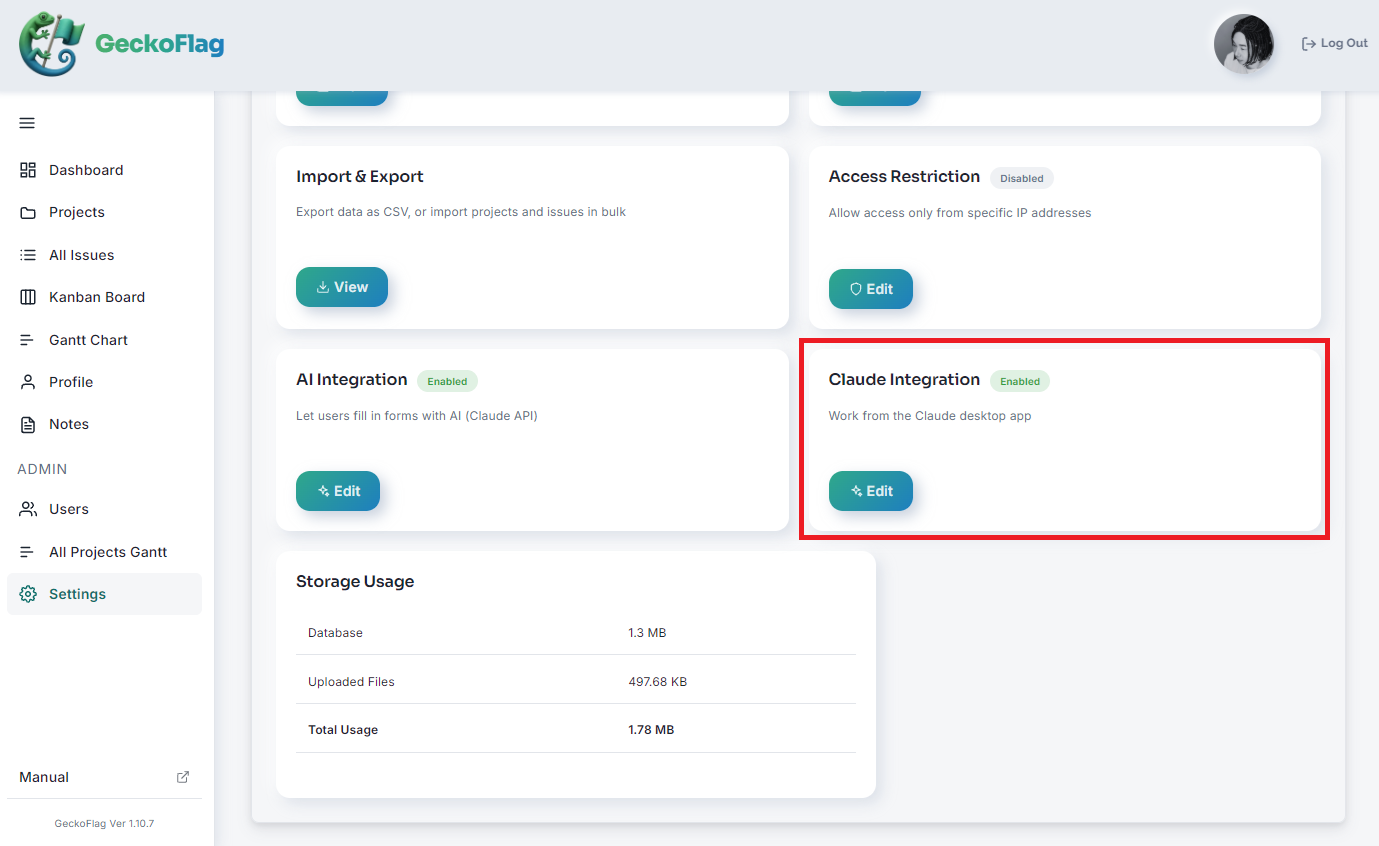
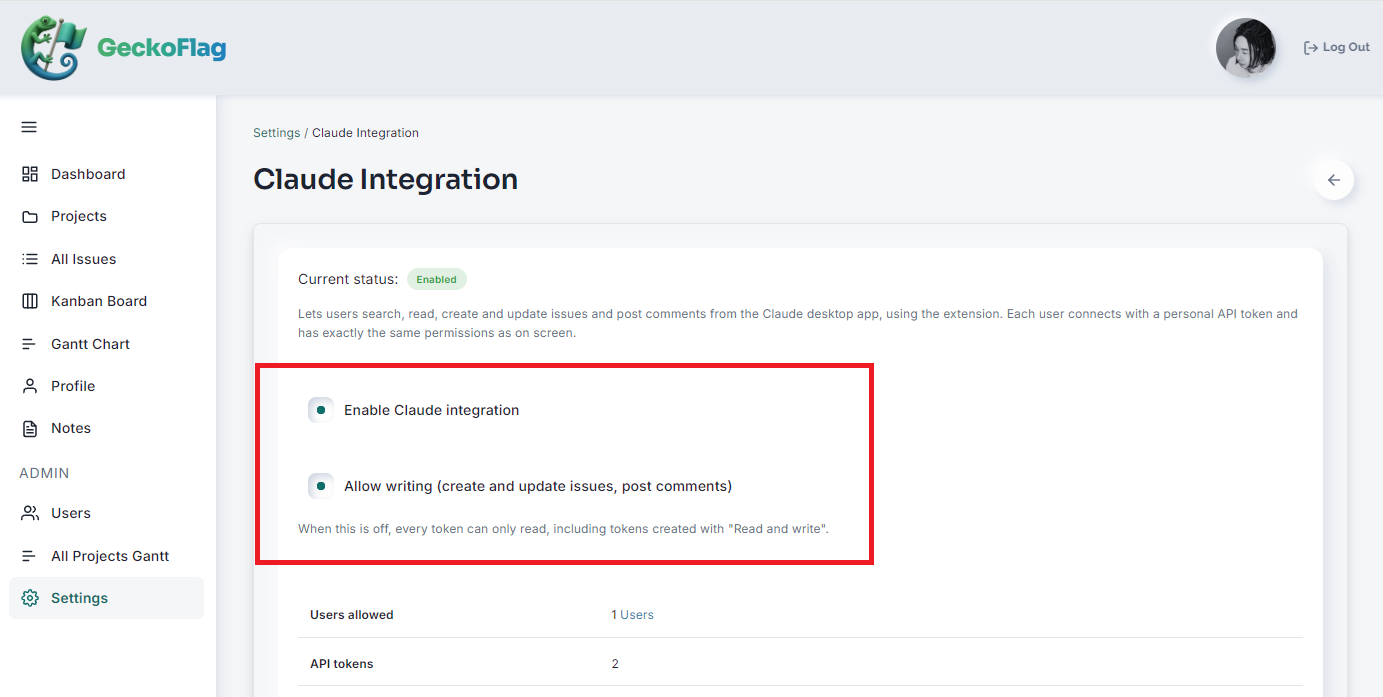
- Turn on “Enable Claude integration”. It is off by default.
- If Claude should also create and update issues and post comments, turn on “Allow writing” as well, then save.
- If you do not allow writing — All tokens become read-only. Even tokens created with “Read and write” can only be used to search and view.
- Checking usage — The same screen shows how many users are allowed to use it and how many API tokens have been created.
STEP 2: Allow users (administrator)
Only users allowed by an administrator can use Claude Integration (administrators need permission too).
- Open “Users” in the left menu and click “Edit” for the user.
- Turn on “Allow Claude integration (API)” and click “Update”.
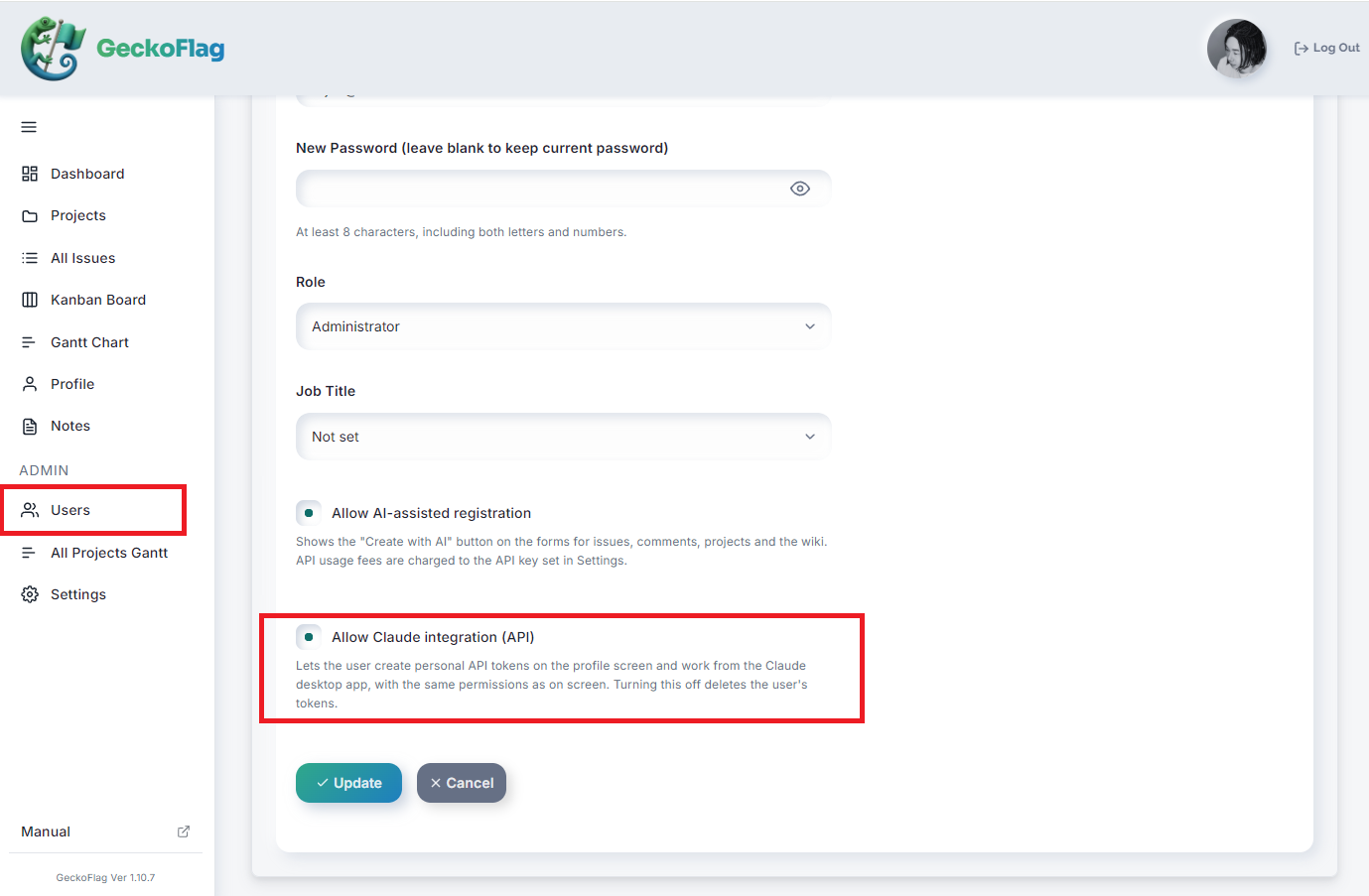
- Separate from “Create with AI” — “Allow AI-assisted registration”, just above it, is the permission for Create with AI. If you use only Claude Integration, you do not need to turn it on.
- Removing the permission — All of that user’s API tokens are deleted, and they can no longer use GeckoFlag from Claude.
STEP 3: Create an API token
From here on, each person who will use Claude Integration does the steps themselves.
- Open “Profile” in the left menu and go to the “API Tokens” section.
- Note the “URL to enter in the extension”. You will need it in STEP 5.
- In “Token name”, enter a name that shows which computer it is for (for example, Claude on work PC).
- Choose “Expires in” from 30 days, 90 days, 365 days or Never (the default is 90 days).
- Choose the “Permission” and click “Create token”.
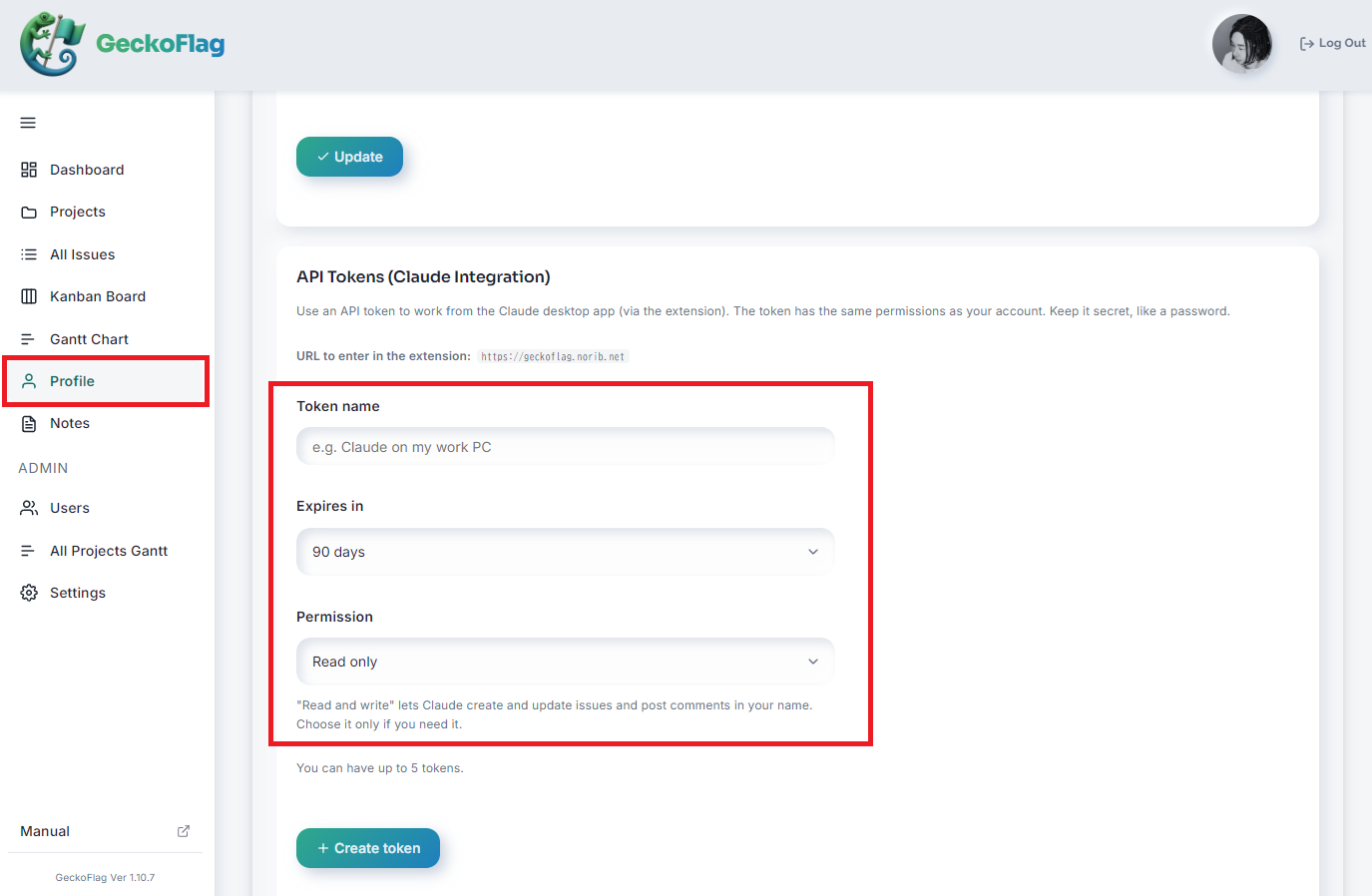
- Choosing the permission — Choose “Read only” to search and view only, or “Read and write” if Claude should also create and update issues and post comments. Choose writing only when you need it.
- The token is shown only once, right after it is created. Be sure to copy it straight away. Treat it like a password and keep it away from others.
- How many you can create — Each person can create up to 5 tokens. You can delete tokens you no longer use from the same screen at any time.
- If you change your password — All of your tokens are deleted. Create a new one and enter it in the extension again.
STEP 4: Install the extension in Claude
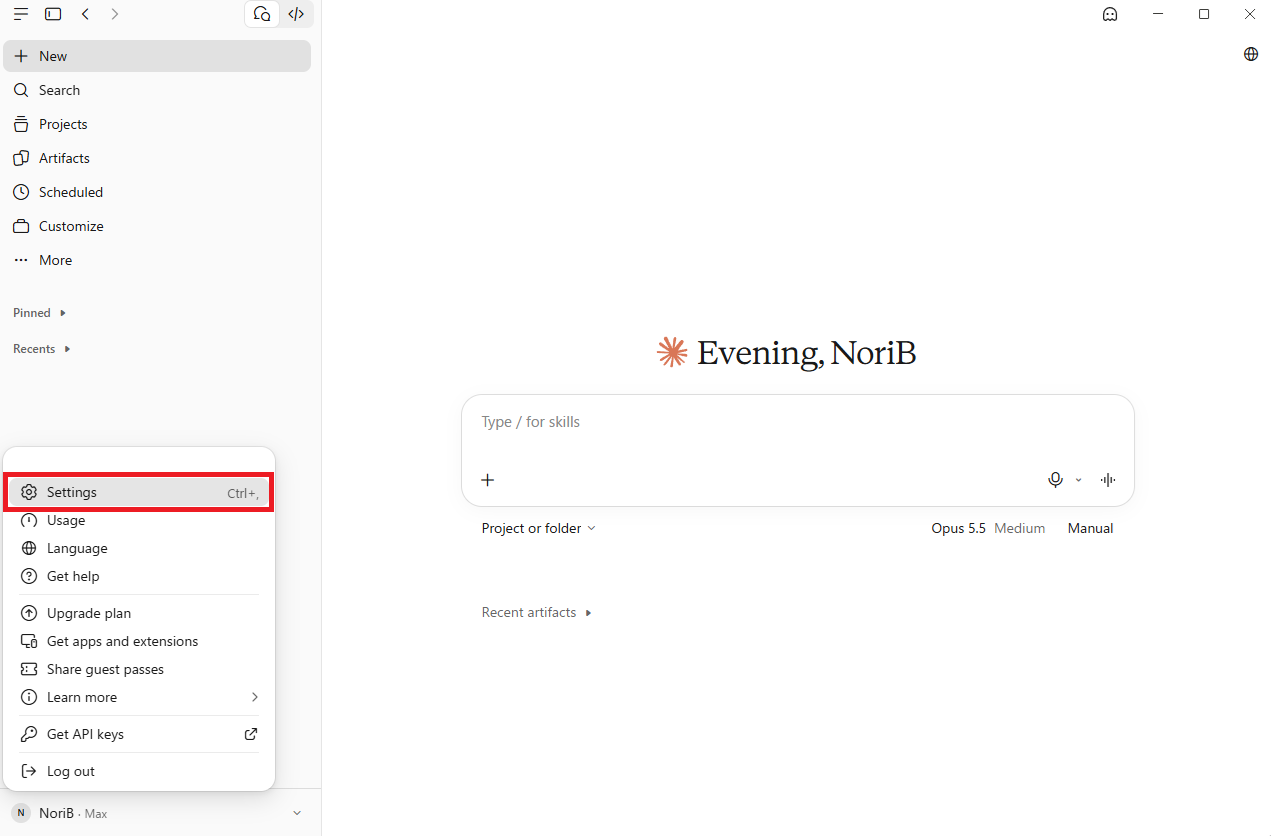
- Open the Claude desktop app, click your account name at the bottom left and open “Settings”.
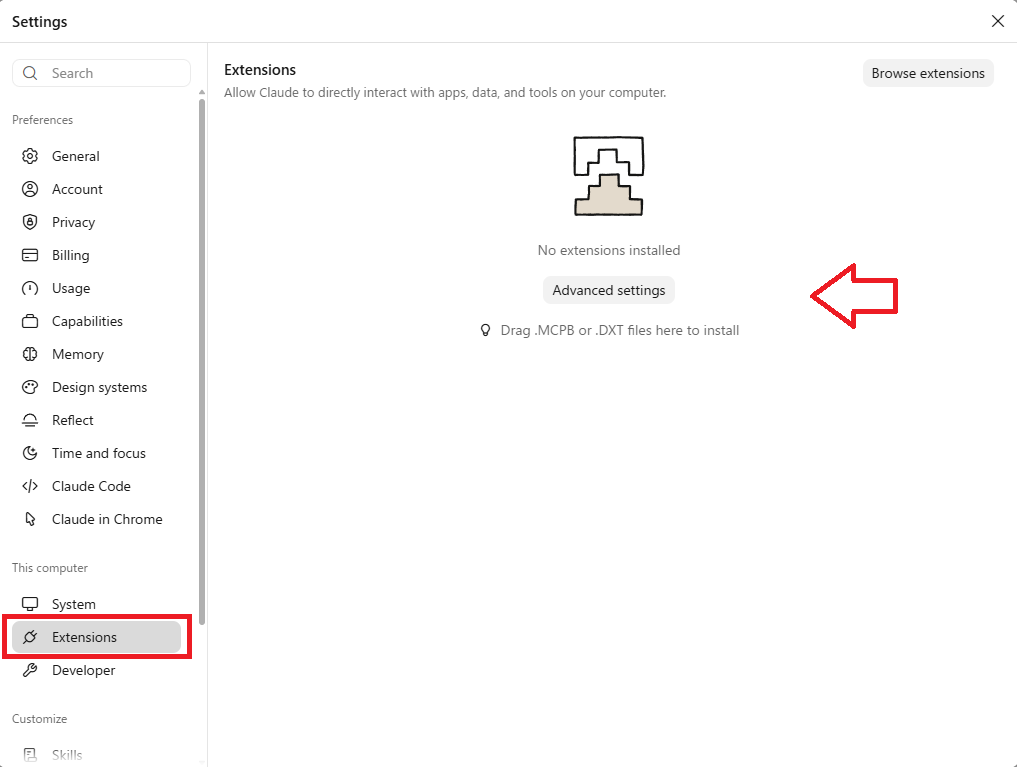
- Open “Extensions” in the left menu.
- Drag and drop the GeckoFlag extension file (.mcpb) onto this screen. You can also install it by choosing the file from “Install extension” under “Advanced settings”, or by double-clicking the file.
- When the description of the GeckoFlag extension appears, review it and click “Install”.
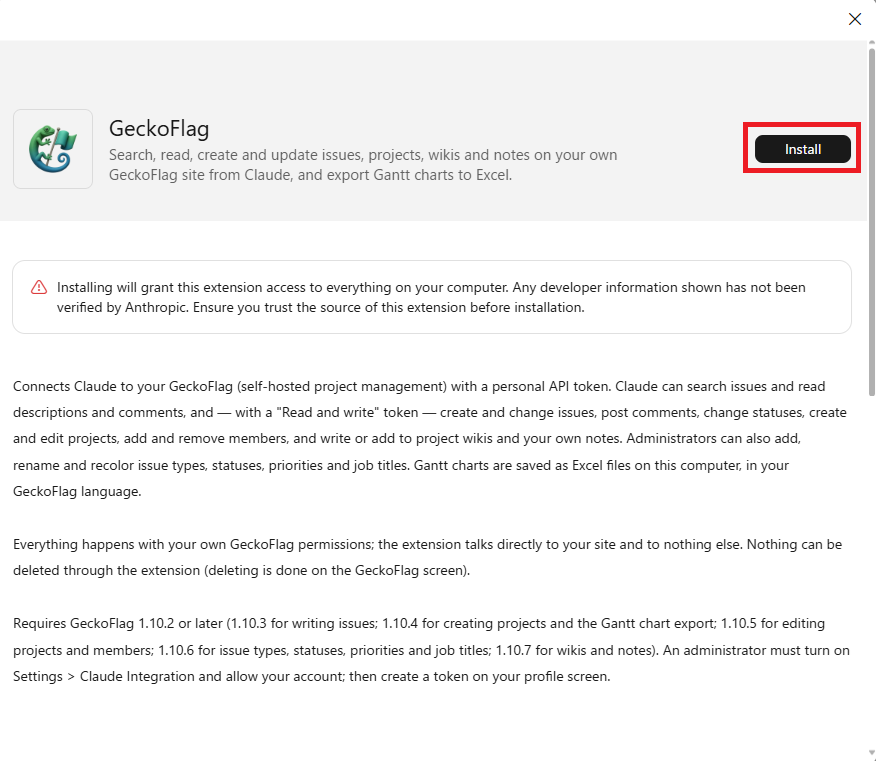
The install screen shows Claude’s standard warnings that the extension will have access to your computer and that the developer information has not been verified by Anthropic. The GeckoFlag extension communicates only with the GeckoFlag URL you enter, and saves files only when exporting Gantt charts to Excel.
STEP 5: Set the URL and token
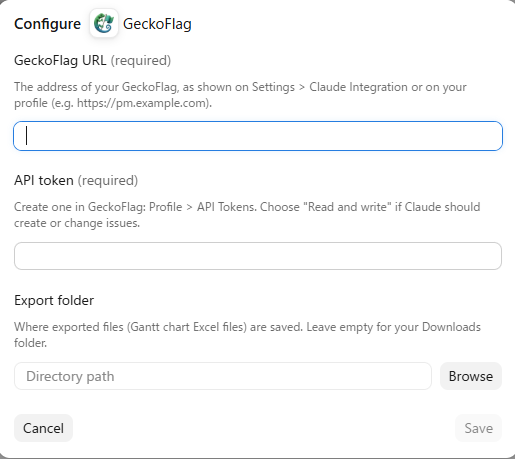
- After installation, the settings screen (Configure) opens. Enter the following items and click “Save”.
| Item | What to enter |
|---|---|
| GeckoFlag URL (required) | The “URL to enter in the extension” you noted in STEP 3 (for example, https://pm.example.com). It must start with https://. |
| API token (required) | The API token you copied in STEP 3 (a string starting with gfk_). It is saved masked. |
| Export folder (optional) | Where Gantt chart Excel files are saved. If left empty, they are saved to your Downloads folder. |
- When “GeckoFlag” appears in the “Extensions” list, the installation is complete. Make sure the extension is enabled. To change the settings later, open them again from “Configure”.
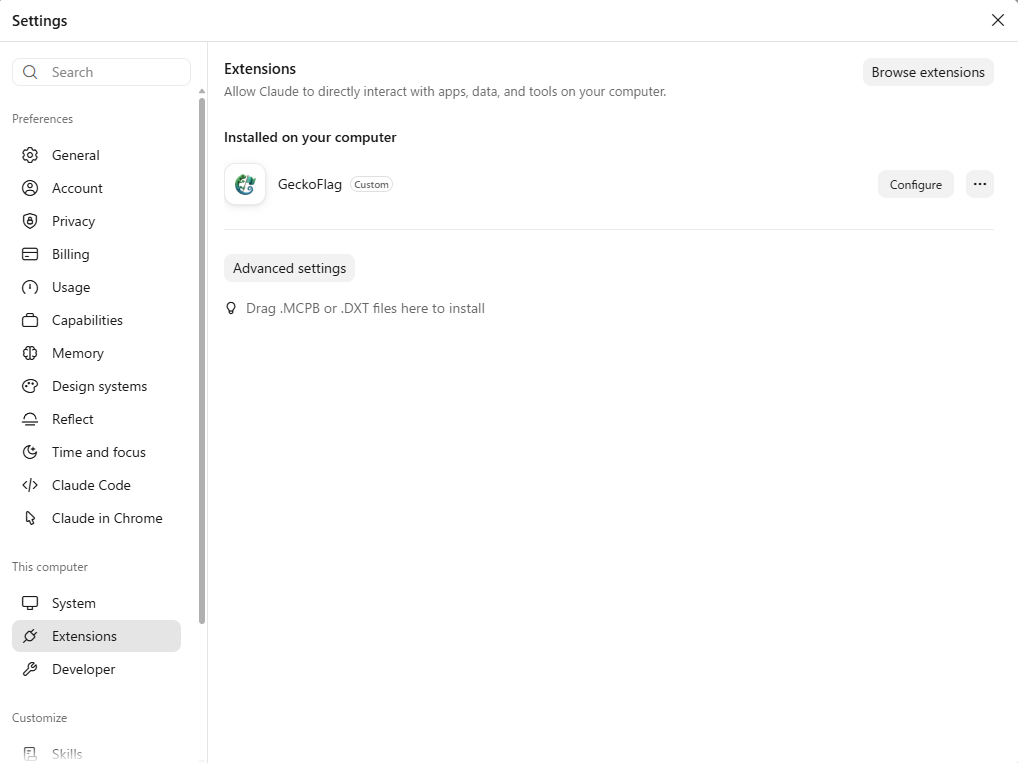
- To confirm before writes (recommended) — Open the GeckoFlag extension on the same screen and set write actions, such as creating and updating issues, to “Ask every time”. Claude will then always ask for confirmation before running them.
STEP 6: Check the connection
- Start a new conversation in Claude and ask it to “Check that you can connect to GeckoFlag”.
- When Claude replies with the token owner’s name, the GeckoFlag version and whether writing is possible, the setup is complete.
From then on, just ask in everyday words, such as “Show me the issues assigned to me that are due this week”. For example requests, see the Claude Integration page.
Troubleshooting
In most cases, Claude explains the cause and what to do in the conversation. Common cases are listed below.
- Claude does not use GeckoFlag — The extension is disabled or not installed. Enable GeckoFlag under “Extensions” in the settings and start the conversation again.
- API not found (404) — Claude Integration is disabled, GeckoFlag is an older version, or the URL is wrong. Check the administrator settings, the GeckoFlag version and the URL you entered.
- Token rejected (401) — The token may be wrong, expired or deleted (changing your password also deletes it). Create a new one on your profile screen and enter it in the extension again.
- Not allowed to use it — An administrator needs to turn on “Allow Claude integration (API)” on the Edit User screen.
- Cannot write (403) — You are using a “Read only” token, or “Allow writing” is off for the site. Create a “Read and write” token or ask an administrator to allow writing.
- Issue or project not found — The key is wrong, or you are not a member of that project. Check the key or ask the owner to add you as a member.
- Redirected — The URL differs, for example in http vs https or with or without www. Enter the final URL shown when you open GeckoFlag in a browser.
- Rejected by the site — GeckoFlag’s IP address access restrictions also apply to the API. Use it from an allowed location or ask an administrator to review the allowed ranges.
- Rate limited (429) — The limit is 60 requests per minute per token. If invalid tokens were sent repeatedly, wait up to about 15 minutes and try again.
- No response — The server may be slow or down. For writes, the change may already have been saved, so check on GeckoFlag’s screens before trying again.
- Repeated 401 errors on an Apache server — This is normally worked around automatically. If it continues, check that GeckoFlag’s webroot/.htaccess is up to date.