Update
v1.0.0+ Admin OnlyYour purchased license entitles you to free future updates. Applying one only takes a few steps from the admin dashboard.
Applying an Update
- 1Before you begin, take a manual backup from the admin dashboard. See the Backup page for more on backups.
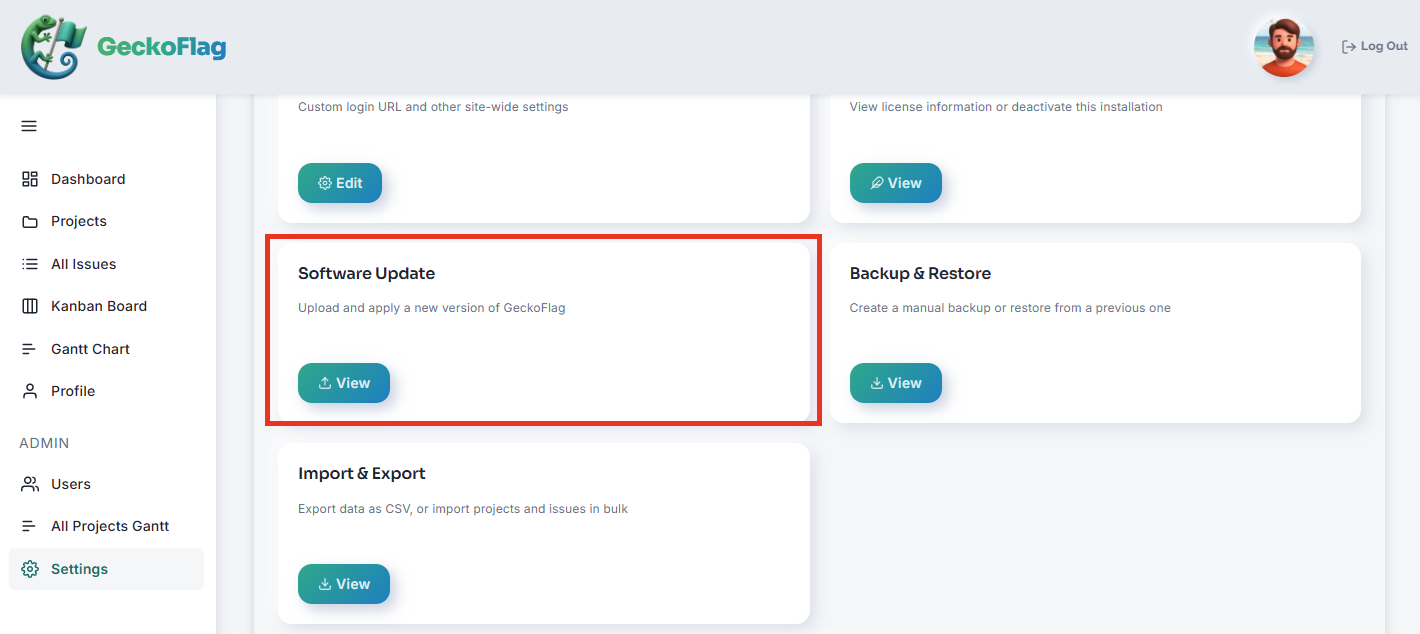
- 2Go to Software Update in the admin dashboard.
- 3Upload the distributed update ZIP file. File updates and database migrations run automatically.
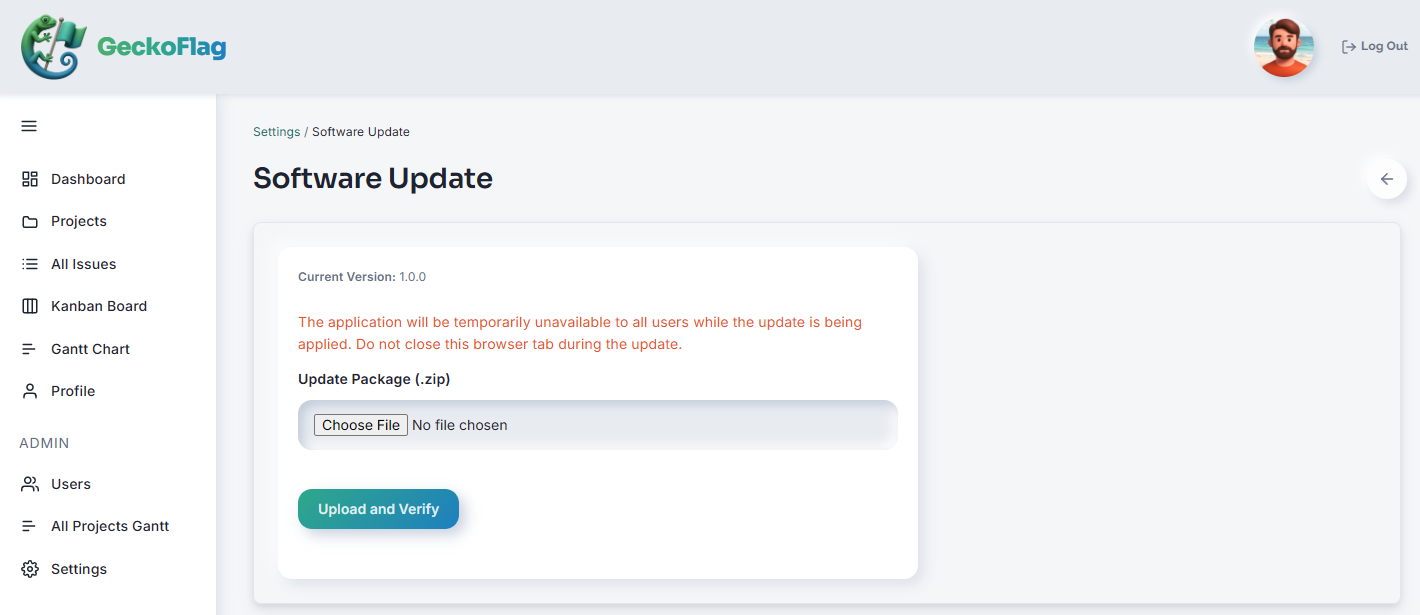
- 4Wait for the update to finish. The site switches to maintenance mode for regular users while it runs, and returns to normal automatically once it's done.
Verification of Official Update Files (v1.10.0+)
- From v1.10.0 onward, the digital signature of the update file is verified automatically before the update. Files that were not officially distributed, or that were modified after distribution, can't be applied.
- Signature verification requires the PHP extension
sodium(System Requirements). - When updating from v1.9.x or earlier to v1.10.0, this check is not yet performed before the update is applied, so compare the SHA-256 of the downloaded file with the value on the Security page before applying it.
- If you use Nginx, increase the maximum upload file size (
client_max_body_size) (Installation).
If an Update Fails
If an update fails, maintenance mode is automatically lifted so the site won't be left stuck and unavailable. You can also restore from the backup you took beforehand.
Are Updates Free?
Yes — your purchased license entitles you to free future updates.