Namecheap Hosting Example
v1.0.0+This page walks through installing GeckoFlag on Namecheap shared hosting as one concrete, cPanel-based example. The overall flow is the same as the Installation page — this walkthrough just maps each step onto Namecheap's specific hosting tools.
Before You Begin
- Sign up for a Namecheap shared hosting plan (Stellar, Stellar Plus, or Stellar Business) and make sure your domain is pointed at it — any of these plans meets GeckoFlag's system requirements.
- Have your cPanel login ready. In your Namecheap account, go to Hosting List and click Go to cPanel — or use the link from the welcome email Namecheap sends after signup.
Installation Steps
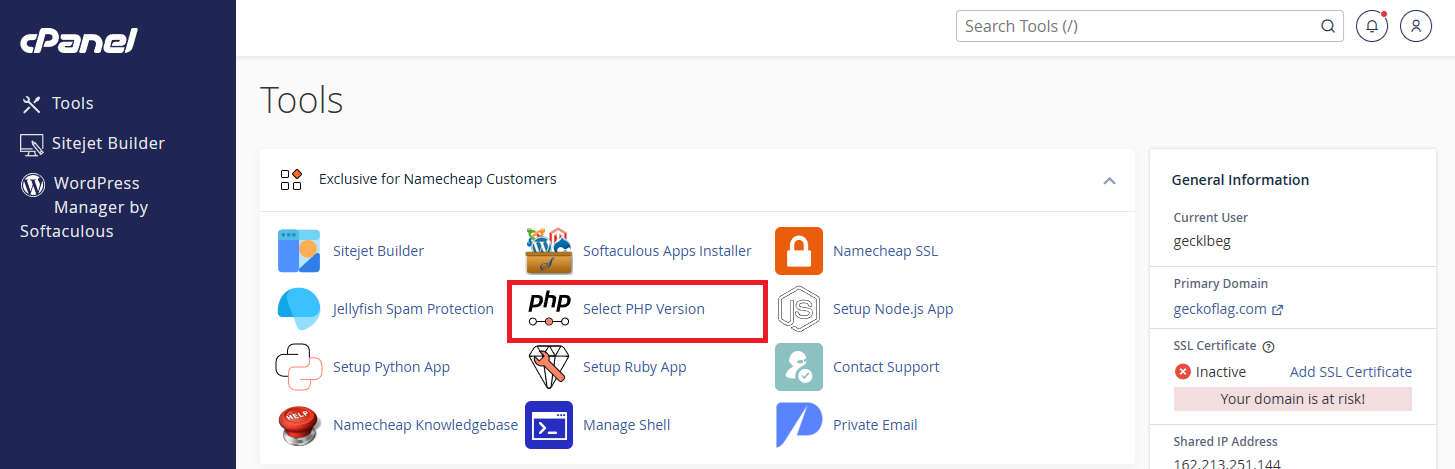
- 1In cPanel, open Select PHP Version under Tools.
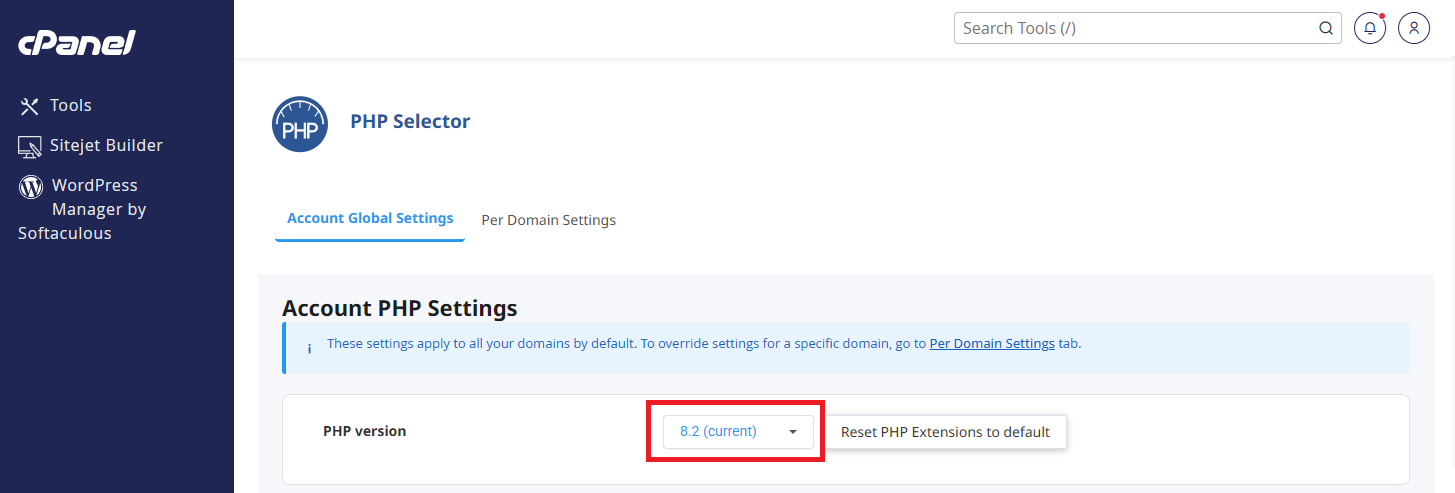
- 2Choose PHP 8.2 or higher from the dropdown.
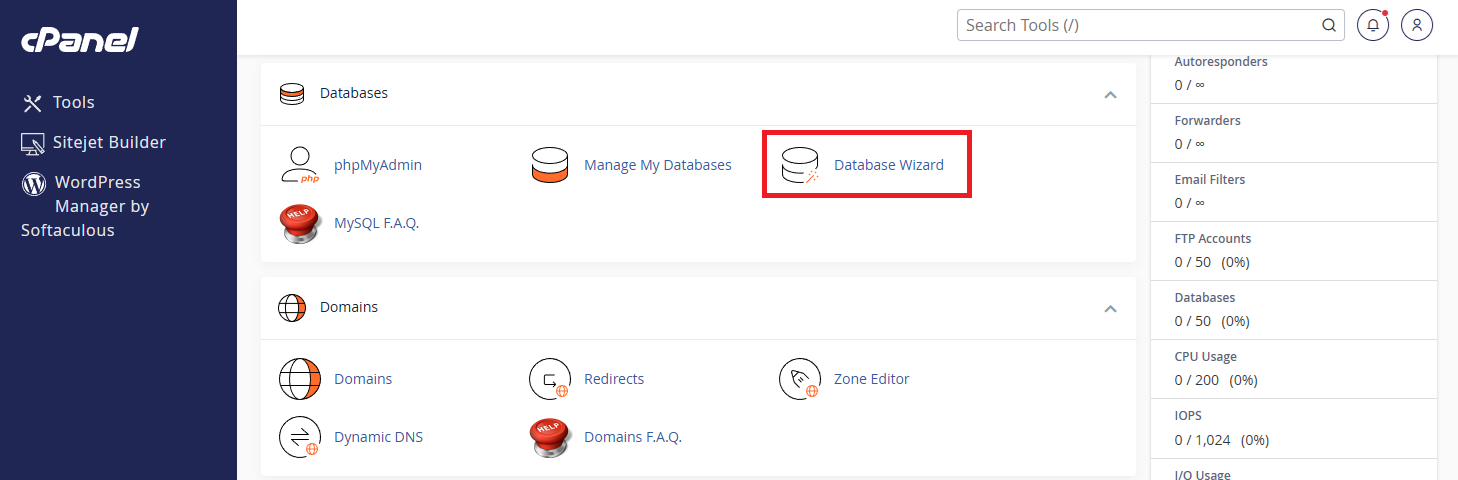
- 3In cPanel, open the Database Wizard (or MySQL Database Wizard) under Databases.
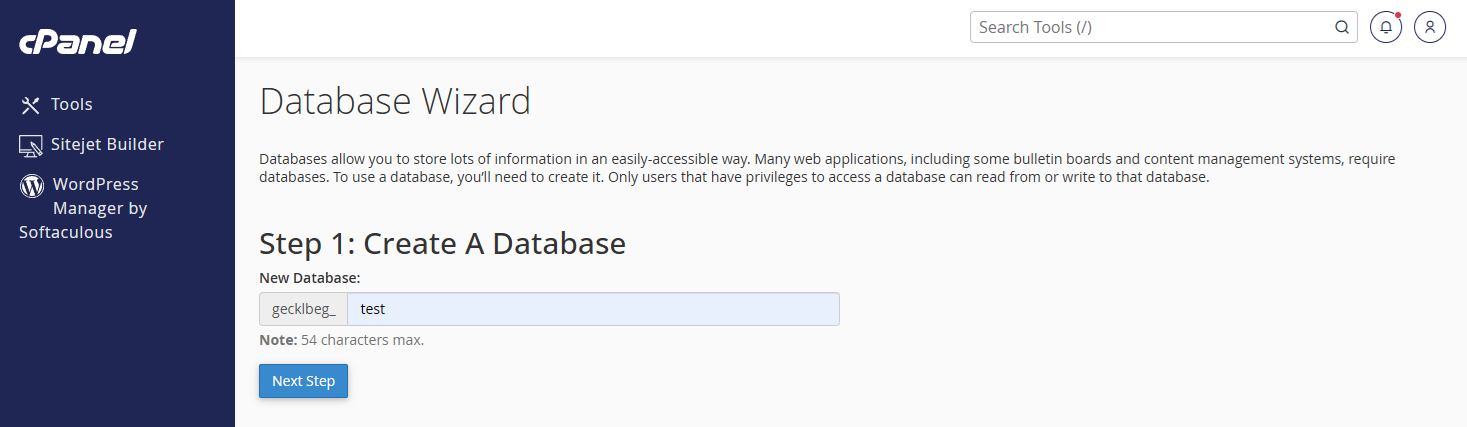
- 4Enter a name for your new database and click Next Step.
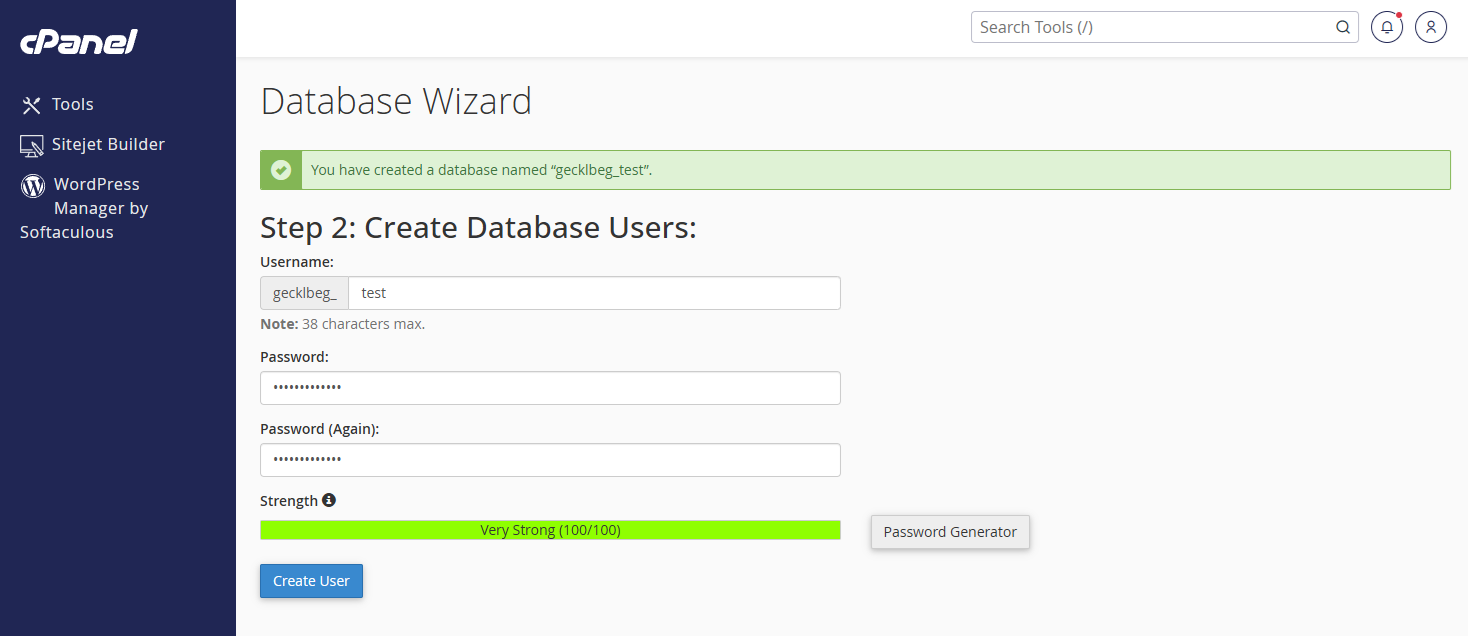
- 5Create a database user with a username and a strong password.
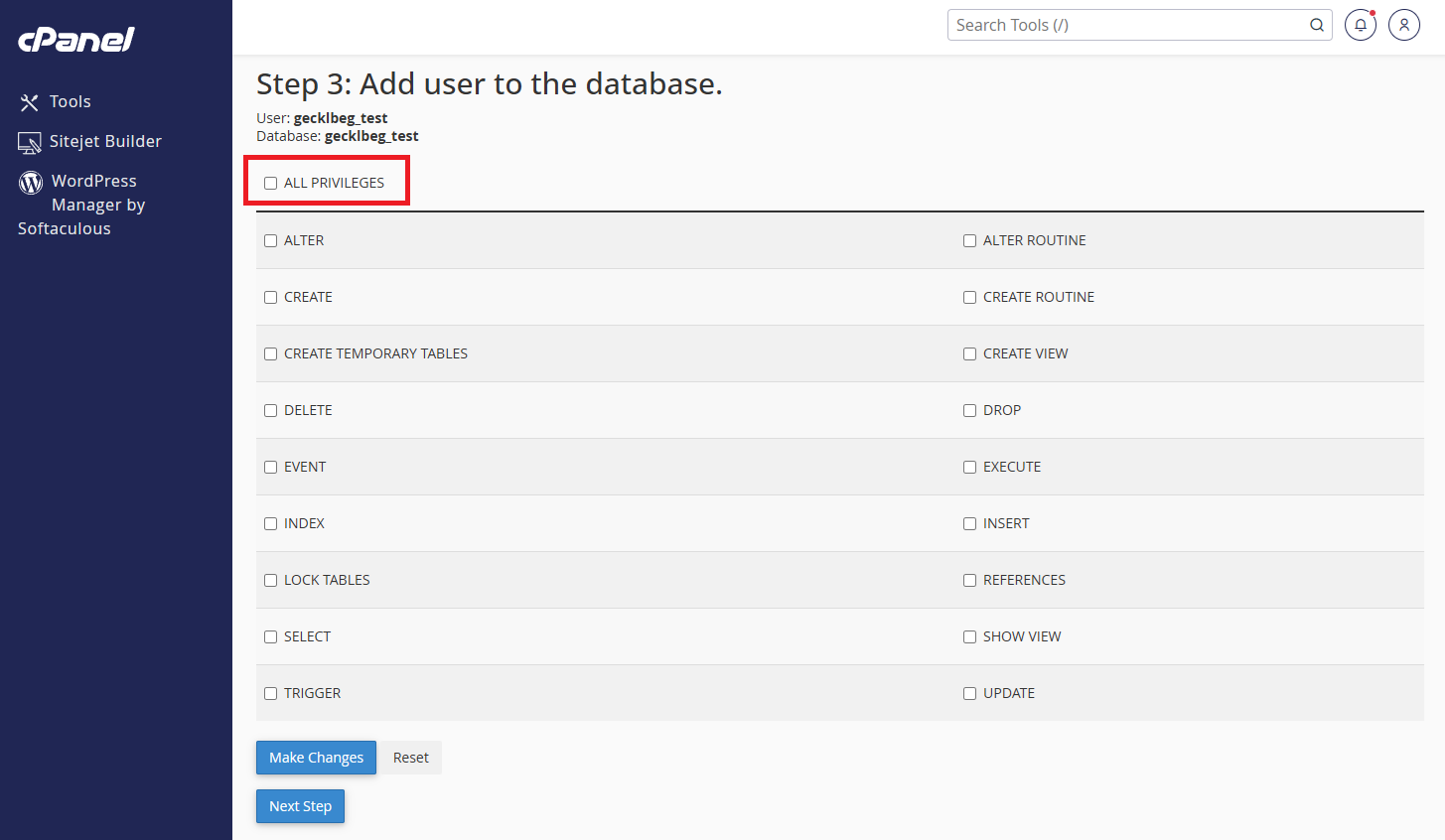
- 6Add that user to the database with ALL PRIVILEGES checked, then click Make Changes.
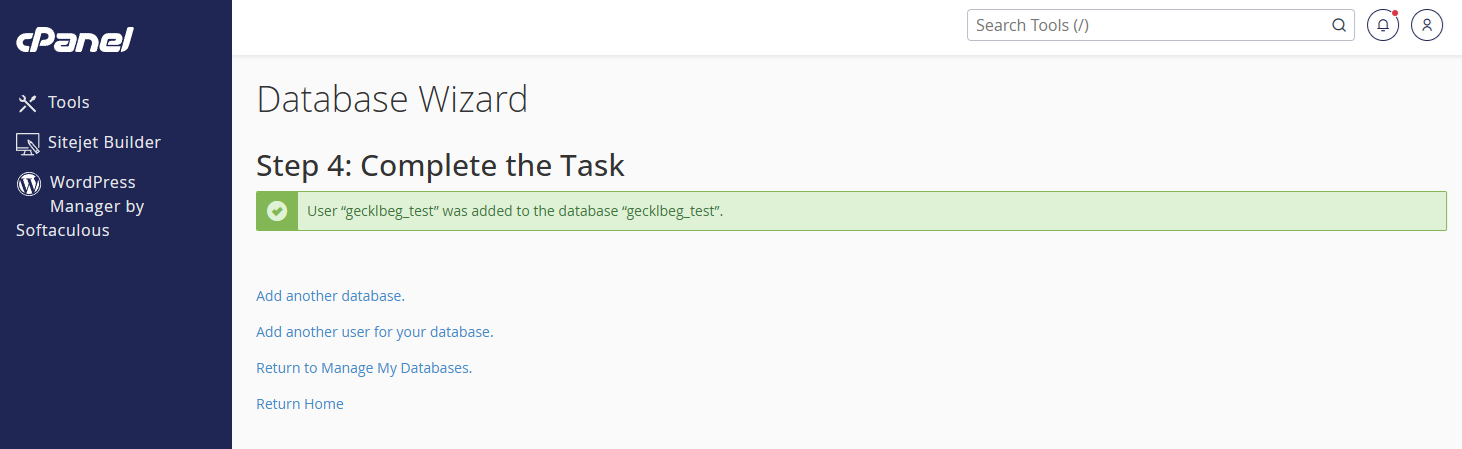
- 7The wizard confirms the user was added to the database. Keep the database name, username, and password on hand — you'll enter them in Step 2 (Database Connection) of the GeckoFlag installer.
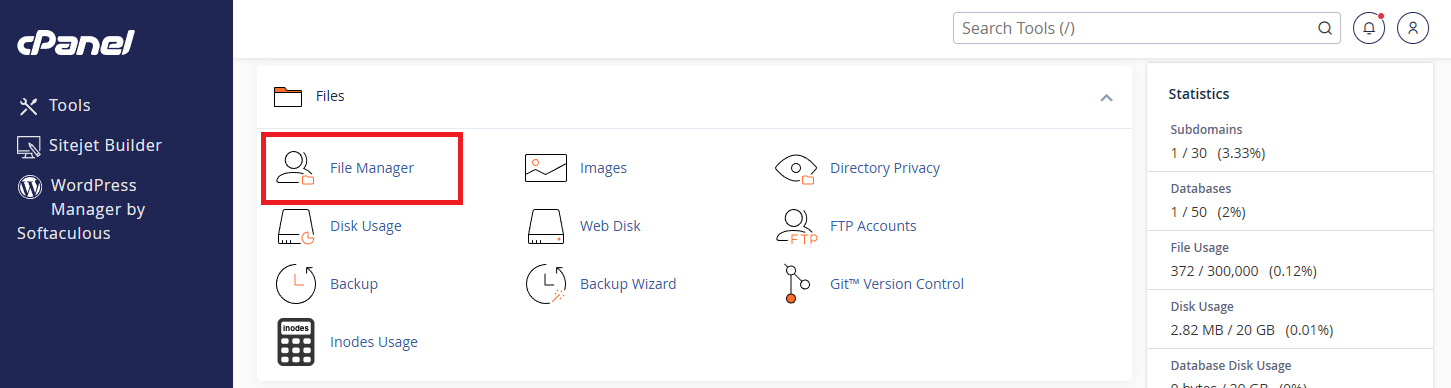
- 8In cPanel, open File Manager under Files.
- 9Navigate to your domain's document root — usually
public_html, or a dedicated folder if you're installing on an addon domain — and click Upload.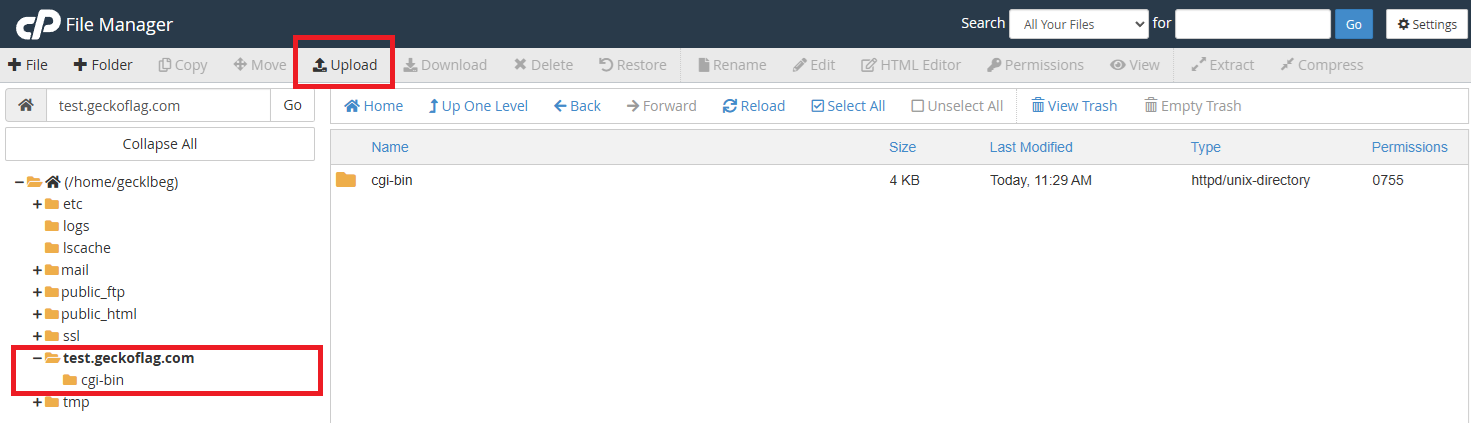
- 10Select the GeckoFlag zip file and wait for the upload to finish.
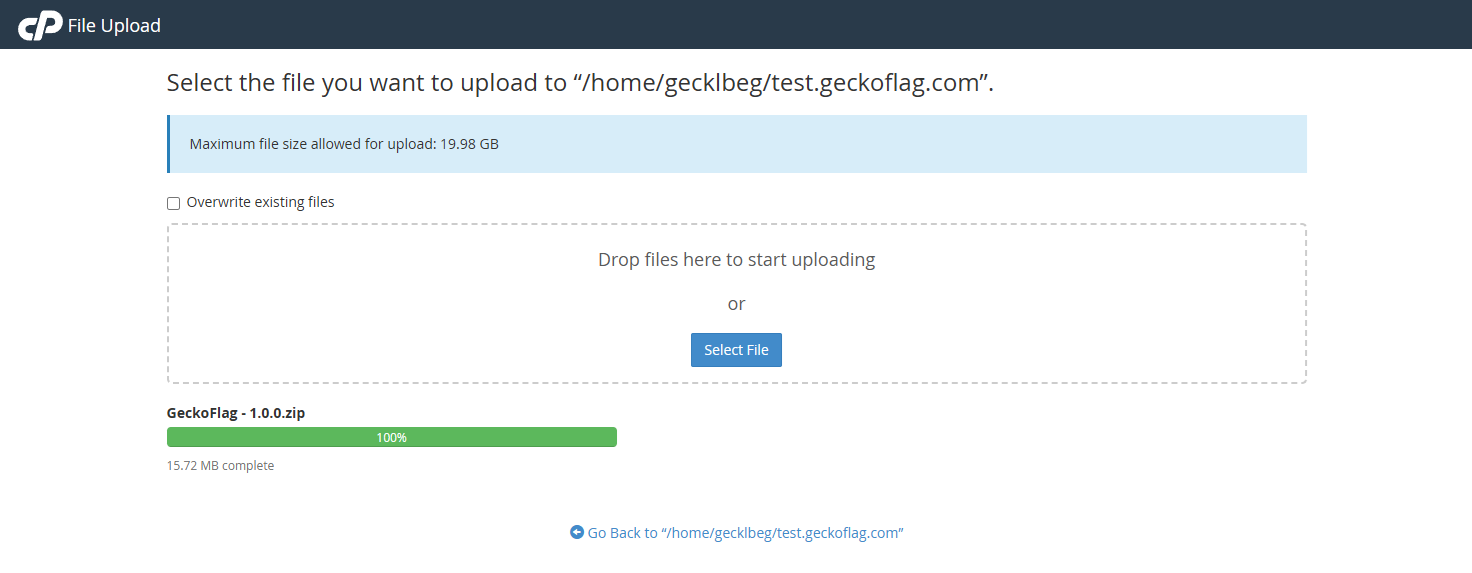
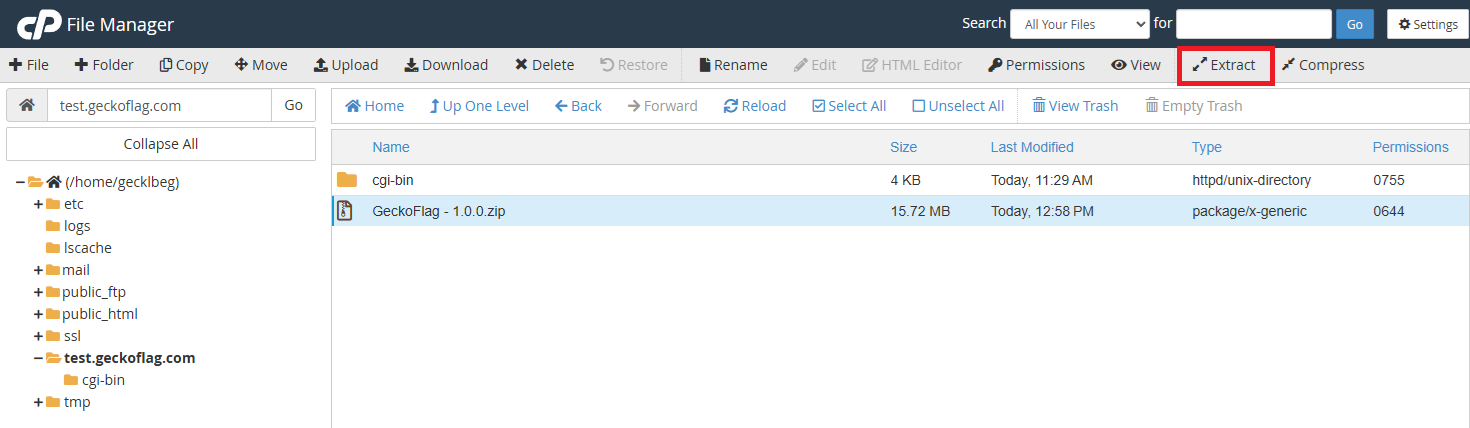
- 11Back in File Manager, select the uploaded zip file and click Extract.
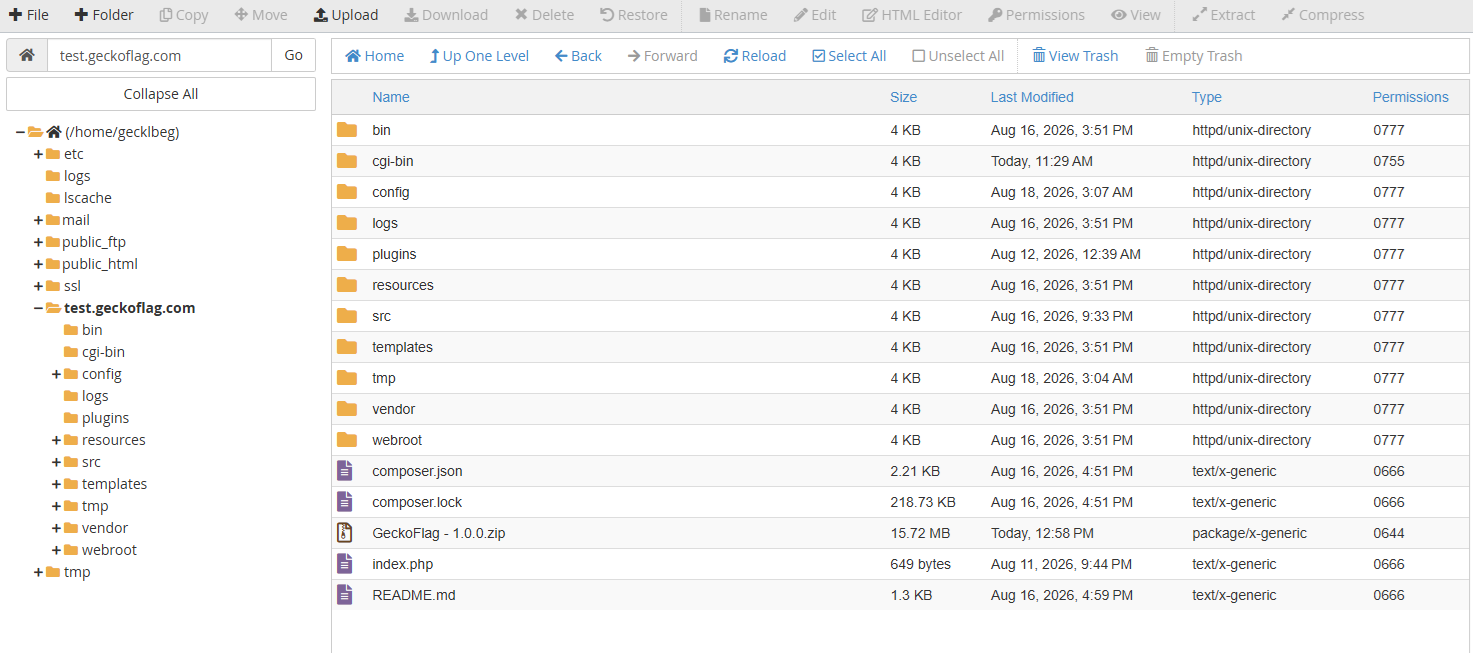
- 12The GeckoFlag files are extracted into the folder, ready to install.
- 13Open your domain (e.g.
yourdomain.com/install) in a browser to launch the GeckoFlag installer. - 14Enter the database name, username, and password you created above when the installer asks for them.
- 15Create your administrator account, then log in and start setting up your projects.
About HTTPS on Namecheap
- Namecheap issues a free AutoSSL certificate for your domain automatically; you can check its status in cPanel under SSL/TLS Status.
- Since GeckoFlag handles login credentials and personal data, confirm HTTPS is active before inviting your team to log in.
Steps and menu names here are current as of this writing and specific to Namecheap's shared hosting cPanel; other hosts follow a similar flow with different menu names. See Installation for the general steps and System Requirements for what GeckoFlag needs to run.