Series: Task Management for Teams Working with AIPart 5
Keep Work Moving While You Wait for Client Approval: How to Ask Clients for Decisions
About this series
“Task Management for Teams Working with AI” is a six-part series for small creative and client-work teams that have started using ChatGPT or Gemini at work. You can read the parts in any order.
- Now That You Use AI, Do You Still Need a Task Management Tool?
- Frame Tasks Around What to Decide, Not Just What to Make
- Make “Waiting for a Decision” Visible
- AI Drafts Are Decision Material, Not Finished Work
- Keep Work Moving While You Wait for Client ApprovalThis article
- With Good Records, AI Can Help Even More
A website redesign project. The team sent the designs for review over chat in five separate messages. “Here’s the home page.” “The subpages are ready too.” “Please check the form fields.” …
Ten days before launch, they realize three of the five have had no reply. When they follow up, the client’s contact says, “I’m passing it to my manager for approval.” Even the client couldn’t see which items needed deciding, or by when.
The work was done, but the project wasn’t moving. What was holding it up was how the team had asked.
Last time, we looked at narrowing AI-made options down to two or three and keeping a record of why you chose one. In many cases, those options then go to the client to decide.
In creative projects, the longest wait is usually for the client’s review. Now that AI has sped up the work, that wait stands out more than ever. This article walks through how to send review requests, how to set deadlines, whether to invite the client into your management tool, and how to record their answers.
Note: this article is written by the developer of GeckoFlag.
Five reasons client reviews drag on
When no reply comes, it is easy to assume the client is just busy. But if you look at how you asked, there is a lot of waiting you can cut on your side. Here are five common reasons.
- Requests go out in bits and pieces: when you send items one at a time by chat or email, the client cannot see the whole picture. Without knowing which ones are urgent or how many are left, they put them off.
- It doesn’t say what you need decided: “Please take a look” alone does not tell them whether you want them to look, to choose, or to approve.
- There is no deadline, or no reason for it: requests with no deadline get pushed aside by work that has one. A date with no reason also leaves your contact with nothing to tell their colleagues about why it is urgent.
- You don’t know who decides on their side: can your contact decide, or does it need a manager or an executive? If this is unclear, the review stalls inside the client’s company.
- You haven’t allowed time for their internal review: it is not unusual for it to take several days for your contact to pass it to their manager and gather the answers.
In the scene at the top, all five of these came together.
RelatedWhy requests made by chat or email get lost is also covered in Part 3 of our beginner series “Your First Project Management Tool,” “Why Do Requests in Email and Chat Get Lost?”
Send review requests as a “list of things to decide”
Don’t send review requests in bits and pieces. Send them together on a set day of the week. For example, agree with the client at the start of the project that “every Tuesday morning, we’ll send a list of what we need you to decide that week.”
For each item on the list, include the following. Here it is as a template you can use as is.
| Item | What to write |
|---|---|
| What we need decided | One sentence, in the form “Should we go with A or B?” |
| Options | Two or three, each with what it is aiming for in one line |
| Our recommendation | The option you recommend, and why |
| Deadline | The date, and why that is the deadline |
| If it isn’t decided by then | How you will proceed (agreed in advance) |
For example, one item might look like this
- What we need decided: How many news items should the home page show?
- Options: A: 3 items (fits right below the main visual, even on smartphones) / B: 5 items (better if you post news often)
- Our recommendation: A. You plan to post about twice a month, and with 5 items, news from six months ago would still be showing
- Deadline: Friday, November 6. Building the home page takes three business days, and this lets us start testing on Thursday, November 12
- If it isn’t decided by then: We’ll build it with A and make sure it can still be changed during pre-launch testing
There are two tips for writing the list.
First, always include a recommendation. If you only list options, the client has to think it through from scratch. With a recommendation and a reason, more items can be settled with a simple “Let’s go with that.”
Second, decide in advance what happens if it isn’t decided by the deadline. Saying “If we haven’t heard back by the deadline, we’ll go ahead with our recommendation” is a strong way to keep from stalling while you wait. But use it only if you agreed on it with the client at the start of the project, or if your contract says so. If you go ahead on your own without an agreement, you may later hear “Nobody told us,” and end up with more rework, not less.
CautionExplain “we’ll go ahead if we don’t hear back” as part of how you work at the kickoff meeting or when you send the estimate, and get the client’s agreement. On projects without that agreement, plan something else, such as calling the client once the deadline passes.
Work back from the launch date, and give a reason with the deadline
Don’t set the deadline as “the day we’d like an answer.” Work it back from the launch date, and allow for the days the client needs to pass it around internally.
- From the launch date, count back the working days needed after the item is decided
- Then count back the days the client needs for their internal review (for example, three to five business days)
- Make that the day you send the request. Set the deadline for the day before the work needs to start
Then give a reason with the deadline. If you write “If we hear from you by November 6, we can launch on November 20,” your contact can explain to their manager why it needs to be quick.
One more thing matters: ask at the start of the project who makes the decisions on the client’s side. “Who makes the final call on the design?” “Is there a chance to show it to that person directly?” Just asking these questions makes it much clearer how reviews will need to be arranged.
SeriesHow to set tasks you have sent for review to a “Waiting on client” status and see everything that is waiting in one list is covered in Part 3, “Make “Waiting for a Decision” Visible”
Invite the client into your management tool, or not?
Where reviews happen is also worth deciding. You can invite the client into your management tool and work there, or not invite them and send them a list instead.
| Invite | Don’t invite | |
|---|---|---|
| How it works | The client looks at the tasks and answers in comments | You send the review list by email or as a document, and copy the answers into the tool yourselves |
| Good points | The client can see the status too. Everything stays in one place | The client doesn’t have to learn a new tool |
| Watch out for | The client needs time to get used to it. Keep internal-only discussions somewhere else | Copying takes time, and it is easy to miss something |
| Suits projects that | Run a long time, involve lots of back-and-forth, or where the client is used to such tools | Are short, involve little back-and-forth, or where the client isn’t used to such tools |
Which is better depends on the project and the client. At the first meeting, ask, “What’s the easiest way for you to review things?” and decide based on what they prefer. You can also switch partway through.
When you get an answer, record what was decided
When you get an answer, add the following to that item’s task:
- Who decided (whose call it was on the client’s side)
- When it was decided
- What was decided
- The reason (in the client’s own words, if they gave one)
Copy the key points of answers you get by email or phone into the task as well. For a phone call, add the date and who you spoke with, for example: “October 30, phone call with the client’s communications lead. Decided to go with A.”
This keeps you from hearing “We never said that” later, and lets anyone trace what happened even if the person in charge changes. This is where the “Decision” and “Reason” fields of the decision task you set up in Part 2 get filled in.
For example, if you change how you send requests
Imagine a team that used to send review requests one at a time over chat. Answers took about five days on average, and each item needed one or two reminders. If they switch to sending a list every Tuesday, with a recommendation and a reason for each deadline, many items could start coming back in two or three days, with hardly any reminders needed. That is the kind of change you can expect.
What changed is not how busy the client is. It is that the client can now see at a glance what to decide, by when, and in what order.
Putting it into practice in GeckoFlag
Here is how you can bring this way of working into GeckoFlag.
1Invite clients as “Guests”
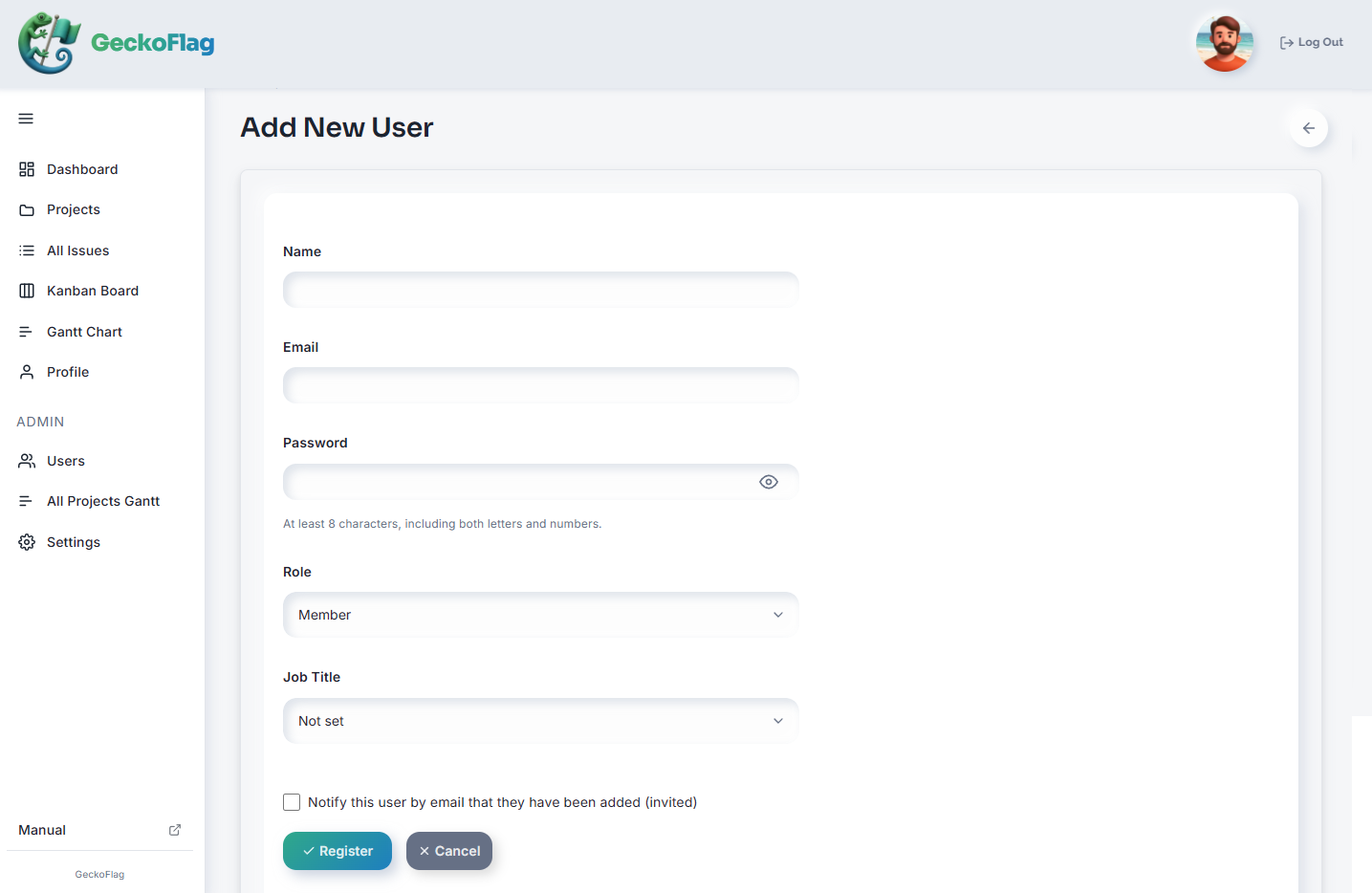
GeckoFlag users have one of three roles: Administrator, Member, or Guest. When you invite a client, make them a Guest. Guests are added by an administrator from the user management screen. There is no way for clients to sign themselves up.
In the projects they have joined, guests can work with issues, comments, the wiki and files in the same way as members. Their access is not view-only, so they can reply in comments or even create issues themselves. On the other hand, they cannot create projects or become a project’s owner. Because they can also add and delete files and folders and edit the wiki, think about where you keep materials you want to protect. For details, see “Permissions by Role” in the manual.
2Make the decider the assignee, and the answer deadline the due date
A client you have invited as a guest can be set as an issue’s assignee. On a decision task, make the client’s contact the assignee and enter the answer deadline as the due date. If the person who actually decides is a manager or an executive, write their name under “Who decides” in the description.
In the issue description, use the template from Part 2 (what to decide, what it is holding up, options, who decides, deadline, decision, reason) and add “Our recommendation” and “If it isn’t decided by then” from this article. The template in this article is meant for the list you send to the client.
3Ask for reviews in a comment, choosing who to notify
When you post a comment, you can choose who gets an email notification. For a comment asking for a review, choose the client as a recipient and post it. If you change the status to “Waiting on client” at the same time, the request and the change of state are recorded in one step.
You choose who to notify each time you post; notifications are not sent to everyone automatically. (People who have checked “Notify me of all comments on issues in projects I participate in” in their profile receive every comment.)
4Keep internal-only discussions in a separate project
GeckoFlag has no way to hide only some issues in a project from guests. Keep estimate discussions and internal deliberations you don’t want the client to see in a separate project that the client has not joined. Deciding who goes into which project before you invite anyone gives you peace of mind.
5Let clients abroad choose their display language
Each user can switch the display language in their profile. If you invite a client from abroad, they can view issues and comment with the screens in their own language. Only the screens change; the text of issues and comments is not translated.
6If you don’t invite the client, copy their answers into comments
If you don’t invite the client, send the review list by email, and when you get an answer, copy the key points into a comment on the relevant issue.
“Create with AI” can save you effort here (v1.9.0+). It can draft a comment from the text of the client’s reply email or from a chat screenshot. Using it requires an Anthropic API key (usage fees are paid to Anthropic and are not included in GeckoFlag’s price) and permission from an administrator. To use screenshots, an administrator also needs to turn on image reading (it is off by default). If the request is clear, such as “Please push the deadline to next week,” it also proposes changes to the due date or status. A person checks the proposal, and only the items they tick go into the form. Nothing changes until you save. For details, see the Create with AI page.
Keep in mind that reply emails and screenshots may include the client’s names, contact details, or information that must not leave the company. Also, when you draft a comment, the issue’s description and its five most recent comments are sent to Anthropic as well. Check against your contracts with clients and your company’s rules whether it is all right to pass the content to AI before you use it.
SeriesWhere to draw the line on what you share with AI is covered in detail in Part 6, “With Good Records, AI Can Help Even More”
The steps for adding guests are in the manual under “Adding & Editing Users” and “Permissions by Role,” and how notifications work is in “Comments on Issues.” You can try the actual screens in the demo.
Summary
- Most of the reasons client reviews drag on lie in how you ask: requests in bits and pieces, no clear question, no reason for the deadline, no clear decider, and no time allowed for the client’s internal review
- Send review requests together on a set day, each with what you need decided, options, your recommendation, a deadline, and what happens if it isn’t decided by then
- Use “we’ll go ahead with our recommendation if we don’t hear back” only if you agreed on it in advance
- Work the deadline back from the launch date, allow for the client’s internal review, and give a reason with it
- Decide whether to invite the client based on the length of the project, the amount of back-and-forth, and how used to such tools the client is
- Record answers on the task as who decided, when, what, and why
A client’s review can look like something you can’t speed up. But if you hand over what you need decided in a form that is easy for them to decide on, you can cut the waiting time considerably.
Next time, to wrap up the series, we look at how to use the records you have been keeping as material for getting AI to help.