Series: Task Management for Teams Working with AIPart 2
Frame Tasks Around What to Decide, Not Just What to Make: How Creative Teams Working with AI Should Write Tasks
About this series
“Task Management for Teams Working with AI” is a six-part series for small creative and client-work teams that have started using ChatGPT or Gemini at work. You can read the parts in any order.
- Now That You Use AI, Do You Still Need a Task Management Tool?
- Frame Tasks Around What to Decide, Not Just What to MakeThis article
- Make “Waiting for a Decision” Visible
- AI Drafts Are Decision Material, Not Finished Work
- Keep Work Moving While You Wait for Client Approval
- With Good Records, AI Can Help Even More
In the task list, “Home page design” has been sitting “In progress” for three weeks. When you ask the designer how it is going, this is the answer you get:
“The design is almost done. I used AI for the first draft, so it went quickly. But the client still hasn’t sent the case studies for the portfolio section.”
The design was not what was running late. What was still undecided was which case studies to feature.
Last time, we saw that AI has sped up the work of making things, but not the work of deciding.
This time, we look at how to turn that deciding into tasks of its own. We also cover how to name these tasks, and share a template you can paste straight into the description field.
Note: this article is written by the developer of GeckoFlag.
Why “make X” tasks get stuck
Open a task list and you will often see a row of names like “Make X” or “Create X.” That is only natural, since we have always divided work around what needs to be produced.
But a single task such as “Design the home page” contains several things that need to be decided:
- Which direction to take with the hero image
- Which case studies to feature in the portfolio section
- Which fields to include in the contact form
- Whether to arrange a photo shoot or use stock images
With AI, you can produce a design draft right away. But if even one of these is not decided, the design can never be marked “Done.” The task stays “In progress” and stops moving.
From the outside, it looks as if the work is behind schedule. In reality, it is simply waiting on someone’s decision. The real problem is that the task list cannot tell these two situations apart.
When a “make” task is stuck, there is usually something not yet decided hiding inside it.
Pull the decisions out into their own tasks
So we take the decisions hiding inside a “make” task and split them out as separate tasks. The key is to keep the “make” task and place the “decide” tasks in front of it.
| Original task | Tasks split out |
|---|---|
| Design the home page | [Decide] Choose the hero image direction from two options |
| [Decide] Pick three case studies to feature | |
| [Decide] Finalize the contact form fields | |
| [Make] Finish the home page design in the chosen direction |
Name these tasks with verbs such as “Decide,” “Choose,” “Finalize” or “Get approval for.” That way, the name alone tells you whether a task is hands-on work or someone’s decision.
Pay attention to the order, too. Set the due date of each decision task before the due date of the work that depends on it. If the design must be finished by the end of the month, for example, work backward from the time each piece of work takes: decide the hero image direction two weeks before, and the case studies ten days before. This way, the dates show you which decisions will hold up the whole project if they slip.
Once the decision tasks are cleared, the “make” task moves quickly. The more AI is involved in the work, the bigger this difference becomes, because once you tell the AI what was decided, the finishing work takes very little time.
What to write in a decision task
In a decision task, write the following items in the description field. You can use the item names as they are, so keep them somewhere handy, such as in your notes, and paste them in whenever you create one.
| Item | What to write |
|---|---|
| What to decide | One sentence. If you can phrase it as “A or B,” it is easier to answer |
| What it is holding up | Which work cannot move forward until this is decided |
| Options | Option A, option B and so on. Attach any options you made with AI |
| Who decides | One person’s name. Also note whether they are on your team or at the client |
| Deadline | A date worked back from the day the next piece of work would stall |
| Decision | Add this once it is decided |
| Reason | One or two lines, for when someone later asks, “Why did we go with this?” |
The most important item is “What it is holding up.” With it, the person deciding can see why it is urgent: “Until this is decided, we can’t book the photo shoot.”
For example, you might write:
Example: the hero image photo
- What to decide: Should the hero image be a photo of the staff or a stock image?
- What it is holding up: Finishing the home page design, booking the photo shoot
- Options: A Staff photo (needs a shoot) / B Stock image / C Launch with B, then replace it with A after the shoot
- Who decides: The client’s PR contact
- Deadline: The last day to book the photographer
- Decision: C
- Reason: It keeps the launch date while still letting the company’s character come through later
When you attach options made with AI, it is important not to list every option the AI came up with.
SeriesHow to handle options made with AI is covered in detail in Part 4, “AI Drafts Are Decision Material, Not Finished Work”
Tips for setting up decision tasks
1Give each decision one decider
A task that says “we’ll all decide together” rarely gets decided. Everyone assumes someone else will make the call. No matter how many people you consult, make one person responsible for the final decision.
2Set the deadline to the day the next piece of work would stall
The deadline should not be a hopeful “we’d like to decide around then” date, but the day after which waiting any longer would stall the next piece of work. Because the date has a reason behind it, the person deciding feels its weight too.
3Don’t break things down too far
If you turn every decision into a task, there will be so many tasks that nobody looks at the list anymore. It is enough to make tasks only for decisions that meet at least one of these conditions:
- It needs someone else’s decision
- Other work stalls until it is decided
- Someone is likely to ask later why it was done this way
If it is something you can decide on your own right now, don’t make it a task. Just decide it on the spot.
4Once it is decided, leave a one-line reason before you close it
When the decision is made, add the “Decision” and “Reason” to the description, also leave a comment such as “We went with C, because…,” and then mark the task as done. One line is enough for the reason. That one line will help a few weeks later, when someone asks, “Why did we choose this photo again?”
Let AI help you split out the decisions
Working out which decisions are hiding inside a “make” task is something AI is good at. For example, you could ask it like this:
Example prompt
In a website project, there is a task to “finish the home page design.” List the things someone needs to decide in order to complete this task. For each one, also write the following three things:
- What needs to be decided (phrased as “A or B”)
- Whether it is decided by our team or by the client
- Which work stalls until it is decided
The AI will list items you might not have thought of. But it is people who decide which of them become tasks and who makes each decision. Look through the AI’s suggestions and turn into tasks only those that meet the three conditions under “Don’t break things down too far” above.
Be careful when your prompt includes the client’s name or information that has not been made public yet.
SeriesWhere to draw the line on what you share with AI is covered in detail in Part 6, “With Good Records, AI Can Help Even More”
Putting it into practice in GeckoFlag
Finally, here is how to apply this approach in GeckoFlag.
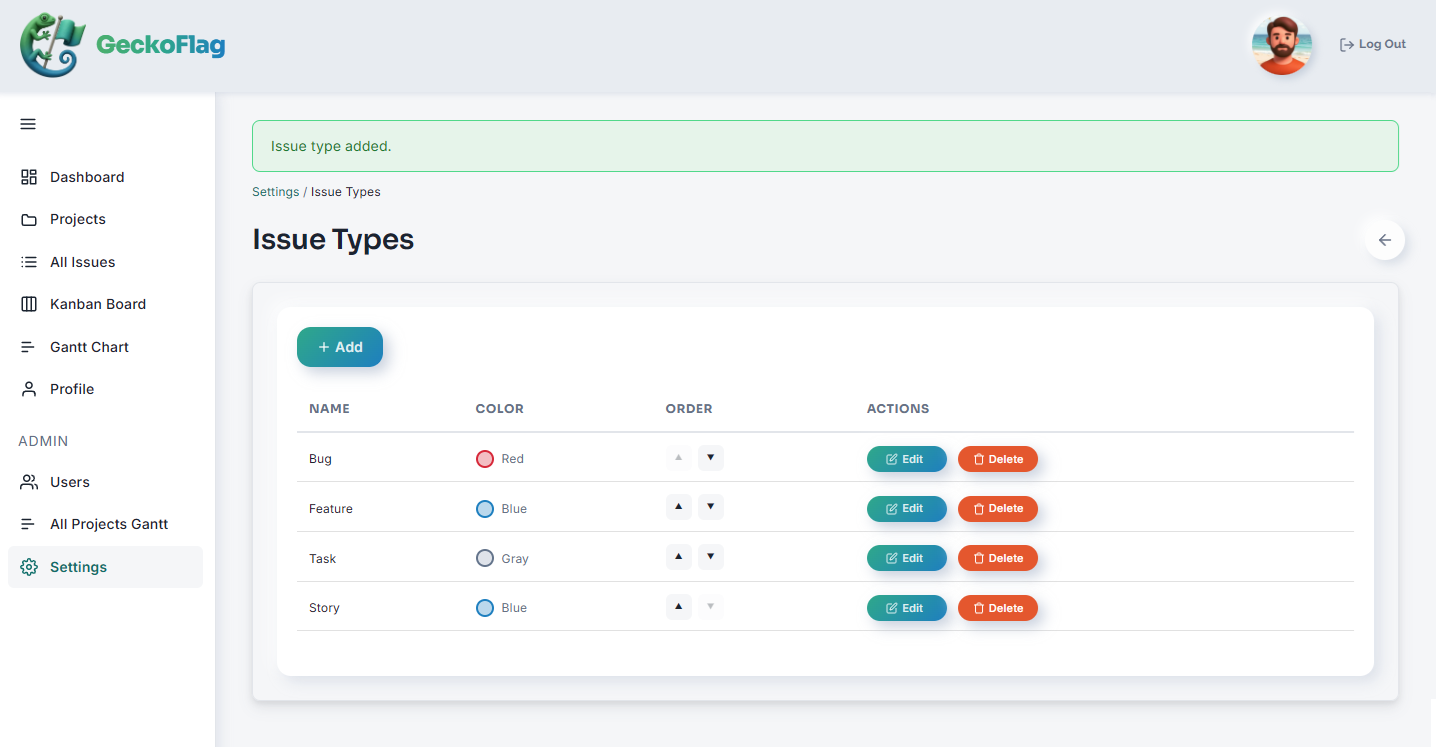
- Add a “Decision” issue type: administrators can add issue types freely and give them colors (up to 10). Give “Decision” a color that stands out, and decision tasks are easy to spot in the list.
- Use “Assignee” for who decides and the due date for the deadline: an issue can have only one assignee, which fits naturally with “one decider per decision.”
- Paste the template into the description: when you create a decision task, paste the template you keep handy into the issue’s description field and fill it in.
- Make the “make” task the parent issue: you can make the “make” task a parent issue and attach the “decide” tasks to it as child issues. This makes it easy to trace which decisions a piece of work depends on (parent/child issues go up to two levels, within the same project).
- Record the decision in a comment: when you post a comment, you can change the status at the same time. Write “We went with C, because…” on the decision task and set it to “Done” in the same step, and both the decision and the status change are recorded at once. At the same time, move the parent “make” task to a finishing status, such as “Decided, finishing.”
If the person who decides is at the client and you have invited them as a guest, you can set them as the assignee directly. If not, set your own team’s point of contact as the assignee, and write the client contact’s name under “Who decides” in the description.
SeriesWhether to invite clients into your tool is covered in detail in Part 5, “Keep Work Moving While You Wait for Client Approval”
If you use GeckoFlag’s “Create with AI,” you can go a step further. This feature proposes issue contents from meeting notes, and administrators can register an output template for the “Issue description.” Put the seven items above into the template as headings, and the descriptions AI creates will follow the same headings in the same order. (Headings with no matching information in the notes are left out, so add items such as “Decision” and “Reason” later.) The template is used only when you use “Create with AI”; it is not inserted automatically when you create an issue by hand. Using it also requires an Anthropic API key and the API usage fees that come with it.
You can try issue types and parent/child issues in the demo. For a full list of features, see the “Project & Task Management” page.
Summary
- When a “make” task is stuck, there is usually something not yet decided hiding inside it
- Split the decisions out into separate tasks and place them in front of the “make” task
- In a decision task, write what to decide, what it is holding up, the options, who decides, the deadline, the decision and the reason
- One person decides, and the deadline is the day the next piece of work would stall. Once it is decided, leave a one-line reason
Simply renaming tasks from “make” to “decide” lets you see where a project is stuck.
Next time, we will look at reviewing your statuses so that tasks “waiting for a decision” are visible in the list.