Series: Task Management for Teams Working with AIPart 3
Make “Waiting for a Decision” Visible: How to Set Up Statuses That End “How’s It Going?”
About this series
“Task Management for Teams Working with AI” is a six-part series for small creative and client-work teams that have started using ChatGPT or Gemini at work. You can read the parts in any order.
- Now That You Use AI, Do You Still Need a Task Management Tool?
- Frame Tasks Around What to Decide, Not Just What to Make
- Make “Waiting for a Decision” VisibleThis article
- AI Drafts Are Decision Material, Not Finished Work
- Keep Work Moving While You Wait for Client Approval
- With Good Records, AI Can Help Even More
Monday’s weekly meeting. The team goes down the task list from the top. “How’s the home page design?” “In progress.” “And the careers page?” “Also in progress.”
Almost everything on the list says “In progress,” and it all looks like it is moving along. But nothing on the list tells you which tasks someone is actually working on, and which ones are waiting for someone’s reply.
“So which ones are actually stuck right now?”
Last time, we split the tasks about deciding out of the tasks about making. But even after you split them, if your only status is “In progress,” you still cannot see where things are stuck.
This time, we look at how to set up statuses that make “waiting for a decision” visible, and how to use them to run your weekly meeting, with examples from creative and client work.
Note: this article is written by the developer of GeckoFlag.
“In progress” is hiding three different states
Open the tasks marked “In progress” one by one, and most of them fall into one of three groups.
- You are working on it: designing, writing copy, or generating and comparing options with AI.
- You are waiting for a decision from someone on your team: a director or manager is reviewing it, and you are waiting to hear back.
- You are waiting for the client to reply: you have asked them to review something and are waiting for their answer.
When all three say “In progress,” you cannot see why a task is not moving. Is the work behind, or is it waiting for a reply? And if it is waiting, who should you follow up with? The list does not tell you, so you end up going around asking each person, “How’s it going?”
As we wrote in Part 1, once AI speeds up the work, what holds a project up is more often a pending decision than the work itself. The biggest problem is that those pending decisions are hidden inside “In progress.”
Here is the kind of thing that happens. At every weekly meeting, the design for a news page was reported as “moving along.” The person in charge had sent the design to the client and considered their own part done.
But the client did not reply for two weeks. The team only noticed just before the launch date. They had to ask the client to review it again and rework the schedule, including the work after launch.
Because the task still said “In progress,” no one noticed that it was waiting.
Split your statuses by who you are waiting for
So split your statuses in a way that shows who needs to act next. For example, you could use these six:
| Status | When to use it |
|---|---|
| Not started | No one has started on it yet |
| Exploring | Creating or comparing options (this includes generating options with AI) |
| Waiting on team | Waiting for a decision from someone on your team |
| Waiting on client | You have asked the client to review it and are waiting for their reply |
| Decided, finishing | The direction is set and you are finishing the work |
| Done | Finished |
The key is to split “waiting for a decision” into two: waiting on your team and waiting on the client.
Why split waiting into two
Because what you do next depends on who you are waiting for. If you are waiting for someone on your team, a quick word is usually enough. If they sit nearby, they may even decide on the spot.
With a client, it is not that simple. They may still be passing it around for approval on their side, or they may not understand what they are being asked to decide. Before you send a reminder, you may need to rethink how you asked in the first place.
SeriesHow to ask clients to review and decide is covered in detail in Part 5, “Keep Work Moving While You Wait for Client Approval”
Don’t add too many statuses
The finer you split, the more accurate it may seem, but too many statuses work against you. Once choosing a status becomes a chore, people stop updating it. A status no one updates is as good as no status.
Aim for about five to seven. Even if the six above do not quite cover everything, try them as they are for a month first, and add a status only where you really run into trouble.
Agree on when to change the status
If everyone changes statuses at different times, the list soon drifts away from reality. Agree on a few rules as a team, such as these:
- As soon as you ask for a review, set the task to “Waiting on team” or “Waiting on client”
- When the answer comes back and the decision is made, mark the deciding task “Done” and set the making task you are now finishing to “Decided, finishing”
- If the answer means you have to rework the options, set it back to “Exploring”
“Change it as soon as you ask.” If your team sticks to just this, the list will stay very close to what is really happening.
See everything that is waiting in one place
Once you have split your statuses, the next step is to make it visible how much is waiting.
A Kanban board is useful for this. Task cards are grouped by status, so you can see at a glance when cards are piling up under “waiting.”
When more cards are waiting than being worked on, that is a sign the project is starting to stall.
Once you know how much is waiting, look at it alongside the due dates. Start with the tasks that are still waiting and about to miss their due date. If a waiting task has plenty of time left, there is no need to rush a reminder.
Another thing that matters is how long each task has been waiting. Some tools do not show the number of days automatically. In that case, write the date in the comment where you asked for the review, such as “Asked for review on October 20,” so anyone can see it later.
Change your weekly meeting agenda
Once your statuses show what is waiting, you can change how you run your weekly meeting as well. Instead of opening with “How’s everything going?”, go through things in this order:
- What the client needs to decide this week, and what your team needs to decide this week: pending decisions with close deadlines. Confirm on the spot who will decide what, and by when
- What is still with the client for review: anything they have not answered or that needs a reminder. Decide who will follow up, and how
- What was decided last week, and why: let everyone else know the direction has changed, not just the person who decided
- How the work is going: keep this short and save it for last. Only discuss tasks where someone is stuck
Think of it as turning the meeting from a place to report progress into a place to decide who will decide what, and by when. Most progress can be seen from the statuses, so spoken updates can be short.
For example, if you change the order of the agenda
Say your weekly meeting used to take close to an hour, going down the list one task at a time and asking, “How’s this one?” Once you start with “what needs to be decided this week,” the same meeting can sometimes end in about 30 minutes.
It is not only shorter; what people talk about changes too. Instead of “It’s moving along,” the first thing you hear is “We need the client to decide this by Friday.”
What to check when decisions keep piling up
Even after you split your statuses and change your meeting, pending decisions sometimes refuse to go down. When that happens, open the waiting tasks and check these four things.
1Is it clear who decides?
Tasks with no decision-maker written down, or with several, such as “the team decides,” rarely get decided. Make one person the decision-maker.
SeriesWhy one person should decide is covered in Part 2, “Frame Tasks Around What to Decide, Not Just What to Make”
2Are there too many options?
Are you generating ten options with AI and showing all ten as they are? When choosing takes too much effort, the decision gets put off. Narrow them down to two or three before you show them to anyone.
SeriesHow to narrow down options made with AI is covered in detail in Part 4, “AI Drafts Are Decision Material, Not Finished Work”
3Is there a deadline?
A request for review with no deadline almost always gets pushed back. Say when you need an answer, and why.
4Is it clear what you want them to decide?
Did your request just say “Please take a look”? The other person may be holding off because they do not know what to look at or what to answer. Ask in a way that shows how to answer, such as “Should we go with A or B?” We cover this in more detail in Part 5.
Putting it into practice in GeckoFlag
Here is how you can do all of this in GeckoFlag.
Give the waiting statuses a color that stands out
In GeckoFlag, administrators can add and edit statuses in Settings. Each status has a name and a color, and you can register up to 10. Register the six statuses from the table above and give only “Waiting on team” and “Waiting on client” colors that stand out. Waiting issues will then catch your eye right away in the issue list and on the Kanban board.
Take care when you clean up statuses you are already using. If you delete a status that is in use, the issues that had it will show as “Not set.” Move those issues to the new status first, then delete the old one. The steps are in the manual under “Adding & Editing Statuses.”
Check how much is waiting on the Kanban board
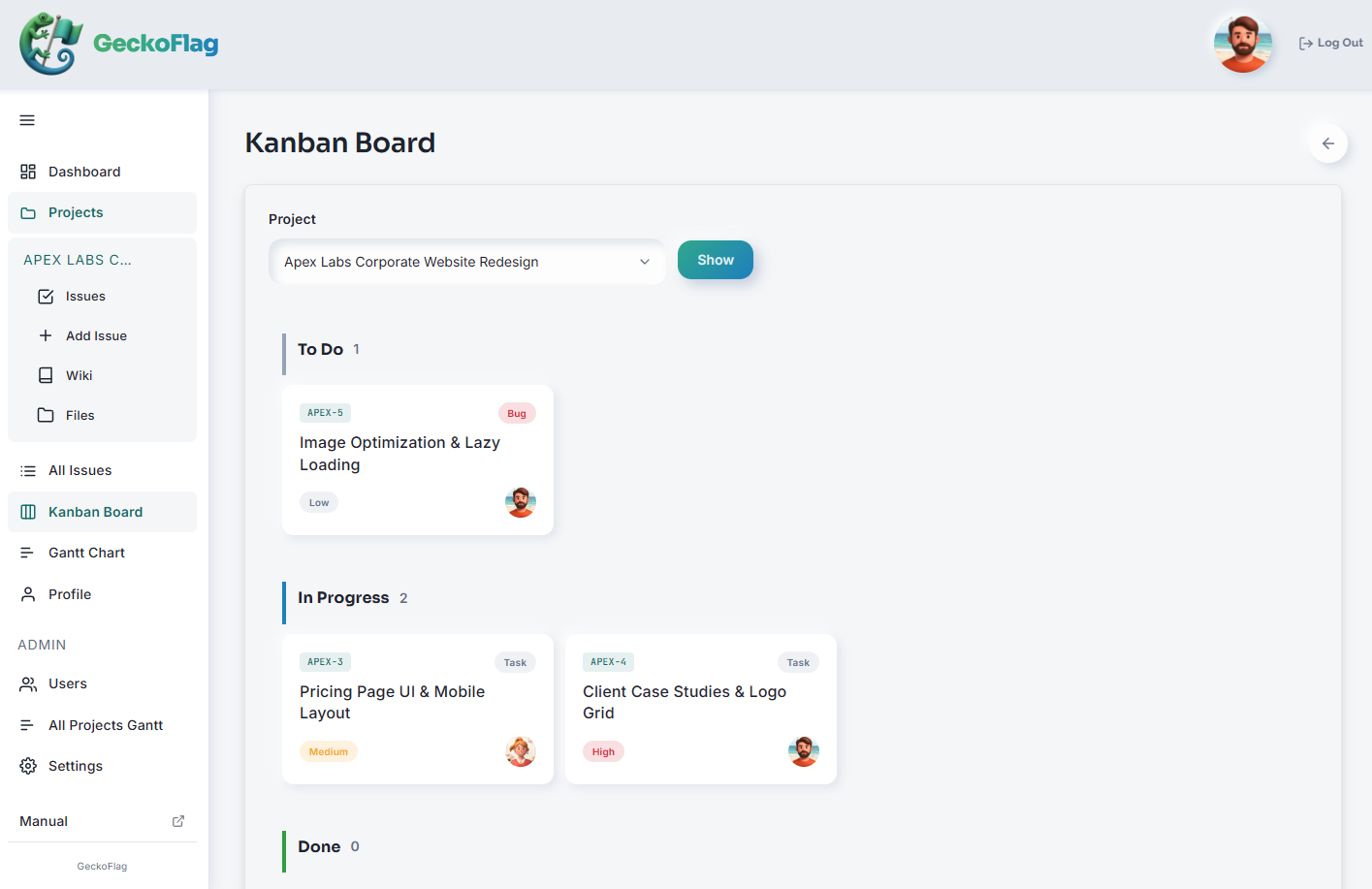
On the Kanban board, choose a project and its issue cards are arranged by status, with a count for each. The count under the waiting statuses tells you how many decisions that project is waiting on.
On PC, you can also drag a card to change its status (v1.8.0+). When you do, the same comment is added automatically as when you change the status on the issue screen, so the issue keeps a record of when its state changed.
Note that the Kanban board shows one project at a time. You cannot combine several projects on one board, so switch between projects to check each one.
Open your weekly meeting with the waiting issues
You can filter the issue list by status. At the start of your weekly meeting, show the issues set to “Waiting on client” and “Waiting on team,” and, looking at the due dates, start with the ones that need a decision this week. This is the screen to have open while you go through the first two items on the agenda above. If statuses are kept up to date, you can see everything that is waiting at once, and you can clear the “Waiting on team” issues that can be decided right there in the meeting.
When you ask for a review, change the status as you post the comment
When you post a comment on an issue, you can change its status, assignee, and dates at the same time. Write a comment such as “Sent the design and asked for review (October 20),” set the status to “Waiting on client,” and post it. What you asked for, the day the wait began, and the change of state are all recorded in one step.
GeckoFlag does not show the number of days an issue has been waiting. We recommend writing the start date in the comment like this.
You can try the Kanban board and comments in the demo. Try splitting the statuses and see how the list looks.
Summary
- “In progress” mixes tasks you are working on, tasks waiting for a decision from your team, and tasks waiting for the client to reply
- Split your statuses by who you are waiting for, and you can see where things are stuck and who to follow up with
- Keep to about five to seven statuses, and make “change it as soon as you ask” a team rule
- Open your weekly meeting with “what needs to be decided this week,” not “how’s it going?”
Once you can see what is waiting, you spend less time going around asking “How’s it going?” and can spend that time on who needs to decide what.
Next time, we look at treating options made with AI as decision material, and keeping a record of the options you compared and why you chose the one you did.