Series: Task Management Tips for TeamsPart 6
How Should You Report Progress? How Many Statuses to Use and When to Change Them
About this series
“Task Management Tips for Teams” is an eight-part series, plus a bonus article, for teams that have just started using a task or project management tool. The tips apply to any industry, and you can read the articles in any order.
- How Should You Group Your Work?
- How to Write Tasks People Understand
- How Small Should Tasks Be?
- How to Set Assignees and Due Dates
- How to Reply to Comments
- How Should You Report Progress?This article
- How to Write When Working with People Outside Your Company
- How to Close Out TasksComing soon
Bonus: “How to Write So Teammates Who Speak Other Languages Understand” (coming soon)
You can see how work is going just by looking at the list, without asking “What’s happening with that?” The thing that makes this possible is the status. But if there are too many statuses, or they aren’t kept up to date, they end up hiding what’s really going on.
Note: this article is written by the developer of GeckoFlag.
The short answer: start with 3 to 5, and decide who changes them and when
With statuses, what matters more than the number is that everyone uses them to mean the same thing and changes them promptly. Start with a few, decide who changes them and when, and you’ll be able to see how work is going just by looking at the list.
Why start with a few
When there are many statuses, people disagree about which one to pick. Changing them becomes a chore, and before long nobody updates them. Start with a few, and add one only when you keep running into a state you want to tell apart.
The basic set
Most teams can get by with these four.
- Not started
- In progress
- Awaiting review
- Done
The important one is “Awaiting review.” If you separate out work that’s finished but waiting for the person who asked to check it, you can see whose hands it’s in right now. If it stays “In progress” while waiting for review, the person who asked assumes the work is still going on, and everything stalls.
If you add one, start with “On hold.” Use it for things you can’t move forward yourselves, such as waiting for a reply from a client. When you put something on hold, write the reason and when you’ll look at it again in a comment.
Examples by type of work
Statuses stick more easily when their names match the words you already use in that line of work.
| Work | Example statuses |
|---|---|
| Handling requests from inside the company (general affairs, etc.) | Received → In progress → Done |
| Preparing an event | Not started → Arranging → Confirmed → Done |
| Producing printed materials | Not started → In production → Awaiting proof check → Sent to printer → Done |
| Repair requests at a building contractor | Received → Quoting → Awaiting work → Work in progress → Done |
Who changes them, and when
Statuses drift away from reality when nobody has decided who changes them.
- Set it to “In progress” when the assignee starts on the work
- Set it to “Awaiting review” when the assignee asks for a review. At the same time, reassign it to the person who will review it, so it’s clear who needs to act next
- Set it to “Done”: the person who asked, or the assignee? Decide on one as a team
How to decide when work is finished is covered in detail in Part 8.
How to write a progress report
Use comments for what the status alone can’t say. Rather than a percentage like “about 70% done,” these three things get the message across better.
An example progress report
- Done: booked the venue and made the equipment list
- Remaining: ordering the equipment (still waiting for quotes from 2 of the 3 companies)
- Next: I’ll place the order by Thursday, as soon as all the quotes are in
Writing what’s remaining, not just what’s done, helps problems surface early.
Common stumbling blocks
1Statuses stop matching reality
Once a week, even briefly, go through the list and bring the statuses in line with reality. If you have a regular meeting, sharing the screen there is the easiest way to do it.
2“In progress” keeps piling up
Tasks that have actually stalled keep sitting in “In progress.” Put things that are waiting for someone else’s reply on hold, and close things you’ve decided not to do, with the reason written down.
An example of what can happen
A team set up eight statuses, and people used “Working on it” and “Revising” differently, so the list no longer showed what was going on. They cut it down to four and agreed to “hand the assignee back when setting it to Awaiting review.” That alone put an end to missed reviews.
How to use statuses in GeckoFlag
- You can choose the name and color of each status freely. You can have up to 10, which is plenty for starting small.
- There is a status that counts as completed, and issues set to it drop out of “My Issues” on the dashboard.
- On the Kanban board, you can see issues arranged by status. On a PC, you can change the status by dragging a card, which is handy for the weekly review.
- When you post a comment, you can change the status and assignee at the same time. “Set it to Awaiting review and hand it back” takes a single step.
- You can filter the issue list by status.
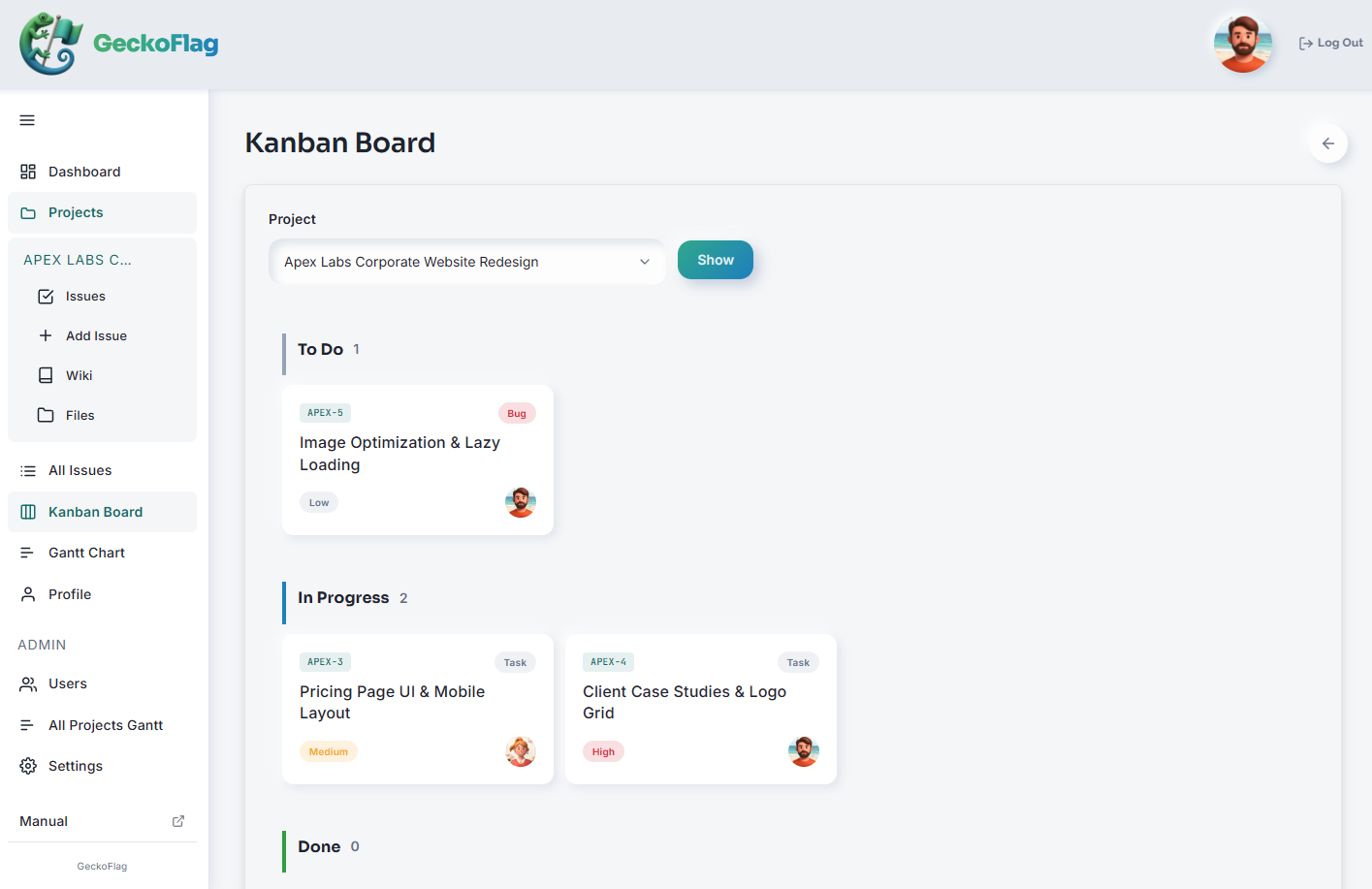
You can try the actual screens in the demo.
Summary
Start with 3 to 5 statuses, and include “Awaiting review” so you can see whose hands the work is in. Decide who changes them and when, and in progress reports, write what’s done, what’s remaining and what’s next. Next time, we’ll look at how to write when working with people outside your company, such as clients and contractors.
SeriesAlso see Part 5, “How to Reply to Comments”
SeriesPart 8, “How to Close Out Tasks” (coming soon)