Series: Task Management for Teams Working with AIPart 6
With Good Records, AI Can Help Even More: How Task Management and AI Share the Work from Here On
About this series
“Task Management for Teams Working with AI” is a six-part series for small creative and client-work teams that have started using ChatGPT or Gemini at work. You can read the parts in any order.
- Now That You Use AI, Do You Still Need a Task Management Tool?
- Frame Tasks Around What to Decide, Not Just What to Make
- Make “Waiting for a Decision” Visible
- AI Drafts Are Decision Material, Not Finished Work
- Keep Work Moving While You Wait for Client Approval
- With Good Records, AI Can Help Even MoreThis article
Friday evening. The director starts writing the weekly report for the client: what was decided this week, what is still waiting for an answer, and what needs deciding next week.
It used to take an hour of scrolling back through chat and email to pull together. Now the task list already holds what was decided and why. The director hands the relevant parts to AI, and a draft comes back in a few minutes.
Fifteen minutes later, after a few edits, it was sent. Keeping records had paid off somewhere unexpected.
In this series, we have set up decision tasks, made waiting for decisions visible, and kept a record of why we chose what we did and what we agreed with clients.
In this final part, we look at how those records also become material for getting AI to help with your work. We cover what you can hand to AI, where to draw the line on what you share, and what to keep in your task management tool from here on.
Note: this article is written by the developer of GeckoFlag.
What you can ask AI to do when you have records
AI cannot produce the right answer out of nothing. Put the other way around, when the material is there, it is good at summarizing, sorting and drafting.
With records of decisions and agreements in place, you can ask AI to do things like these:
- Draft tasks from meeting notes: have it list what needs to happen next from notes or a transcript.
- Draft the weekly report from the task list: have it sort things into what was decided, what is under review, and what needs deciding next week.
- Find out “Why did it end up this way?”: have it summarize the history from the reasons you recorded for each decision.
- List what needs deciding next: have it point out what is still undecided, based on what was decided and the work that remains.
None of this is possible without records. If you hand AI exchanges scattered across a chat, it cannot reliably tell what was actually decided.
For example, when drafting tasks from meeting notes
Give AI the transcript of a 30-minute meeting, and you might get around ten draft tasks back. It is not unusual for only about half of them to be usable as they are. The rest you merge into one task, correct who decides, or delete because they overlap with other tasks.
Even so, it is much faster than writing them all out from scratch. What matters is to treat AI’s drafts as a starting point, and to have a person make the final call.
Drafting tasks from meeting notes
Turning meeting notes into tasks afterward is one of the jobs AI can help with most easily. Here are the steps:
- Prepare the meeting notes or transcript. Blank out anything you don’t want to share, such as company or personal names, beforehand.
- Using the approach from Part 2, have AI split them into “things to decide” and “things to make.”
- A person reviews the drafts and registers only the ones that are needed.
You might write your request like this:
An example request
From the meeting notes below, list everything that needs to happen next.
- Split them into “things to decide” and “things to make.”
- For each “thing to decide,” add the options, who might decide, and a possible deadline.
- Don’t guess anything that isn’t in the notes. Write “unknown” instead.
We recommend doing this kind of bulk listing in the AI service you normally use, and registering items in your tool one at a time, checking each as you go.
The “who decides” and “deadline” that AI suggests are only candidates. They are sometimes guesses based on the wording of the notes. A person should confirm who will decide, and by when, before registering them.
Drafting reports from the task list
With a task list, you can also draft weekly reports for clients.
- Copy out only the tasks the report needs. Leave out tasks unrelated to the project and internal-only discussions.
- Give them to AI and have it sort them into “decided this week,” “under review with the client,” and “to decide next week.”
- A person checks the content before sending it.
An example request
From the task list below, draft a weekly report for the client.
- Split it into three parts: “decided this week,” “under review with the client,” and “to decide next week.”
- For each decision, add the reason in one line.
- Don’t include anything that isn’t in the list.
If you split your statuses into “Waiting on team” and “Waiting on client,” as in Part 3, it is easier for AI to sort things too. That is because the way your statuses are split lines up closely with the way the report is split.
Where to draw the line on what you share with AI
Records can become material for AI, but there is also information you must not share. Before you hand anything over, check the following.
- Contracts and company rules: check first whether your contracts with clients (such as confidentiality agreements) and your company’s rules allow you to send the information to an outside service.
- What to blank out: blank out or replace company names, personal names, amounts, unpublished information and the like before you share.
- How the AI service handles data: how your input is handled (for example, whether it is used for training) differs by service and plan. Check the settings and terms of the service you use.
- Don’t hand over everything: instead of giving AI the entire contents of your management tool, choose only what that particular job needs.
If you are unsure where to draw the line, ask yourself, “Would it be a problem if the client saw this?” If it would, don’t share it, or blank it out first.
What to keep in your task management tool from here on
When you plan to work with AI, what you keep in your tool changes a little from before.
| Keep | You can let go |
|---|---|
| Deadlines such as launch and delivery dates | Fine-grained task breakdowns and time estimates for each |
| Who decides, and what was decided | Every option AI produced |
| Why it was decided | The full text of your exchanges with AI |
| Agreements with clients, and their dates | Reports made only for the sake of reporting |
| Handoffs with contractors and other departments | ― |
The left column is the result of human judgment. It is useful whether a person or AI reads it later. The right column is either something you can make again when needed, or something you can hand to AI.
You don’t need to record more. Keep decisions and agreements in a set place. That alone increases what you can ask AI to do.
Putting it into practice in GeckoFlag
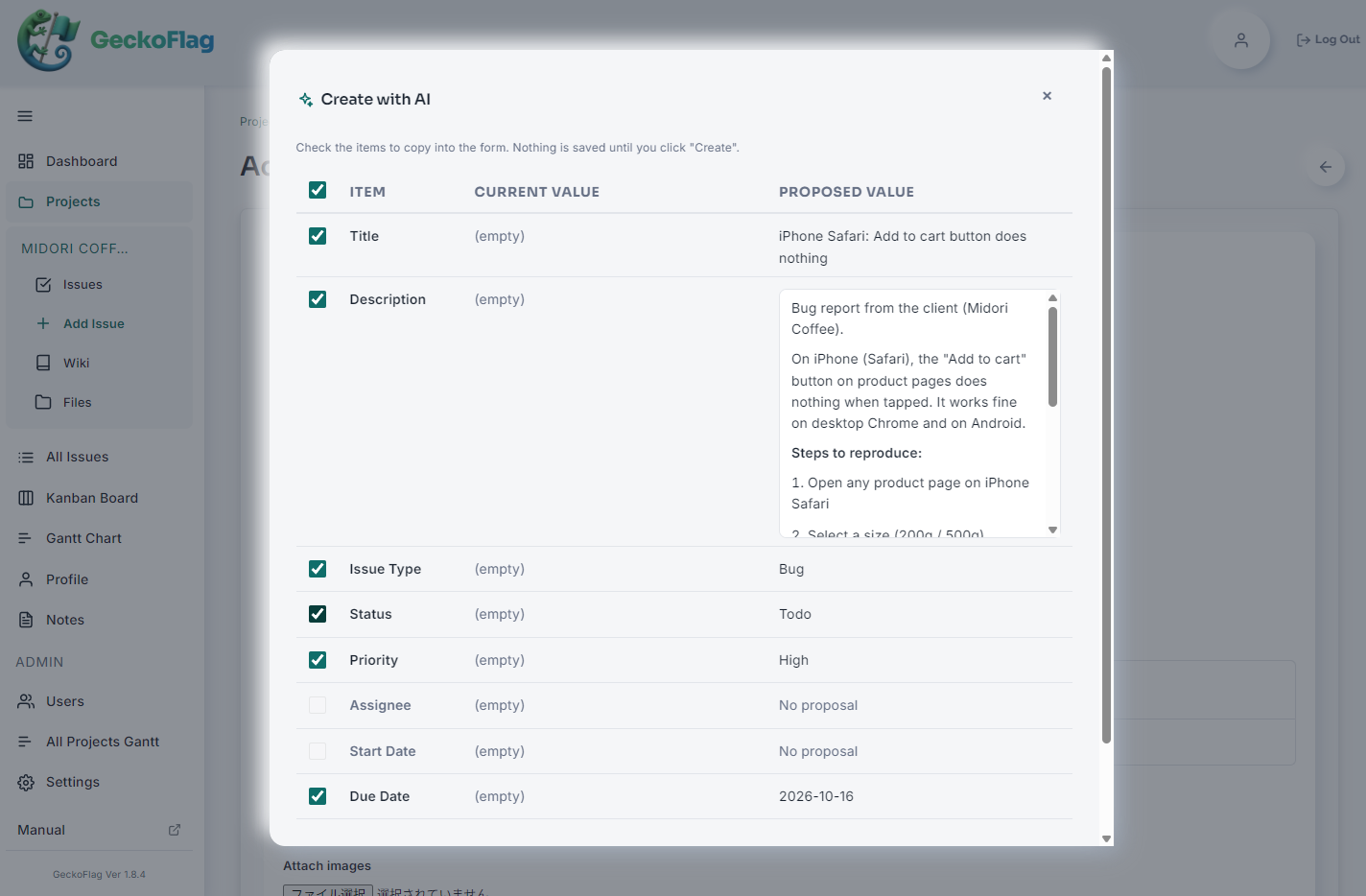
GeckoFlag has a feature called “Create with AI”, where AI proposes input from text or screenshots (v1.9.0+). Combined with the ways of working in this series, it looks like this.
Drafting issues from meeting notes
Open “Create with AI” on the screen for adding an issue, and paste in your meeting notes or a request email (up to 4,000 characters). If an administrator has allowed image reading, you can also attach a chat exchange as a screenshot.
AI proposes the issue’s title, description, issue type, status, priority, assignee, start date and due date. Each run proposes the input for the one issue you are creating. The proposal is shown as a list of “Item / Current value / Proposed value,” and only the fields you tick go into the form. A person saves it.
Issue types and statuses are chosen from the options registered by an administrator. If no name appears in the text, AI does not guess an assignee.
Use the Part 2 template for AI output too
Administrators can register an AI output template for each of the fields “Issue description,” “Comment text,” “Project description” and “Wiki body.” If you register the items from Part 2 (what to decide, what it is holding up, options, who decides, deadline, decision, reason) as headings for the “Issue description,” AI writes the description with those headings in that order. Headings with no matching information in the notes are left out rather than filled with blanks.
Note that the template is used only when you use “Create with AI.” It is not inserted into the description automatically when you create an issue by hand.
Record answers and summarize decisions
“Create with AI” in the comment section writes the comment text based on the issue and its most recent comments. If you instruct it, for example, “The client replied that they’ve decided on option B. Set the status to Done,” it also proposes changes such as the status, along with the text. Changes of state are applied only when you tick them yourself.
In the wiki, besides creating a new page from source text, you can also ask it to add to or tidy up the “Decisions” page introduced in Part 4. In that case, the current wiki body is also sent to Anthropic. And when you apply the suggestion, the whole body is replaced, so check it in the preview before applying.
For weekly reports, choose only the issues you need
GeckoFlag’s own screens have no feature that automatically creates a report from the entire issue list. To draft a weekly report, have an administrator export issues to CSV, or copy out the issues the report needs, and give only the necessary parts to the AI service you normally use. You decide what to share.
Note that “Claude Integration,” added in v1.11.0, lets you work with GeckoFlag through conversations in the Claude desktop app. If you ask, for example, “Write this week’s report,” Claude searches and reads the issues and puts a summary together. In that case too, the contents of the issues and other items Claude reads are sent to Anthropic as part of the conversation.
You can also import drafts made with AI from CSV, but only administrators can import, and importing only creates new issues. Rows that refer to unregistered statuses or assignees are skipped. Also, re-saving a CSV in Excel can change the date format so that it can no longer be imported. Use a text editor to tidy it up.
What is sent, and what to check before you use it
- What is sent: the text you enter in “Create with AI” and any images you attach, along with today’s date, the language, the names of options such as issue types, and the names of project members, are sent to Anthropic’s API. For comments, the issue’s description and its most recent comments are sent too.
- What is not sent: email addresses, passwords, files already attached, and the contents of other issues or projects are not sent.
- Nothing is kept in GeckoFlag: the text you enter and the AI’s responses are not stored in GeckoFlag, except for what you apply to the form and save. Anthropic handles the data under its Commercial Terms.
- What you need: you need an Anthropic API key that you issue yourself. Usage fees are paid directly to Anthropic and are not included in GeckoFlag’s price. Your server running GeckoFlag must also be able to connect to api.anthropic.com. Only users an administrator has allowed can use it, and a daily usage limit can be set. The setup steps are on the Claude API settings page.
GeckoFlag is self-hosted: you install it on your own server. Your issue and comment data stays on your server, and it is sent to AI only when you use “Create with AI” or Claude Integration. In return, managing the server is your responsibility. Also, there are no integrations with chat tools, GitHub and the like, and no webhooks. The only way for an outside tool to connect is Claude Integration, which uses an API token.
You can try the ways of working covered in this series in the demo. For pricing, see the pricing page.
Series summary
Over six parts, this series has covered the following about task management for creative teams working with AI.
- Part 1: AI sped up the “making.” The time-consuming part has moved to the “deciding”
- Part 2: frame tasks around what to decide, not just what to make, and record who decides, the deadline and the reason
- Part 3: split statuses by who you are waiting for, so waiting for decisions becomes visible
- Part 4: AI’s options are decision material. Show people only a narrowed-down set, and record why you chose
- Part 5: send client review requests together, as a list of what you need decided, with deadlines
- Part 6: records of decisions and agreements also become material for getting AI to help with your work
What AI changed is not the amount of work, but where the time goes. That is exactly why you need records of decisions and agreements. And once you keep those records, the things you can ask AI to do keep growing. Choosing what to hand to AI, and making the final call, is still up to people.
When you choose a tool from here on, we recommend not comparing on the number of AI features alone. Also look at whether it is easy to record decisions, whether clients and outside people can join easily, where your data lives, and whether you can choose for yourself what to give AI. For how AI feature pricing differs, see “How Much Do AI Features in Project Management Tools Cost?”
Task management tools don’t become unnecessary because of AI. When you shift what you keep from “tasks” to “decisions and agreements,” working with AI makes the work move even more smoothly.