Series: Your First Project Management ToolPart 6
How Do You Choose Your First Project Management Tool? Six Things to Check Before Counting Features
About this series
“Your First Project Management Tool” is a six-part series for people who have never used one. You can read the parts in any order.
- What Is a Project Management Tool? What Changes When You Have One
- Where Does an Excel Tracking Sheet Hit Its Limit?
- Why Do Requests in Email and Chat Get Lost?
- Does a Small Team Really Need One?
- Why Tools Go Unused After Rollout, and What to Decide First
- What to Look For When Choosing Your First ToolThis article
“Next year, let’s run the trade show preparation with a tool.” With that decided, you search for “best project management tools.”
The comparison articles that come up list tool after tool. The feature tables are full of checkmarks, and every tool looks about the same. “Kanban.” “Gantt chart.” “Workflow.” You are not even sure what the words mean.
After finishing the third article, you stop. So which one are you supposed to pick?
This is the final part of the series “Your First Project Management Tool.”
It explains what to check when choosing your first tool, before you start counting the checkmarks in a comparison table.
Note: this article is written by the developer of GeckoFlag.
Don’t choose by the number of checkmarks
The feature tables in comparison articles are useful for seeing how tools differ. But when you are choosing your first tool, deciding by the number of checkmarks is not a good idea.
A team using a tool for the first time only needs the basic mechanics introduced in Part 1 of this series: create a box for the work, add what needs doing, and change its status.
A tool with many features can do a lot, but it also has more items on every screen and more to learn. As covered in Part 5, setting up too much at the start is one of the reasons tools go unused.
The checkmarks are worth looking at later, once you are used to a tool and feel something is missing. For your first tool, what matters lies elsewhere.
Before you choose, write down three things about your team
Before comparing tools, write down a few things about your own team. One sheet of paper is enough for these three:
- What work it is for: start with just one piece of work. Write it down concretely, such as “preparing for next year’s trade show.”
- Who will use it: list the number of people inside your company and the outside people who will join. Count designers, print shops, booth contractors and so on.
- How many years you will use it: once a tool is in place, it tends to stay for years. Use three years as a rough guide.
With these three written down, you can judge whether the answers to the six questions below actually fit your team.
SeriesIf you are a small team still unsure whether you need a tool at all, start with the “three questions” in Part 4, “Does a Small Team Really Need One?”
Six things to check
Here are the six things to check when choosing your first tool, each with a way to check it.
1Can everyone start without an explanation?
A tool only helps once everyone uses it. If even one person cannot figure out how to use it, that person’s work drifts back to chat and spreadsheets.
How to check: use a free trial or a demo and have everyone on the team try it. Without explaining anything, ask them: “Please add one task and change its status.” If they can do it without getting stuck, it passes.
2How much will it cost over three years?
Tools are priced in several ways: a monthly fee per user, a flat monthly fee, a one-time purchase, a free plan, and so on. Looking only at the monthly amount makes the differences hard to see.
How to check: using the headcount you wrote down, add up the total for three years. Also check what it would cost if more people join, and, for a free plan, what it would cost once you go over the limit.
3How can you invite outside people?
Preparing for a trade show involves people from outside your company. Whether you can invite them, whether you can limit what they see, and whether they count toward the paid headcount all vary from tool to tool.
How to check: look at the pricing page and the FAQ to see how outside people are handled. If it is not clear, contact the vendor and ask.
4Where will your data live?
Broadly speaking, tools come in two forms.
- Used on the provider’s servers (cloud): you can start as soon as you sign up. You do not need to prepare or manage a server. Most charge a monthly fee.
- Installed on your own server (self-hosted): you need to prepare a server, but your data stays in your own hands.
Neither is simply better or worse. Which form you can choose depends on whether someone at your company, or one of your partners, can prepare a server.
How to check: find out whether you have a server that hosts your company website, and who manages it.
5Can you take your data with you if you stop?
Your first tool will not necessarily be the one you use forever. As Part 5 said, switching tools is a reasonable option if it does not fit.
If you cannot take out the tasks and records you entered at that point, you will have to enter everything again from scratch.
How to check: check whether you can export your data in a format such as CSV.
6Who can you ask when you are stuck?
When you cannot work out how to do something, or something does not work, it matters whether there is somewhere to ask.
How to check: check whether there is a manual and FAQ in your language, and whether there is a way to contact the vendor.
Try it with real work
Once you have narrowed it down to two or three candidates, try them out. When you do, use real work rather than practice work.
- Two weeks: too short and the trial ends before people get used to it; too long and the decision keeps getting put off.
- One piece of work: choose work that wraps up within two weeks and involves handoffs between people, such as “sending out the trade show invitations.”
- The whole team: if only one person tries it, you will not see how requests are handed over, as covered in Part 3, or how notifications reach people.
- Collect feedback at the end: ask everyone for one thing each: “where I got stuck,” “what was a hassle,” and “what helped.”
If you are still torn, choose the one everyone says “we could keep using this.” Whether you can keep using it matters far more than the number of features.
Series summary
When choosing your first tool, check these six things before you count the checkmarks in a comparison table:
- Can everyone start without an explanation?
- How much will it cost over three years?
- How can you invite outside people?
- Where will your data live?
- Can you take your data with you if you stop?
- Who can you ask when you are stuck?
Over six parts, this series has covered the following for people who have never used a project management tool:
- A tool is a way for everyone to see who is doing what, by when, and where it stands, in the same place
- An Excel sheet, even when shared, is weak at keeping history and passing things on
- Chat and email have no place to hold what a request is, who owns it, and whether it is done
- Even a small team benefits from a tool if work stops when someone is away or the same work repeats
- Tools usually go unused because of how they were introduced, and agreements made beforehand can prevent it
- Choose your first tool by whether you can keep using it
Putting a tool in place is not the goal. The goal is spending less time going around asking “How is that going?” and putting that time back into your real work. That is what this series set out to say.
If you want to try one
Finally, here is GeckoFlag, the tool used for the example screens throughout this series. Measured against the six points in this article, it looks like this.
| What to check | GeckoFlag |
|---|---|
| Can everyone start without an explanation? | There is relatively little to configure. From the day you install it, you can create a project, add issues and get started. Everyone can try it in the demo |
| How much will it cost over three years? | A one-time purchase of $30. Adding people costs nothing extra. You do need to pay for your server separately (pricing page) |
| How can you invite outside people? | You can invite them as guests. Guests can only see and work in the projects they belong to |
| Where will your data live? | It is self-hosted, installed on your own server. Your data stays in your own hands |
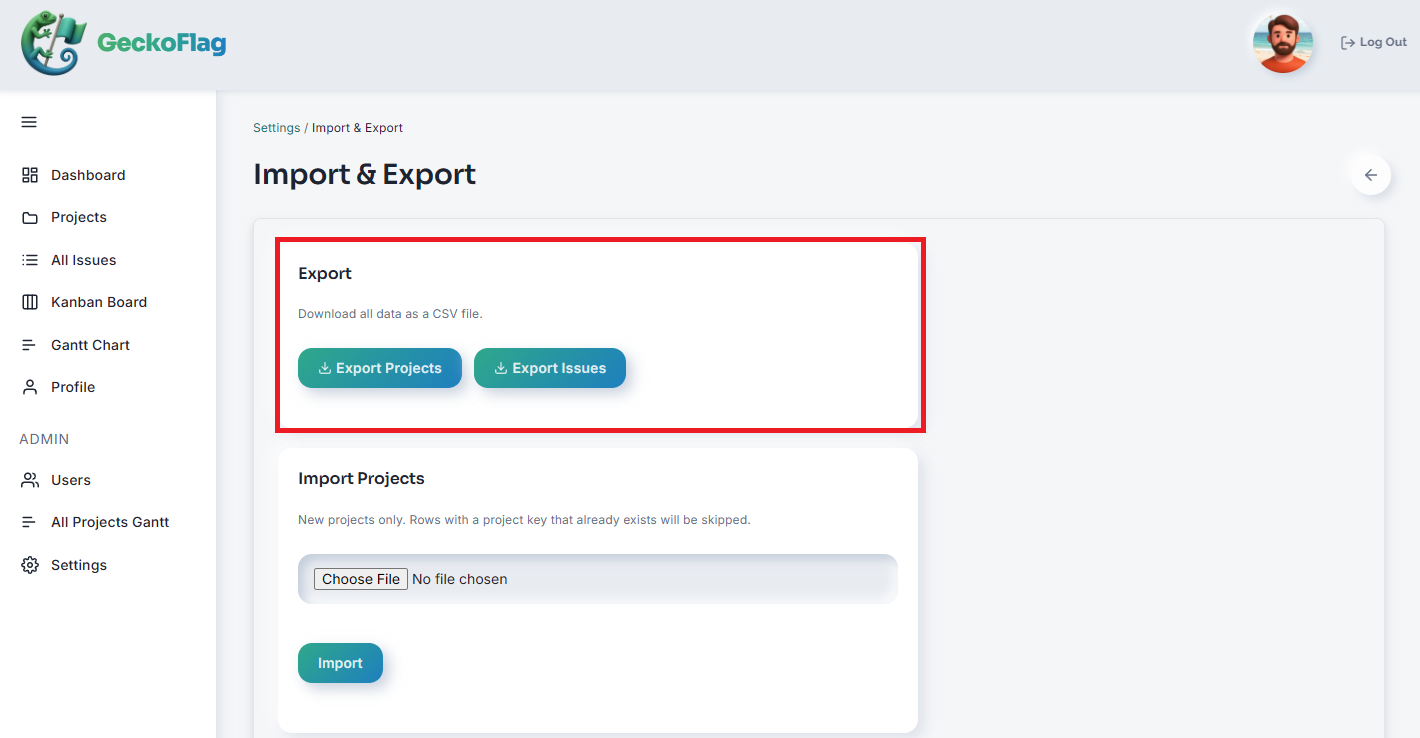
| Can you take your data with you if you stop? | You can export projects and issues as CSV. You can also take a backup of all your data |
| Who can you ask when you are stuck? | There is a manual and an FAQ in English, and you can ask questions through the contact form |
When it is not a good fit
GeckoFlag does not suit teams like these:
- No one can prepare a server: there is no cloud version.
- You want to use it in a smartphone app: there is no app. You can use it in a smartphone browser.
- You want to connect it to chat or other services: there is no integration with chat tools or similar services (the only outside connection is Claude Integration, which lets you work from the Claude desktop app).
- You want to customize it in detail: there is no feature for adding your own fields or setting up detailed workflows.
If any of these apply, another tool will likely serve you better in the long run.
Setup follows the on-screen guide
You put the files on your server, then fill in the steps the browser walks you through. No command-line work is needed. The steps are in the Installation page of the manual.
If your company website already runs on shared hosting, you may be able to install it there. You can check what is needed on the System Requirements page of the manual.
Note: if your company already has its own domain, most shared hosting lets you create a subdomain such as “geckoflag.yourcompany.com” and install it there. In that case, you do not need to buy a new domain.
If you want to compare it with other tools
GeckoFlag’s blog and comparison pages cover how it differs from other tools, including what each one suits and does not suit.
- Compare tools you can install on shared hosting: Project Management Tools You Can Install on Shared Hosting Without Docker
- Compare by pricing model: How Much Do AI Features in Project Management Tools Cost? Billing Types and Estimates by Team Size
- Compare with well-known tools: comparison pages for Jira, Redmine and open-source tools
Start with the demo: add one task from your next piece of work. You will see how everything in this series looks on an actual screen.