Series: Your First Project Management ToolPart 5
Why Tools Go Unused After Rollout, and What to Decide First: Five Reasons Tools Don’t Stick, and Five Things to Agree On Before You Start
About this series
“Your First Project Management Tool” is a six-part series for people who have never used one. You can read the parts in any order.
- What Is a Project Management Tool? What Changes When You Have One
- Where Does an Excel Tracking Sheet Hit Its Limit?
- Why Do Requests in Email and Chat Get Lost?
- Does a Small Team Really Need One?
- Why Tools Go Unused After Rollout, and What to Decide FirstThis article
- What to Look For When Choosing Your First Tool
The team brought in a project management tool for the trade show preparations. For the first two weeks, all five people logged their tasks and kept the statuses up to date.
In the third week, the busy days kept coming. One by one, people stopped updating their statuses.
A month later, you start hearing “Did you put that in the tool?” “No, I sent it in chat.”
Two months later, nobody can remember the last time they opened the tool.
A tool that gets introduced and then goes unused is a very common failure.
This article explains why tools go unused, and what to decide before you start so it does not happen to you.
Note: this article is written by the developer of GeckoFlag.
It happens all the time
When a tool goes unused, it does not mean anyone was lazy. It does not necessarily mean the tool is bad, either.
Chat and Excel sheets are tools people have used for years. A new tool takes a little extra effort until you get used to it. When that effort lands in a busy period, people go back to the tools they know. That is only natural.
In most cases, the cause is not the tool itself but how it was introduced. Agreeing on a few things as a team before you start makes a big difference.
Five reasons tools go unused
Tools tend to fall out of use in very similar ways. Here are the five reasons.
1Nobody decided what to log
If you start with “put everything in the tool,” everyone logs different things.
One person logs even five-minute errands, while another logs only big pieces of work. Looking at the list, you still cannot see the team’s work as a whole.
SignSome people log a lot, and others hardly log anything.
2It doubles up with chat and spreadsheets
Even after the tool arrives, people keep asking for things in chat and updating the Excel sheet. Writing the same thing in two places is twice the work.
And when the two places disagree, you get “Which one is right?” The familiar option, the one that takes less effort, is the one that survives.
SignPeople ask in chat, “Could you put this in the tool as well?”
3It is not kept up to date, so nobody trusts it
A task sits at “in progress” for weeks. In fact, it was finished long ago. After this happens a few times, the list can no longer be trusted.
Nobody looks at a list they cannot trust. Nobody updates a list that nobody looks at. And so the tool starts sliding out of use.
SignAfter checking the list, you end up asking the person anyway.
4Too much is set up at the start
Ten stages of status. Twenty fields to fill in. When you get enthusiastic and set up everything at the start, there are more fields to puzzle over every time you add something.
If logging one item takes three minutes, asking in chat is quicker.
SignWhen adding an item, people stop and wonder, “What goes in this field again?”
5The person in charge does not look at the tool
Team members are asked to use the tool, but the person who coordinates the work, or the manager, still asks about progress in chat or in person.
Then there is no reason for team members to update the tool. They can just answer when asked.
SignYour manager asks in chat, “How is that going?”
Five things to decide before you start
Each of the five reasons has a matching agreement. Talk them through as a team and decide them before you bring the tool in.
1Where to draw the line on what gets logged
Decide what gets logged and what does not. For example:
- Anything you ask someone else to do is always logged
- Work you do on your own is logged only if it takes half a day or more
- Errands that take five minutes are not logged
2Agree that the tool is the source of truth
For requests and decisions, agree that whatever is written in the tool is correct. Discussions and small talk can stay in chat as before.
If someone asks you for something in chat, you put it in the tool yourself. This is the split between “the place to talk” and “the place to ask” from Part 3 of this series.
Once something has moved into the tool, stop updating it in the Excel sheet. Not writing things in two places matters more than anything else.
3When to update
“Update regularly” always breaks down when things get busy. Decide on specific moments instead.
- Change it to “in progress” when you start, and to “done” when you finish
- Once a week, take time to review the list together (for example, ten minutes on Monday morning)
A weekly review catches items that have stalled or that someone forgot to update.
4Start small
Start with three statuses: “not started,” “in progress” and “done.” For fields, the task, the person responsible and the deadline are enough.
Start with just one piece of work, too. If something feels missing, you can add it then. How a small team can start is also covered in Part 4.
5The person in charge checks the tool first
The person who coordinates the work, or the manager, checks progress in the tool before asking. When they do ask, they start from the tool: “The item about X in the tool has stalled. What is holding it up?”
Once team members see that the person in charge is looking at the tool, they start updating it too.
A template for your team agreement
Put the five agreements together as a team agreement, and they look like this. Copy it as it is, then adjust it to fit your team.
Our agreement for using the tool
- Anything we ask someone else to do, and anything that takes half a day or more, goes into the tool
- For requests and decisions, what is written in the tool is correct
- Change it to “in progress” when you start, and to “done” when you finish
- Every Monday morning, we spend ten minutes reviewing the list together
- Check progress in the tool first, before asking
How to run the first month
Whether a tool sticks is mostly decided in the first month. Using the trade show preparations as an example, here is a week-by-week plan.
- Week 1: log the work: agree on the rules, and have everyone log the tasks for the trade show preparations. Add the person responsible and the deadline this week, too.
- Week 2: get used to updating: “in progress” when you start, “done” when you finish. When the person in charge notices a missed update, they mention it without blaming anyone.
- Week 3: keep up the reviews: things get busy, and updates tend to stop this week. Whatever else happens, keep the Monday review.
- Week 4: look back: after a month of use, everyone shares what got in the way. Decide whether to change the agreement, add fields or remove some.
Do not skip the review in week 4. If you leave the awkward parts as they are, that is where the tool starts to fall out of use. On the other hand, a tool you have adjusted yourselves becomes your own tool.
If it still is not being used
You agreed on the rules and kept at it for a month, but the tool still is not being used. If that happens, review things in this order.
- Cut back the agreement: rules that are not being followed are almost always too many or too detailed. It is fine to cut back to “only log what you ask someone else to do.”
- Change the work you put in: the work you chose first may have been too short, or something one person could finish alone, and so not a good fit for the tool. Try again with work that involves a lot of handing things between people.
- Ask whether the tool is the right fit: the screens are hard to follow, adding items takes too much effort, or there are so many features that people get lost. If those are the reasons, switching tools is a reasonable option.
Switching tools is not a failure. Having tried one, you should now have a much clearer idea of what your team needs.
SeriesWhat to look at when you choose next time is covered in detail in Part 6, “What to Look For When Choosing Your First Tool”
Summary
In most cases, a tool goes unused not because of the tool itself, but because of how it was introduced. These are the five reasons:
- Nobody decided what to log
- It doubles up with chat and spreadsheets
- It is not kept up to date, so nobody trusts it
- Too much is set up at the start
- The person in charge does not look at the tool
Before you start, agree as a team on five things: where to draw the line on what gets logged, that the tool is the source of truth, when to update, starting small, and that the person in charge checks the tool first. With those in place, the tool is far more likely to stick.
And at the end of the first month, be sure to set aside time to look back.
If you want to try one
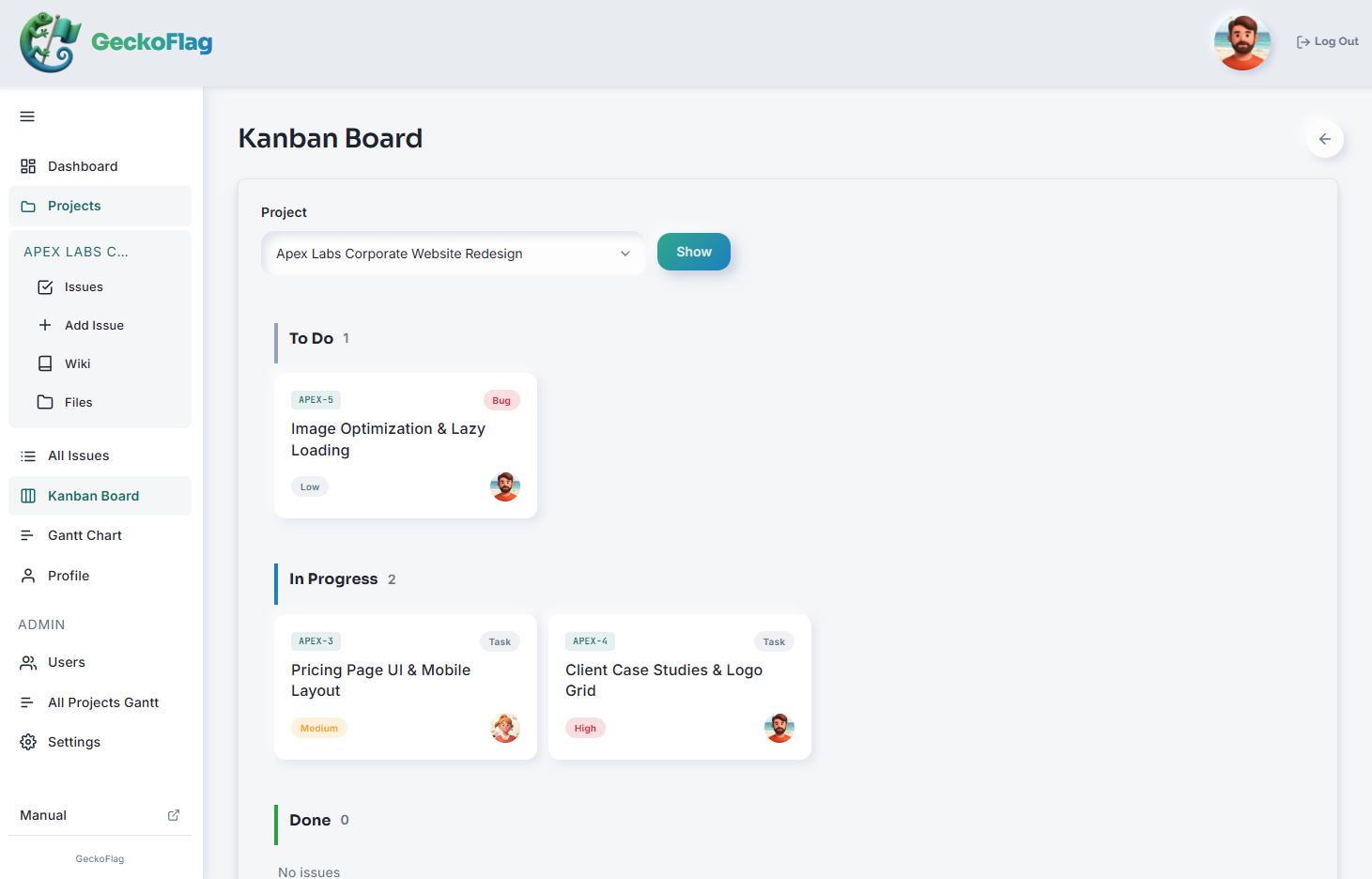
If you are thinking “if we are starting small, maybe we could give it a try,” here is one option: GeckoFlag, the tool used for the example screen in this article.
- See the screens before you buy: there is a public demo.
- No need to set everything up first: once it is installed, you can start by creating a project and adding issues. An administrator can add statuses and issue types and edit their names (up to 10 of each).
- See your own work at a glance: the dashboard lists the issues assigned to you.
- No monthly fee, however long you use it: a one-time purchase of $30. Adding people costs nothing extra. You do need to pay for your server separately. See the pricing page for details.
- Set it up by following the on-screen guide: you put the files on your server, then fill in the steps the browser walks you through. No command-line work is needed. The steps are in the Installation page of the manual.
On the other hand, it does not suit teams that want to customize everything in detail. There is no feature for adding your own fields or setting up detailed workflows.
If your company website already runs on shared hosting, you may be able to install it there. You can check what is needed on the System Requirements page of the manual.
Note: if your company already has its own domain, most shared hosting lets you create a subdomain such as “geckoflag.yourcompany.com” and install it there. In that case, you do not need to buy a new domain.
Start with the demo: add one issue and change its status. You will get a feel for how much effort updating takes.