Series: Your First Project Management ToolPart 1
What Is a Project Management Tool? What Changes When Your Team Uses One, Explained Simply
About this series
“Your First Project Management Tool” is a six-part series for people who have never used one. You can read the parts in any order.
- What Is a Project Management Tool? What Changes When You Have OneThis article
- Where Does an Excel Tracking Sheet Hit Its Limit?
- Why Do Requests in Email and Chat Get Lost?
- Does a Small Team Really Need One?
- Why Tools Go Unused After Rollout, and What to Decide First
- What to Look For When Choosing Your First Tool
“Where are we with that?”
The trade show is three weeks away. The brochure has to go to the printer, the booth equipment has to be arranged, and the invitations have to go out. Five people are sharing the work. Yet nobody can say, all at once, which tasks are done and which are stuck. The only way to find out is to go around and ask each person.
Scenes like this happen in every industry, wherever several people work on the same job. A project management tool is a way to cut down on that “going around and asking.”
This article is not about which tools exist. It explains what actually changes in your work when you have one. We will keep the jargon to a minimum.
Note: this article is written by the developer of GeckoFlag.
A project management tool in one sentence
A project management tool is a place where everyone on the team can see who is doing what, by when, and where it stands right now.
“Project” may sound like a big word, but here it simply means “a piece of work with a start and an end that involves several people.” Exhibiting at a trade show, redoing the company brochure, renovating a shop, hiring a new person: all of these count.
Work like this is a collection of small to-dos. For a trade show, that means making the brochure, renting equipment, sending invitations, deciding who staffs the booth on the day, and so on.
The tool lists these to-dos one by one, adds the person in charge and the deadline to each, and puts them where everyone can see them. That is the whole idea.
What happens on teams without one
Teams without a tool run into the same four problems again and again. Let’s look at them using the trade show as an example.
Nobody knows which spreadsheet is the latest
You make a to-do list in Excel and send it around as an email attachment. It is a common way to start.
A few days later, everyone has their own “Prep list_revised,” “Prep list_latest” and “Prep list_latest (2).” Nobody can tell which one is correct anymore.
SeriesCovered in detail in Part 2, “Where Does an Excel Tracking Sheet Hit Its Limit?”
Requests get lost
You ask in the chat: “Could you send me the invitation mailing list by Friday?” The reply comes back: “Got it.”
Then about thirty messages on other topics follow, and the request scrolls far out of view. On Friday afternoon, it is usually the person who asked who remembers.
SeriesCovered in detail in Part 3, “Why Do Requests in Email and Chat Get Lost?”
Work stops when someone is away
The person arranging the booth equipment falls ill and is off for a few days. How far did they get with the supplier? Has the quote arrived? The history exists only in that person’s inbox and in their head.
Everyone else ends up calling the supplier and asking again from the beginning.
Going around asking to find out where things stand
This is the scene from the opening. The person coordinating everything has to check with every member to learn how things are going. Each person being asked has to stop what they are doing to answer.
Time that should go into moving the work forward gets eaten up by checking on it.
None of this happens because someone is slacking off. The cause is that information is scattered across different people and different tools.
Four things that change with a tool
Here is how those four problems change once you have a tool.
1All the to-dos are in one place
There is only one list, and it lives inside the tool. When someone edits it, the list everyone sees changes right away.
The question “Which version is the latest?” simply goes away.
2Owners and deadlines are clear
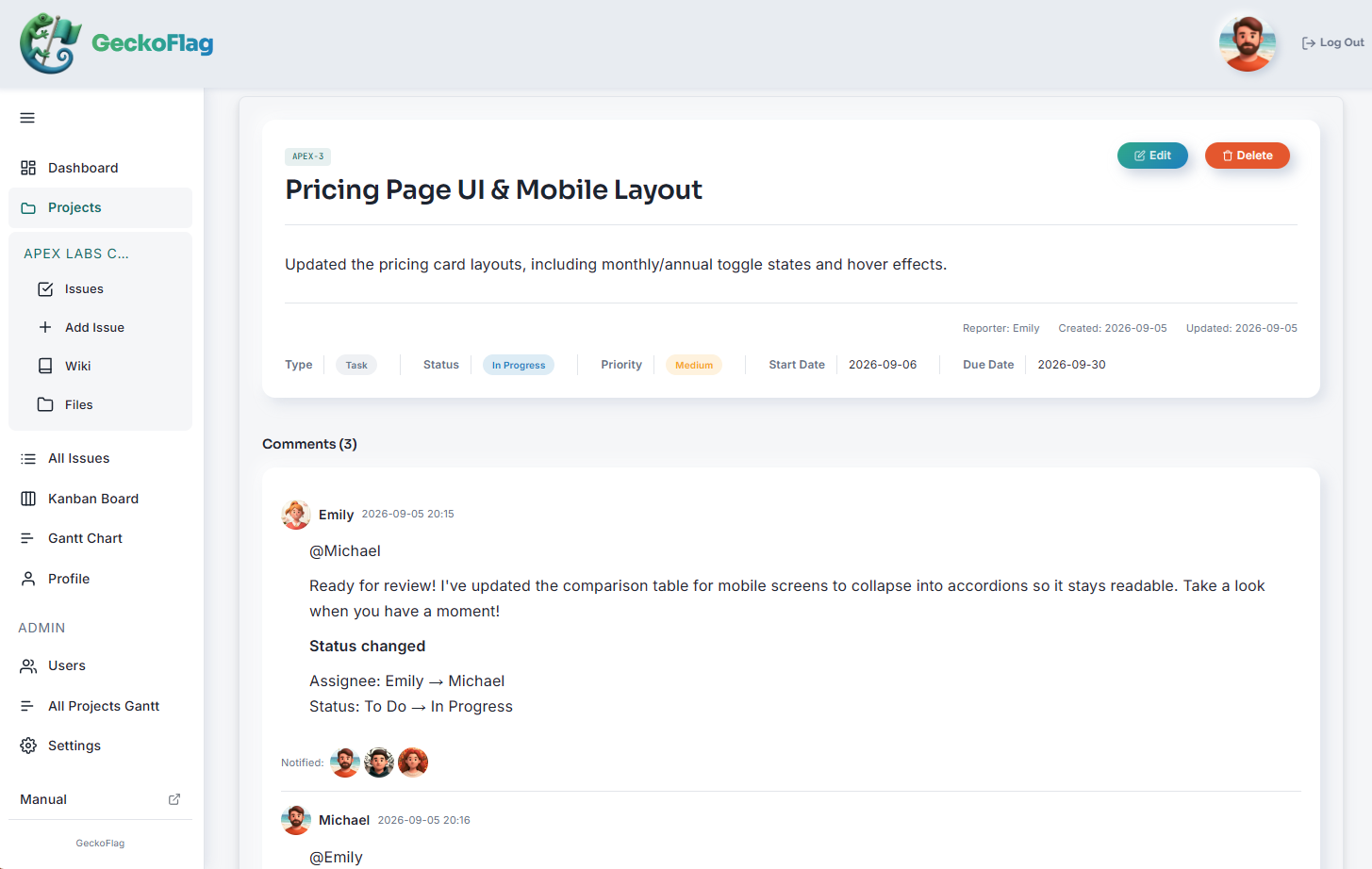
Each to-do has a field for the person in charge and the deadline.
Requests do not get buried in the flow of conversation. They stay on the list until they are done. Fewer things get forgotten after “Got it.”
3The history stays on record
Updates are written on each to-do: “Asked the supplier for a quote,” “Got the price,” “Waiting for the manager’s approval.”
Even when the person in charge is away, anyone can open that to-do and read how far it has come.
4You can see where things stand without asking
Each to-do has a status such as “not started,” “in progress” or “done.”
The coordinator can spot what is stuck just by looking at the list. The only thing left to ask is why it is stuck.
There are only three building blocks
Every tool looks different, but the basic building blocks are the same, and there are only three of them.
| Building block | What tools call it | Trade show example |
|---|---|---|
| A box for the work | Project | Trade show preparation |
| A single to-do | Issue, task, ticket | Send the brochure to the printer |
| State | Status | Not started, in progress, done |
The names differ from tool to tool. “Issue,” “task” and “ticket” all mean “a single to-do.”
Many tools also offer screens such as a board or a schedule chart (a Gantt chart). These are not separate building blocks. They show the same to-dos, either grouped by status or laid out along a timeline.
When you are just starting out, the list alone is plenty.
What a tool will not do for you
A tool is not something that finishes the work just by being installed. To keep expectations realistic, here is what it cannot do.
- People still have to enter things: work that is not entered is invisible to the tool, too.
- You need a few ground rules: without an agreement such as “always put requests in the tool,” things end up in both the tool and the spreadsheet or chat, and the work actually increases.
- The work itself does not get faster: what shrinks is the time spent searching and checking.
- Some teams do not need one: if two or three people see each other every day and there is not much to track, paper or a whiteboard may be enough.
SeriesCovered in detail in Part 4, “Does a Small Team Really Need One?”, and Part 5, “Why Tools Go Unused After Rollout, and What to Decide First”
You do not have to give up chat or spreadsheets
Bringing in a tool does not mean you have to stop using chat. Discussions and small talk can stay in chat, just as before.
Move only “what has been decided” and “what has been requested” into the tool. That split is the easiest way to get started.
Summary
A project management tool is a place where everyone can see who is doing what, by when, and where it stands right now. With one, four things change:
- All the to-dos are in one place, so nobody hunts for the latest version
- Owners and deadlines are clear, so requests are less likely to get lost
- The history stays on record, so work can be picked up even when someone is away
- You can see where things stand without going around asking
There are no complicated features to learn. Create a box for the work, add the to-dos, and update their status. You can start with just those three steps.
If you want to try one
If you are thinking “this might work for us,” here is one option: GeckoFlag, the tool used for the example screen in this article.
- See the screens before you buy: there is a public demo.
- Set it up by following the on-screen guide: you put the files on your server, then fill in the steps the browser walks you through. No command-line work is needed. The steps are in the Installation page of the manual.
- A one-time purchase of $30: there is no monthly fee, and adding people costs nothing extra. You do need to pay for your server separately. See the pricing page for details.
If your company website already runs on shared hosting, you may be able to install it there. You can check what is needed on the System Requirements page of the manual.
Note: if your company already has its own domain, most shared hosting lets you create a subdomain such as “geckoflag.yourcompany.com” and install it there. In that case, you do not need to buy a new domain.
Start with the demo and try adding a single to-do.