Series: Your First Project Management ToolPart 2
Where Does an Excel Tracking Sheet Hit Its Limit? When a Sheet Is Enough, and the Signs It’s Time for a Tool
About this series
“Your First Project Management Tool” is a six-part series for people who have never used one. You can read the parts in any order.
- What Is a Project Management Tool? What Changes When You Have One
- Where Does an Excel Tracking Sheet Hit Its Limit?This article
- Why Do Requests in Email and Chat Get Lost?
- Does a Small Team Really Need One?
- Why Tools Go Unused After Rollout, and What to Decide First
- What to Look For When Choosing Your First Tool
The trade show prep list is an Excel sheet shared by five people. Each task has its own row, with columns for the person in charge, the deadline and the status.
At the far right is a “Notes” column. At first it held short memos like “Quote requested.” Now it is full of dated back-and-forth, line after line, so long that you have to widen the cell to read it.
And nobody reads the notes anymore.
Excel sheets and spreadsheets are used as task lists in many workplaces. This article explains where a sheet hits its limits, and which signs tell you it is time to move to a tool. We also cover the cases where a sheet is all you need.
Note: this article is written by the developer of GeckoFlag.
An Excel tracking sheet is a well-made tool
Let us say this first: as a way to keep a list of work, an Excel sheet is well made.
- You can start right away: there is nothing new to sign up for or learn.
- Anyone can use it: almost everyone can at least type in it and sort it.
- You can shape it freely: add columns, color cells, make it exactly how you want.
It is only natural that so many teams start with a sheet. Problems appear later, once there are more people and more rows, and the work runs for a long time.
Sharing the sheet mostly fixes the “latest version” problem
In Part 1 of this series, we described what happens when a sheet is passed around as an email attachment: files like “Prep list_latest (2)” pile up, and nobody knows which one is right.
Sharing the sheet solves much of this. With Google Sheets or Excel in Microsoft 365, everyone opens and edits one single file.
Because there is only one file, a change made by anyone shows up on everyone’s screen. Nobody has to re-attach it to an email.
If you are still passing the sheet around as an attachment, simply switching to a shared file will make work much easier.
Still, some problems remain even after you share it. We look at them in the next section.
Five limits that remain even when the sheet is shared
A sheet is good at showing “where things stand right now.” What it handles poorly is the back-and-forth that led there, and getting the word to people. These are the five limits that remain even when the sheet is shared.
1There is no place for the history
A row can only hold the current state. The history — “asked the supplier for a quote,” “got the price,” “waiting for the manager to check” — gets crammed into the notes column or scattered across email and chat.
The long notes in the opening scene are a symptom of this limit.
SignThe notes column has grown too long to read. To find out what happened, people dig back through email and chat.
2Entries are written in different ways
The status column fills up with a mix of “Done,” “Finished,” “OK” and “✓.” The deadline column ends up with “10/20,” “sometime next week” and “TBD.”
When entries are written in different ways, filtering for “only the unfinished tasks” misses some of them.
SignYou cannot trust the results of a filter or sort. You keep re-explaining how entries should be written.
3Writing a name in the “Owner” column does not tell that person
Writing someone’s name in the owner column does not necessarily mean the sheet will let them know. In the end, you send a chat message saying, “I put it in the sheet, please take a look.”
The request is now split between two places: the sheet and the chat.
SignEvery time you update the sheet, you also contact people some other way. “Sorry, I didn’t see it in the sheet” keeps happening.
SeriesRequests that get lost are covered in detail in Part 3, “Why Do Requests in Email and Chat Get Lost?”
4Nobody knows what to do with finished rows
If you delete finished rows, there is no record. If you keep them, the sheet keeps getting longer.
Some people gray them out, some move them to the bottom, some move them to another tab. Everyone does it differently, and the sheet slowly becomes harder to read.
SignThe sheet is so long that it is hard to find the rows that need doing now. People handle finished rows in different ways.
5It is hard to control who sees what
Outside people, such as a freelance designer or the booth contractor, sometimes join the trade show prep. You would like to show them only the rows that concern them, but a sheet is basically shared as a whole file.
If you make a separate file for outside people, you end up going back and forth between two sheets. The “which one is the latest?” problem from Part 1 comes back in a new form.
SignYou are copying the sheet and rebuilding it for people outside the company.
The common cause
All five limits come from the same place. A sheet is a tool for making a “list.” It is not built to handle “the back-and-forth on each item” or “getting the word to people.”
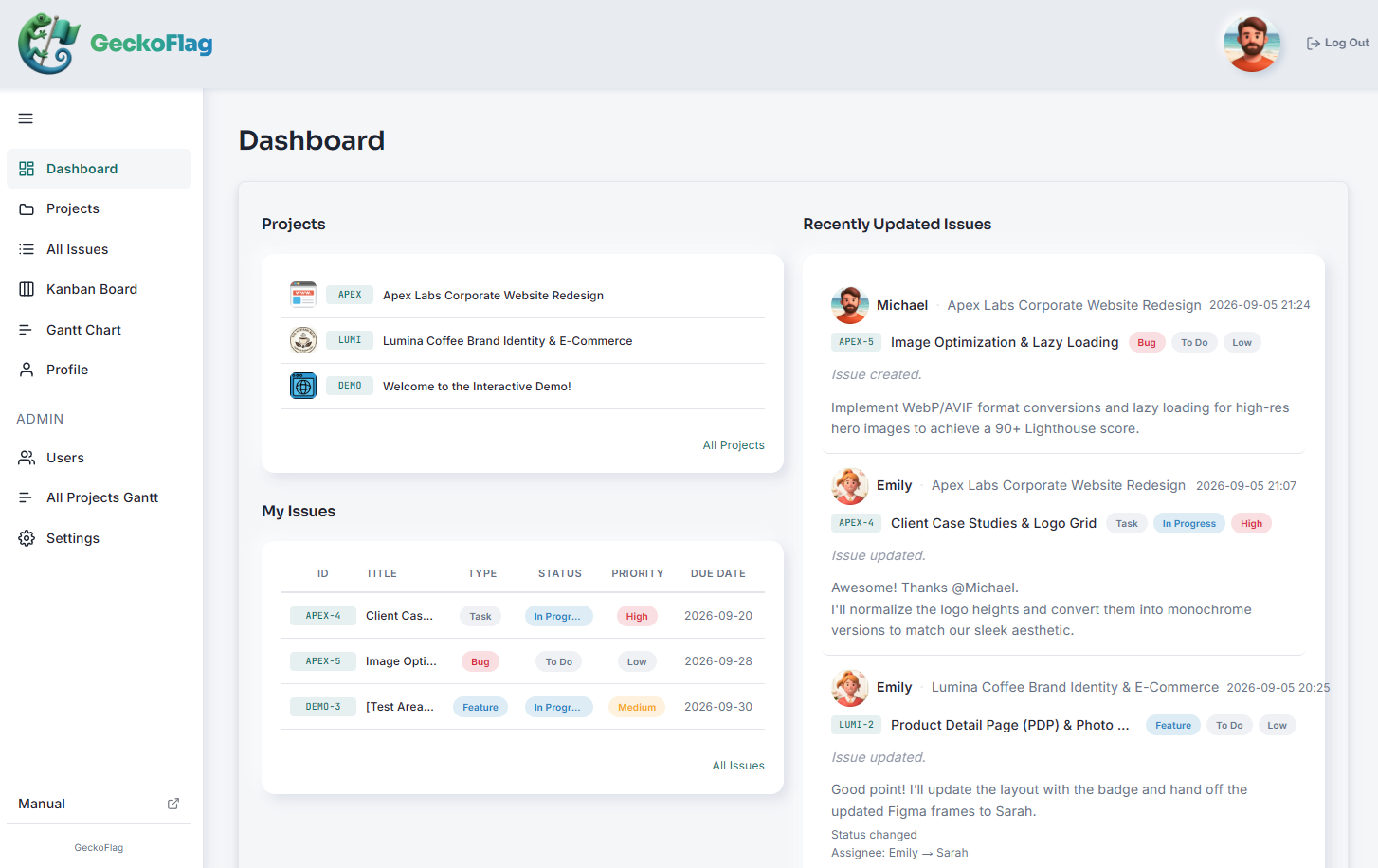
A project management tool takes care of exactly this part. Each to-do has its own place to write updates, and when something is added or written, the tool can notify the people involved. Status is picked from a set of choices, so entries stay consistent.
Teams that can stay with a sheet
Even with these five limits, some teams get along fine with a sheet. For example:
- The team is small: two or three people who can talk face to face every day.
- There are few rows: a few dozen tasks that fit on one screen.
- There is little back-and-forth: you do not need to keep the discussion or history of each item.
- The work is short: it wraps up in a few weeks, and nobody looks back at the records later.
If this sounds like your team, there is no need to force a move. The time to consider a tool is when several of the signs from the previous section start to show.
SeriesSmall teams are covered in detail in Part 4, “Does a Small Team Really Need One?”
How to bring your sheet along when you move
The sheet you use today will not go to waste. Most of its columns map directly onto fields in a tool.
| Column in the sheet | Field in the tool | Tip when moving |
|---|---|---|
| Task (subject) | Title of the issue or task | Each row becomes one item |
| Owner | Assignee | Pick from the members registered in the tool |
| Deadline | Due date | Turn entries like “sometime next week” into actual dates |
| Status | Status | Merge “Done,” “OK” and the like into a single choice |
| Notes | Description, comments | Long histories can be added as comments after the move |
Tidy up the sheet before you move it
Many tools can import a sheet saved as a CSV file. You can create a CSV with “Save As” in Excel.
The quickest way to a smooth import is to tidy up the sheet first.
- Decide whether to bring over finished rows. If in doubt, start with only the unfinished ones.
- Make the status and owner entries consistent. Use the same words as the choices in the tool.
- Turn every deadline into a date.
- Try a small number of rows first, then import the rest.
Which columns can be imported, and how dates must be written, differ from tool to tool. Check the manual of the tool you plan to use beforehand.
You do not have to move everything at once
You can start with work that has not begun yet. Finish the work in progress on the sheet, and start the next job in the tool. This causes less confusion.
Summary
An Excel sheet is a well-made tool that you can start using right away. Once it is shared, the “which one is the latest?” problem is mostly solved too.
Even so, when the following signs appear, it is time to think about moving to a tool.
- The notes column has grown too long to read
- Status and deadline entries are written in different ways, so you cannot trust a filter
- Every time you update the sheet, you re-explain it in chat
- The sheet is so long that it is hard to find the rows that need doing now
- You are copying the sheet and rebuilding it for people outside the company
If only one or two apply, tweaking the sheet may be enough. If three or more apply, it is a sign that the sheet can no longer keep up with the amount of work.
If you want to try one
If you are thinking “our sheet may be reaching its limit too,” here is one option: GeckoFlag, the tool used for the example screen in this article.
- See the screens before you buy: there is a public demo.
- Invite outside people as guests: guests see only the projects they have joined.
- Set it up by following the on-screen guide: you put the files on your server, then fill in the steps the browser walks you through. No command-line work is needed. The steps are in the Installation page of the manual.
- A one-time purchase of $30: there is no monthly fee, and adding people costs nothing extra. You do need to pay for your server separately. See the pricing page for details.
If your company website already runs on shared hosting, you may be able to install it there. You can check what is needed on the System Requirements page of the manual.
Note: if your company already has its own domain, most shared hosting lets you create a subdomain such as “geckoflag.yourcompany.com” and install it there. In that case, you do not need to buy a new domain.
Start with the demo and try adding one row from your current sheet as a to-do. You will see how it differs from a sheet.