What Is a Kanban Board? How to Set Up Columns and Start as a Team
Put sticky notes in “To do,” “Doing” and “Done” columns, and move each one to the right when it’s finished. A Kanban board is that simple, and it makes the flow of work visible.
With so few rules, it’s easy to start. But if you start without deciding how to split the columns or how to write the cards, the board often ends up, after a while, as one where “we can’t tell what’s actually stuck.”
This article covers the basics of a Kanban board, how to set up its columns, tips for starting as a team, and when to use paper, a spreadsheet or a tool.
Key takeaways
- A Kanban board turns each piece of work into a card and places it in a column for its stage. The basic columns are “To do,” “In progress” and “Done.”
- Start with few columns, and add one only where work tends to get stuck, such as “Waiting for review.”
- Setting a limit on how many cards can sit in “In progress” makes it easier to notice overload and stalled work.
Note: this article is written by the developer of GeckoFlag.
What is a Kanban board?
A Kanban board is a board where each piece of work is a card, placed in a column that shows what stage it’s at. As cards move from left to right, you can see at a glance who is doing what and where things are stuck.
It grew out of the “kanban” idea used in the Toyota Production System. It later spread, mainly in software development, and today it’s used in every kind of work.
The basic form: three columns and cards
The most basic form has these three columns.
- To do: work you haven’t started yet
- In progress: work you’re working on right now
- Done: finished work
Each card holds just one piece of work. So that anyone can tell what to do from the card, write “Make two draft flyers for the autumn festival,” not just “Flyer” (how to write them is covered in “How to Write Tasks People Understand”). Adding a name or an avatar makes it clear who is in charge.
How to set up columns
Set up columns to match the stages your work actually goes through. But with too many, people start wondering which column to use, and cards stop moving. We recommend starting with three and adding a column only where you see work tend to get stuck.
The first two candidates to add are these.
- Waiting for review: the work is done, but you’re waiting for the requester or a client to check it. Keeping it apart from “In progress” shows whose hands it’s in.
- On hold: you can’t move it forward yourselves, for example while waiting for a reply. Write down why, and when you’ll look at it again.
Here are example columns for different kinds of work.
| Work | Example columns |
|---|---|
| Website or design production | To do → In production → Waiting for review → Revising → Done |
| Marketing and PR | Ideas → In preparation → Waiting for review → Published |
| Internal requests | Received → In progress → Done |
| Event preparation | To do → Arranging → Confirmed → Done |
| Software development | To do → In development → Waiting for code review → Testing → Done |
Name the columns with the words you already use for that work, and people will use them without hesitation. How to decide the number of columns and when to change them is covered in detail in “How Should You Report Progress?”
Set a limit on “In progress”
A common idea in Kanban is to set a limit on how many cards can sit in “In progress.” This is called a WIP (Work In Progress) limit.
For example, if you agree on “two cards per person,” people start thinking about finishing their current work before picking up something new. When you’re about to go over the limit, it’s a sign that someone is taking on too much or that work is stuck somewhere. It doesn’t need to be strict at first. Try starting with something like “when ‘In progress’ starts piling up, we talk about it.”
Tips for starting as a team
1Decide who moves the cards
As a rule, the person in charge of the work moves its card. When you move a card to “Waiting for review,” let the reviewer know, or change the assignee.
2Keep cards about the same size
If one card holds work that takes weeks, it stays in “In progress” forever. Split work into pieces that take a few days, and you’ll see it move (how to split it is covered in “How Small Should Tasks Be?”).
3Look at the board together once a week
In your regular meeting, show the board on screen and fix cards that don’t match reality. If a card has stayed in the same column for a long time, ask what’s getting in the way.
4Agree on what “Done” means
Decide how far the work must go before a card can move to “Done,” for example once the requester has checked it (how to close out work is covered in “How to Close Out Tasks”).
Paper, spreadsheet or tool?
| Method | Good for | Watch out for |
|---|---|---|
| Whiteboard and sticky notes | Everyone works in the same place. You want to try it first | Can’t be seen from elsewhere. No history is kept |
| Spreadsheet | A small team with only a few cards | Moving cards is a hassle, so it rarely gets updated |
| A tool with a Kanban board | Teams that include remote or outside people. Several projects at once | Takes effort to choose a tool, and it costs money |
With a tool, everyone can see the same board from anywhere, and each card keeps its conversations and history. Where tracking work in a sheet hits its limit is covered in “Where Does an Excel Tracking Sheet Hit Its Limit?”
GeckoFlag’s Kanban board
GeckoFlag, which we develop, also has a Kanban board.
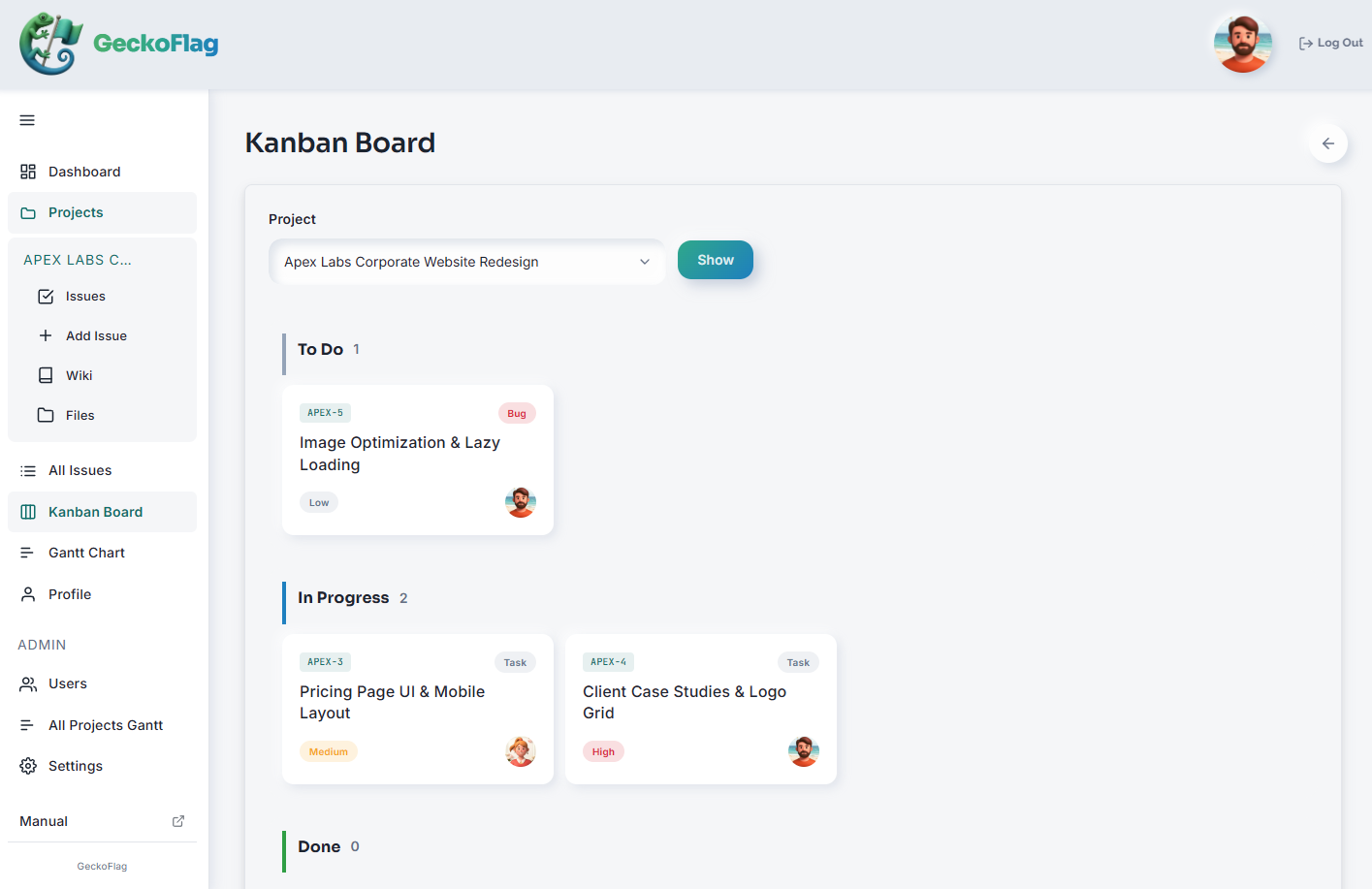
- In each project, issues (tasks) are arranged by status, with the number of issues shown for each.
- Cards show the issue type, priority and assignee.
- On a PC, you can drag a card to change its status. The change is recorded automatically as a comment on the issue.
- You can freely set the names and colors of the statuses that act as columns (up to 10).
- You can also see the same issues in a Gantt chart. There’s also a wiki and file sharing, so you can keep a project’s information in one place.
GeckoFlag is self-hosted: you install it on your own server, and it runs on ordinary shared hosting too. It’s a one-time purchase of $30. See the Kanban board manual for how to use it, and try the actual screens in the demo.
Summary
A Kanban board turns work into cards and places them in columns by stage. Start with “To do,” “In progress” and “Done,” and add columns only where work tends to get stuck. Set a limit on “In progress” and review the board together once a week, and you’ll notice stalled work sooner. Start with whatever is easiest to keep up, whether that’s a whiteboard, a spreadsheet or a tool.