Do Freelancers and Solo Business Owners Need a Project Management Tool? How to Keep Invoicing and Sales from Slipping, Too
You made it through a busy stretch with projects for three clients piling up at once. Every delivery went out on time, and you finally breathe out. Then, in the middle of the next month, it hits you.
You never sent last month’s invoice to one of the clients.
You didn’t miss a single project deadline. What slipped was the admin work that nobody chases you about.
When you work alone, it’s easy to think, “I can keep track of my work in my head.” With one or two clients, that actually works. But once you have three or four, your head can no longer keep up.
And what slips most easily isn’t the client work itself. It’s the admin: invoices, checking payments, replying about quotes, renewing contracts. This article looks at who needs a project management tool and who doesn’t, and how to manage client work and admin in one place.
Key takeaways
- If you have few clients and little admin, you can do without a tool. A calendar or a to-do app is enough.
- What solo workers tend to miss is admin that nobody chases them about. Put it in the same list as client work, and you’ll see it.
- Set up accounting, sales and contract renewals as projects of their own, and turn each month’s routine admin into tasks all at once at the start of the month.
Note: this article is written by the developer of GeckoFlag.
The short answer: who needs a tool, and who doesn’t
Let’s start with the conclusion. Not everyone who works alone needs a project management tool. Use the table below to see which side you’re closer to.
| You can do without one if | One will help if |
|---|---|
| You have one or two clients, and email is enough to keep in touch | You have projects for several clients running at the same time |
| You have no collaborators or subcontractors | You sometimes hand work to collaborators or subcontractors |
| You only send or check a few invoices and payments a month | You check many invoices, incoming payments and bills each month |
| Admin has never caused you trouble | You’ve forgotten something during a busy period and paid for it |
If the left column describes you, a calendar or a to-do app is enough. There’s no need to force a tool into your work.
If even one item in the right column applies, the rest of this article is worth reading. The last one, “forgotten something and paid for it,” in particular, is a problem that a simple system can usually prevent.
Your work is more than client projects
When you work alone, you handle everything that a company would split among several people.
- Client work: creating, revising, delivering
- Sales: contacting prospects, proposals, quotes, following up on replies
- Accounting: issuing invoices, checking payments, recording expenses, preparing for the yearly tax filing
- Contracts and renewals: signing contracts, renewing maintenance contracts, renewing domains, servers and software
- Your own business: updating your website, posting, learning
Are these scattered across your head, sticky notes, your calendar and your inbox?
Client work comes with a client who cares about the deadline. If you’re running late, they’ll get in touch. Admin, on the other hand, has nobody chasing you. Forget to send an invoice, and nobody may notice for a while. That’s why it slips.
When you work alone, what matters more than managing your client work is a system that keeps the admin nobody chases you about from slipping.
Set up your admin as projects, not just your client work
The idea is simple. In addition to a project for each client, create projects for your admin.
| Project | Example tasks |
|---|---|
| Client work (one per client) | Present design options, apply revisions, publish |
| Accounting | Send this month’s invoice to Client A, check last month’s payments, sort expense receipts, gather documents for the yearly tax filing |
| Sales | Send a proposal to Prospect B, follow up with C about the quote, choose which prospects to contact next month |
| Contracts and renewals | Discuss renewing the maintenance contract with Client D, renew the domain, renew the license for software you use |
| Your own business | Update the portfolio page on your website, review your portfolio |
Once admin becomes tasks, it sits in the same list as your project deadlines. When you look at “this week,” you see invoicing and sales right next to your client work.
Set the due date earlier than the real deadline. For an invoice, for example, two days before the billing cutoff. The trick is to pick a date that still leaves room even if it lands in a busy week.
The “Contracts and renewals” project is especially useful. Renewals for domains, servers and maintenance contracts come around only once a year, and you rarely remember what you did a year ago. Create the task as soon as you know the renewal date and set its due date a month before. That keeps you from rushing the paperwork or letting something lapse by accident.
Note: this article is about keeping admin from slipping. It doesn’t cover how to handle accounting or taxes. For accounting and tax decisions, consult a professional.
Keeping monthly routine admin from slipping
Invoicing, checking payments, sorting expenses: the same admin comes back every month. To keep it from slipping, we recommend the following steps.
1Keep a list of your routine admin
Write down your monthly admin once. A list like “Send an invoice to Client A,” “Send an invoice to Client B,” “Check payments,” “Sort expense receipts.” Add to it whenever you take on a new client.
2At the start of the month, turn that month’s items into tasks all at once
At the start of each month, go through the list and create that month’s admin tasks in one go. If you just copy from the list instead of trying to remember everything from scratch each time, it’s much harder to miss something.
3Set due dates by working back from the cutoff
When you create each task, give it a due date worked back from the cutoff. With due dates in place, sorting the list by deadline lines up your client work and your admin on the same scale.
4Color-code by type
Split your tasks into types (issue types) such as “Accounting,” “Sales” and “Contracts,” and give each one a color. Then you can tell client work from admin at a glance when you look at the list.
Make sales tasks too
When you work alone, sales stops whenever you get busy. Then, once the work dries up, you scramble to restart it. Keep sales in your list as tasks, too.
- One task per prospect: for example, “Send a proposal to Company B” or “Follow up with Company C about the quote.”
- Show the sales stage as a status: for example, “Not contacted,” “Proposal sent,” “Waiting for reply,” “Won” and “Not now.”
- Look at it on a board: a board that lines up tasks by status shows how many prospects are at which stage. Follow up first on the ones that have been waiting longest for a reply.
- Give your sales goals a deadline: for example, “Next month’s expected revenue is short, so contact three prospects this week.” Make the goal a task with a due date.
Keep in mind, though, that a project management tool isn’t a full CRM. It won’t gather each customer’s deal history or add up expected revenue. Think of it as good enough for following a handful of prospects.
Tips for sticking with it when you work alone
If you stop using a tool you use alone, nobody will say a thing. Set a few small habits to keep it going.
- Check the list first thing every morning: before you open your email, check “today” for both client work and admin, then start working.
- Hold a weekly meeting with yourself: review what’s due soon, what’s waiting for a reply and next week’s sales. Fifteen minutes is enough.
- Don’t break things down too far: when you work alone, it’s enough to make tasks only for things you might forget. Writing down every quick job turns the writing itself into a chore.
- When collaborators join, invite them in: if you’ve kept records while working alone, explaining the work when you hand it off becomes much easier.
How it differs from a to-do app or a spreadsheet
A project management tool isn’t the only way to manage client work and admin together.
| Method | Good at | Not so good at |
|---|---|---|
| To-do app | Quick and easy; good for listing what to do each day | Keeping the history of each project or your exchanges with clients |
| Spreadsheet | You can build it any way you like and choose your own columns | Updates tend to stop. It tends to fall apart once you share it |
| Project management tool | See client work and admin in one place, by deadline. The history stays with each task. You can invite collaborators or clients later | Takes some effort up front to decide on projects and task types |
Which one fits depends on how much work you have and how often you team up with others. If you work alone and don’t have much on your plate, a to-do app may be all you need.
RelatedThe limits of managing work in a spreadsheet are covered in detail in Part 2 of our beginner series, “Where Does an Excel Tracking Sheet Hit Its Limit?”
RelatedWhy requests made by email or chat get lost is covered in Part 3, “Why Do Requests in Email and Chat Get Lost?”
Putting it into practice in GeckoFlag
Finally, here is how to apply this approach in GeckoFlag.
- Make your admin into projects: set up “Accounting,” “Sales” and “Contracts and renewals” as separate projects. You can add issue types in the admin settings and give each a name and a color (up to 10).
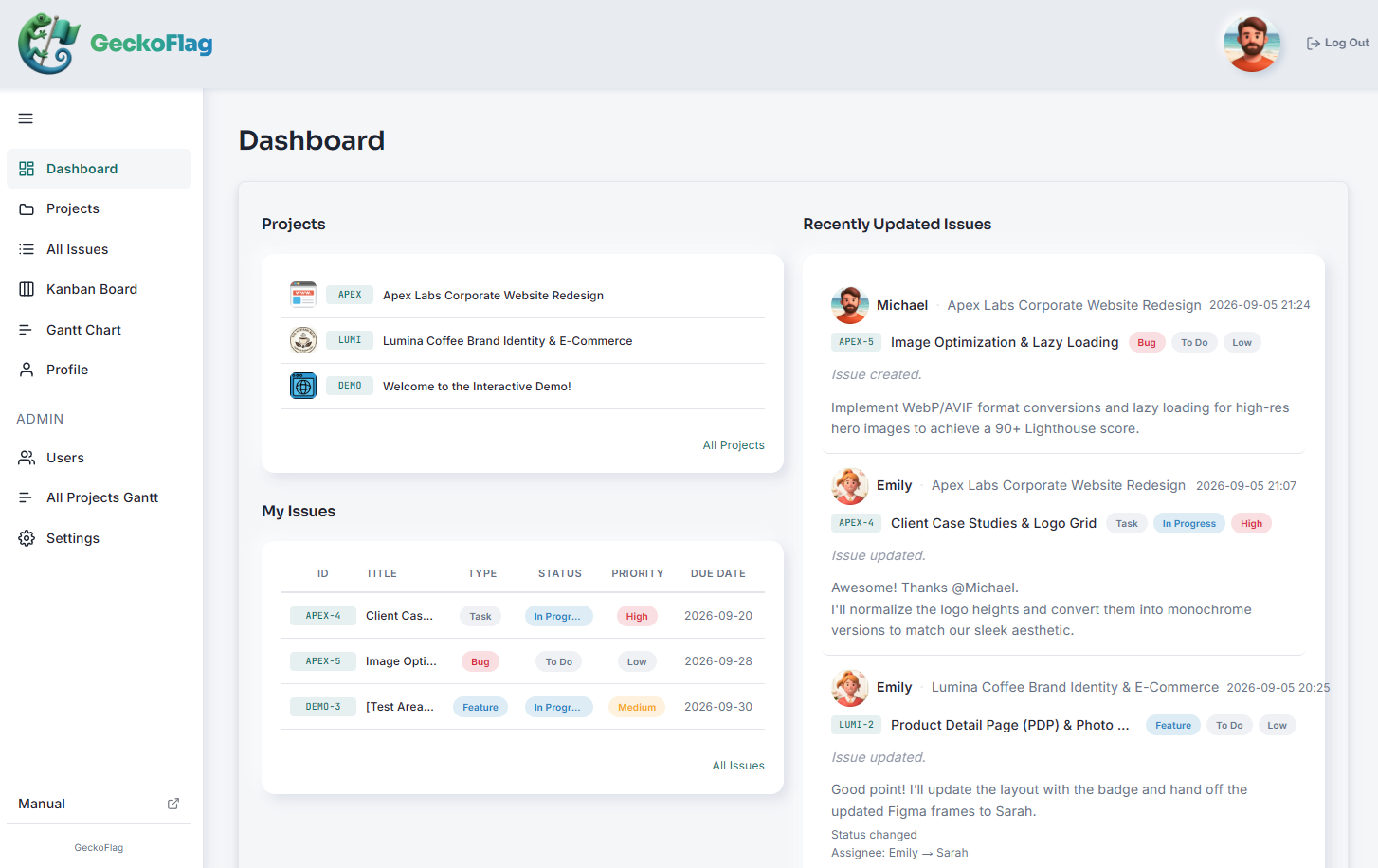
- See all your own tasks together: the dashboard lists your own issues and recently updated issues. Check “today” for both client work and admin here.
- Move sales on the board: the Kanban board lines up cards by status. On a PC, you can drag a card to change the sales stage. Note that statuses are set up together in the admin settings, up to 10. Since you’ll use them for both project work and sales stages, try not to add too many.
- Import monthly routine admin with CSV: there’s no feature that creates recurring issues automatically. Instead, you can keep your routine admin issues as a CSV template, change the dates and import it. Importing only creates new issues, and issue numbers are assigned again. Opening and re-saving the file in Excel drops the dates, so edit the template in a text editor (Import & Export).
- Same price however many people join: it’s a one-time purchase of $30, with no extra charge per user. Start on your own, then add collaborators as members, and subcontractors or clients as guests who join only specific projects.
- Your data stays on your own server: it suits people who would rather not hand their invoicing and customer information to an outside cloud service. In exchange, managing the server is your own responsibility.
GeckoFlag is neither accounting software nor a CRM. It can’t create invoices, check payments automatically or total up revenue. Use it as a tool for making sure you don’t miss what needs doing and by when.
Many people already rent hosting for their own website. If it meets the system requirements, such as PHP 8.2 or later and MySQL/MariaDB, you can install GeckoFlag on that server. Keep in mind that the server costs money on top of the software price. See the pricing page for the price, and try the actual screens in the demo.
Summary
- What solo workers really need is not project tracking but a system that keeps the admin nobody chases them about from slipping
- If you have few clients and little admin, you don’t need a tool
- If you juggle several projects, set up accounting, sales and contract renewals as projects and put them in the same list as your client work
- Turn each month’s routine admin into tasks at the start of the month from your list, with due dates worked back from the cutoff
Just keeping client work and admin in the same place goes a long way toward ending “I forgot something the month after a busy one.” Start by making next month’s invoices and payment checks into tasks.